Help Centre
How can we help?
Search Docs
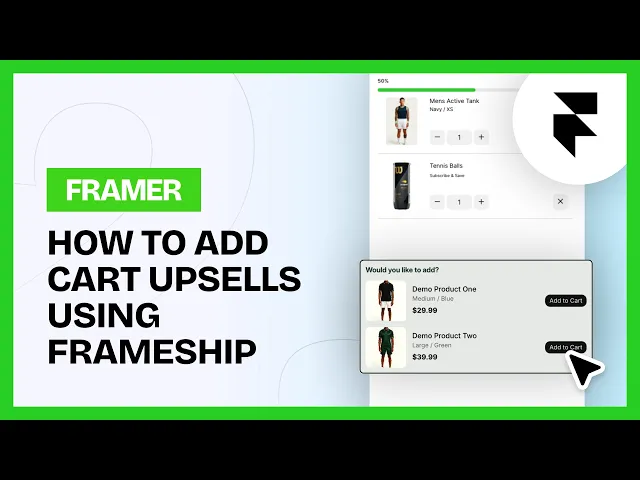
The Cart Upsell component suggests relevant add-on products based on the last item added to the cart, helping customers discover extras without getting in the way. It automatically filters out products already in the cart and updates smoothly as items change.
Recommendations are pulled directly from Shopify, using either auto-generated suggestions or products you’ve manually set up in Search & Discovery. You can choose which source to prioritise and how many products to show, while the component handles the rest, keeping upsells clean, relevant, and easy to manage.
How to add a Cart Upsell Component in your Frameship project:
In your Shopify store settings, go to Apps and add 'Search & Discovery' app (free).
Go to your individual product page, and scroll down to Product Metafields. Click on Complementary Products or 'View All' if not visible.
Set up all your Products with their intended Complementary Products
Note that the component will only show the first 2 complementary products.
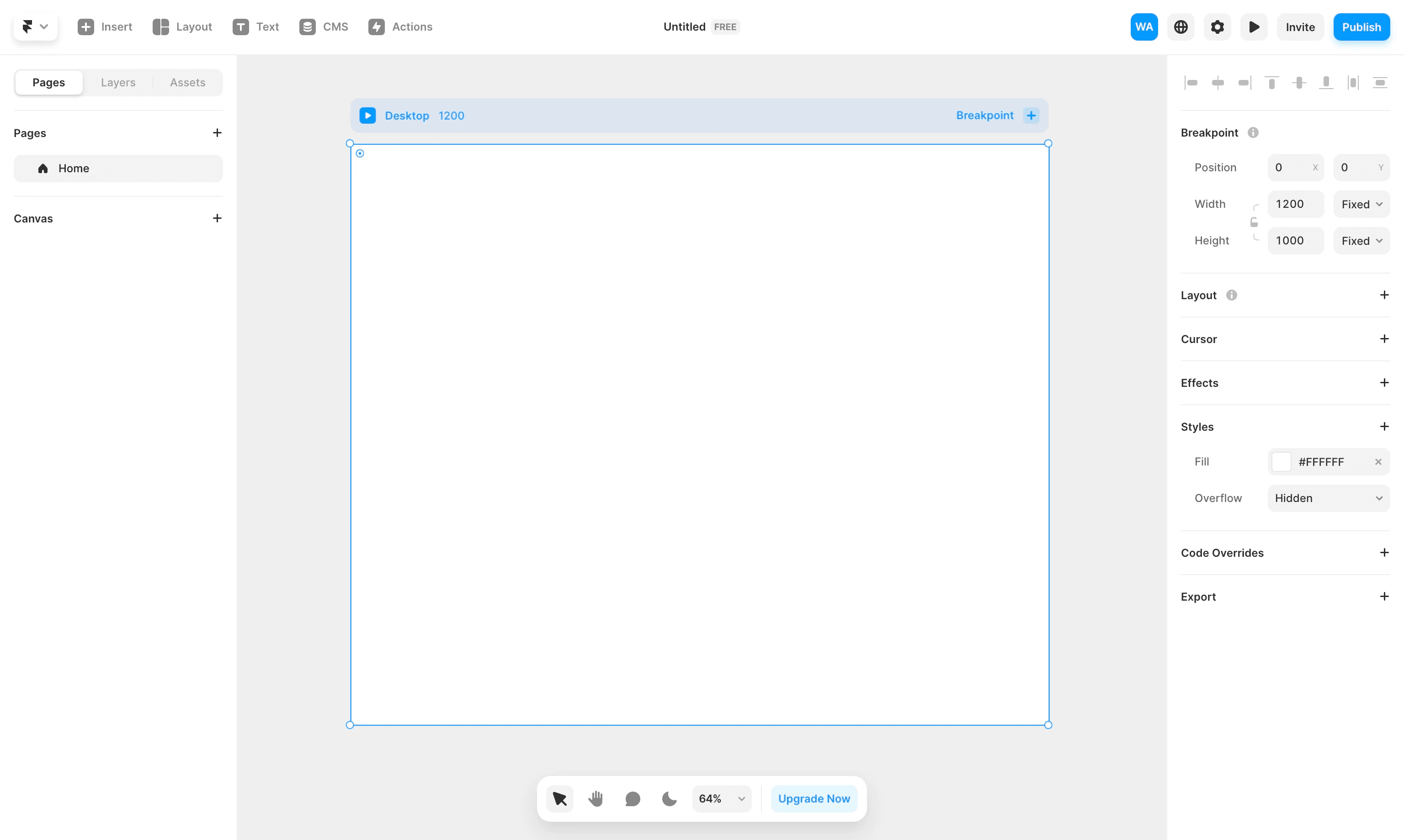
In your Framer project, insert the 'Cart Upsell' component within your Cart component.
Fill in the Collection Route in the component settings, this is your CMS name with '/' infront.
Update the color, styling and text in the Properties panel.
That's it! You have upsells in your cart.
If you are experiencing issues, try the following:
Make sure the Frameship CMS is synced once the changes have been made on the Shopify side.
Make sure the product page you are testing on is set up with Complementary products.
Make sure all components are up to date.