setup
COMPONENTS
INTEGRATIONS
FAQ
how-to-create-a-custom-video-player-with-videoframe-in-framer
Step 1: Setting Up Your Video Player
Add the VideoFrame Component:
Copy the video holder component and paste it into your project.
Wrap it in a stack, set the width and height to fixed, and lock the aspect ratio.
Name the layer “Video Player” to keep your layers organized.
Configure VideoFrame:
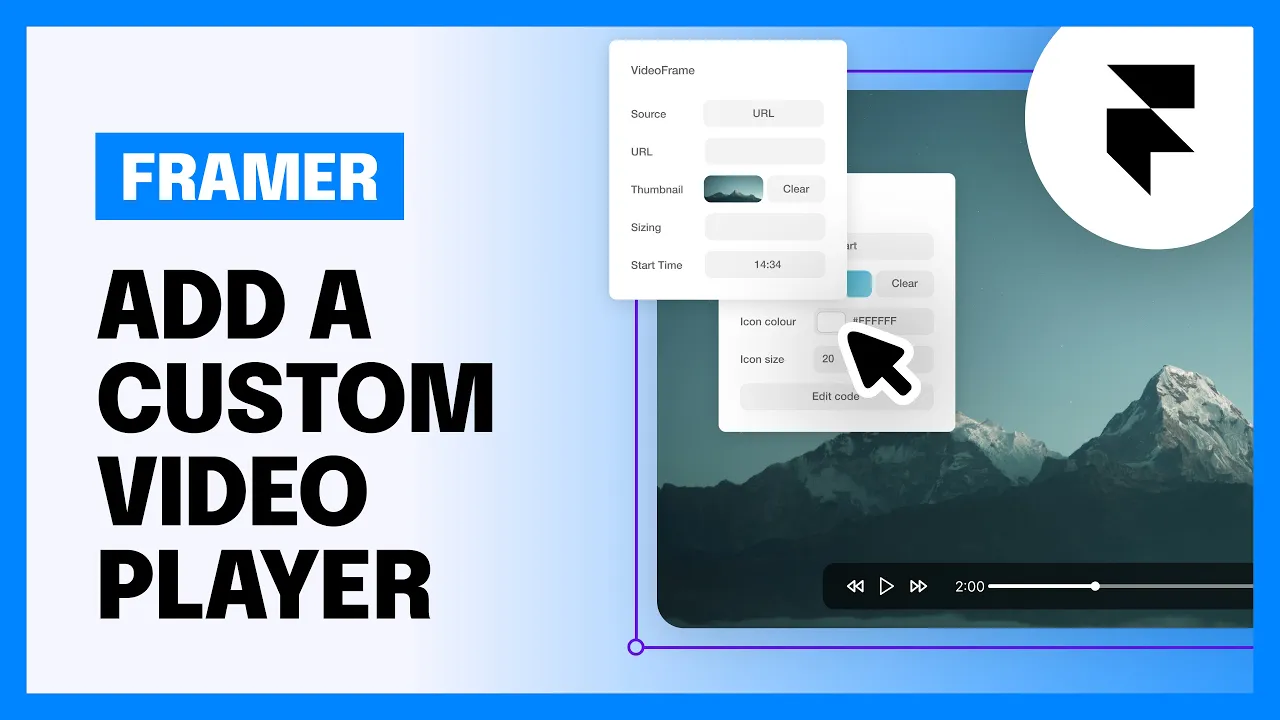
In the properties panel, choose to upload your video via URL, file, YouTube, or Vimeo. Each option offers different settings to explore.
Step 2: Setting Up Controls
Create the Control Bar:
Draw a frame and pin it from both sides and the bottom.
Design your control bar with your preferred fill color, border radius, and layout padding.
Add Control Components:
Copy and paste control components like the play button, progress bar, video time label, full screen, skip backward, and skip forward into the frame.
Organize these controls to create a user-friendly interface.
Ensure Proper Layer Order:
Make sure the VideoFrame component is above all other elements in the stack to ensure functionality. If any other components are before the VideoFrame component in the layers menu, they won't connect to each other correctly.
Step 3: Customize Your Player
Adjust Skip Duration:
Change the skip forward and backward button settings to suit your needs (e.g., 15 seconds instead of 10).
Enhance Visibility:
Adjust label colors for better visibility and contrast.
Style the Progress Bar:
Customize the progress bar by removing/adding shadows, adding a border, adjusting the handle size, and choosing a vibrant color for the progress line.
Add custom icons:
The video buttons have minimal, clean icons from Tabler Icons out-of-the-box, but you can upload your own SVG or PNG icons to make it your own.
Troubleshooting
Controls Not Working?
Ensure the VideoFrame component is above everything else in the stack. If issues persist, please contact our support.
RELATED DOCUMENTATION


