Help Centre
How can we help?
Search Docs
Important Notice: This content is based on an earlier version of the product. Please do not consider this information as definitive. We’ve kept it available because some customers are still using the previous version. Thank you for your understanding!
Create Your Form:
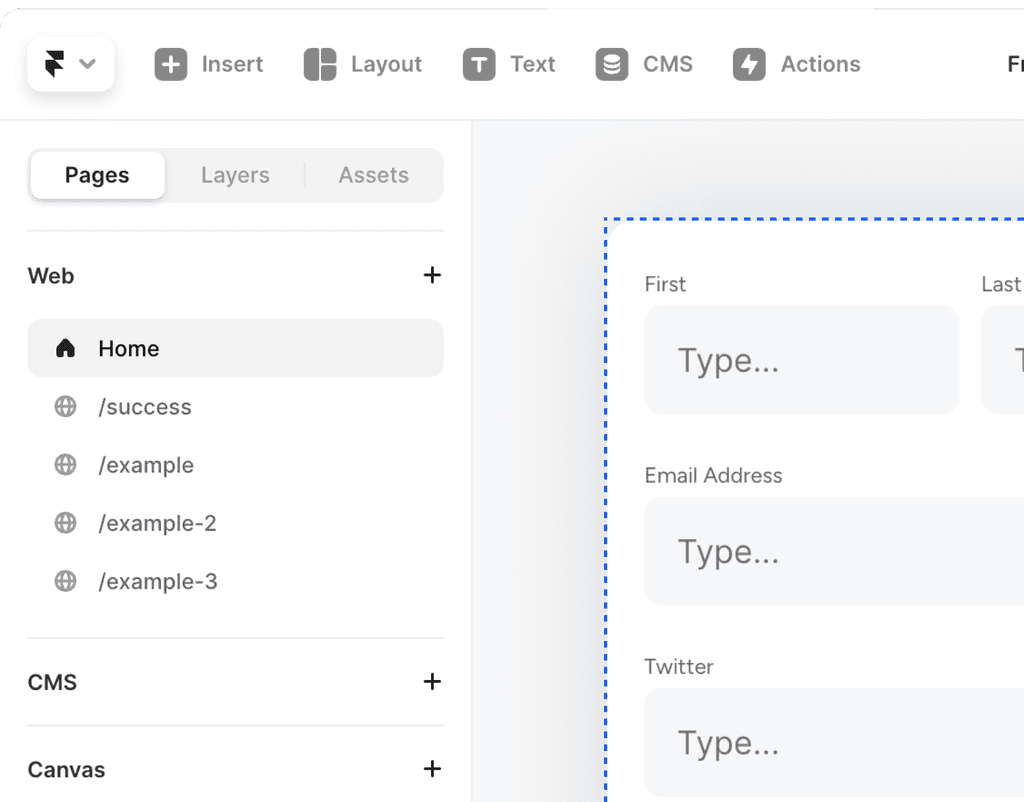
Design your form using FramerForms.
Within your designed form, add the submit button.
Design a Success Page:
Create a new page or design a success message page that you want users to see after form submission. You can also use any website link you would like.
Navigate to Redirect on Submit:
In the left panel, within the submit button area, find the "Redirect on Submit" option.
Choose Redirect Destination:
In the redirect area, choose the intended success message page or paste link in.
Complete the Setup:
Confirm your redirect destination.
Test Your Form:
Test the form by filling it out and submitting.
Ensure the redirect takes you to the intended success message page or link.
By following these steps, you'll successfully set up a redirect link for your form, providing a smooth experience for your users. 🌟🔗