setup
COMPONENTS
INTEGRATIONS
FAQ
How-to-Add Captions-to-Your-Framer-Video-Player
Adding the Video Captions Component
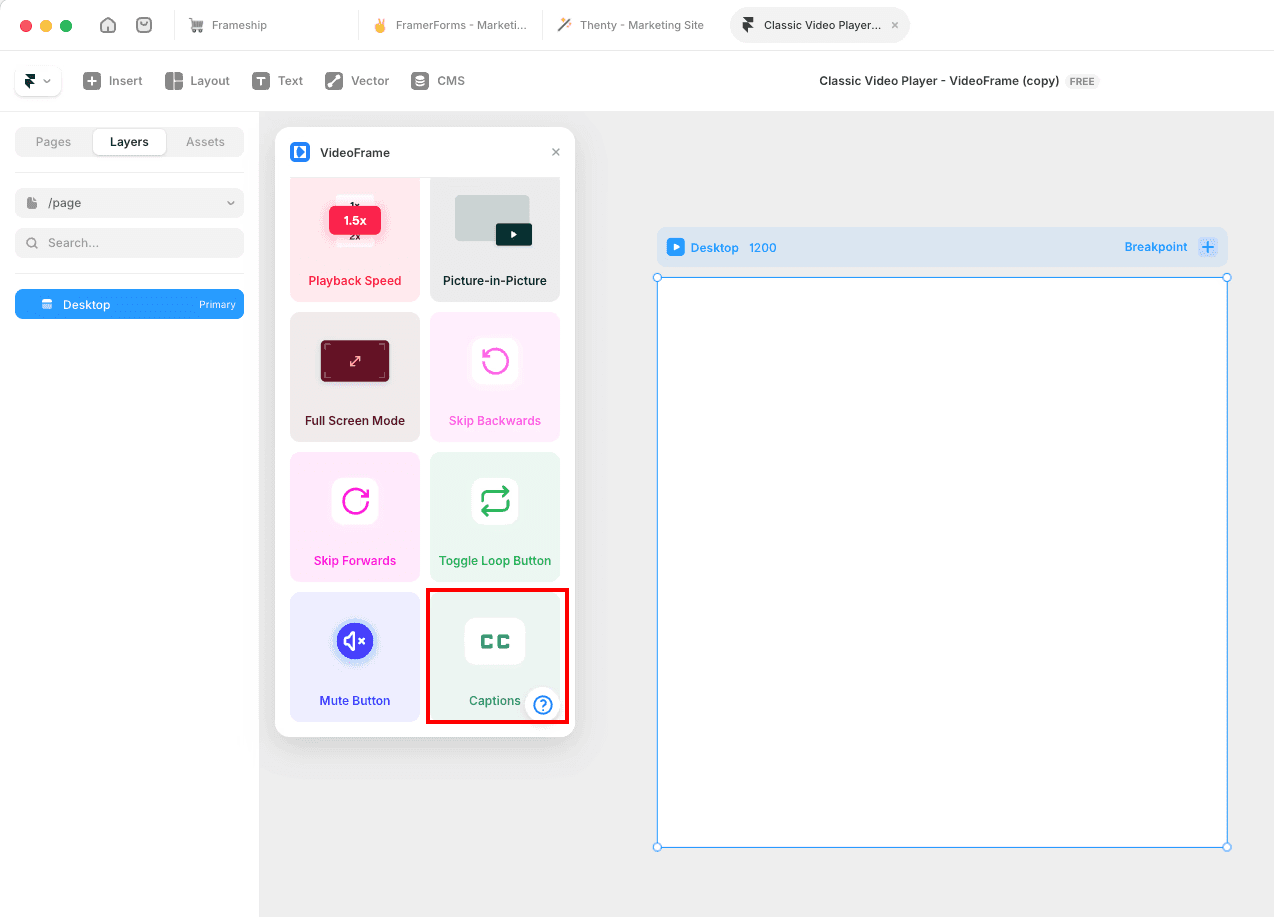
From the Videoframe plugin, drag the Video Captions component into your player.
Place it inside your control bar alongside your other controls.
Like all Videoframe components, it connects automatically to the Videoframe component above it in the layer stack.
Configuring Captions
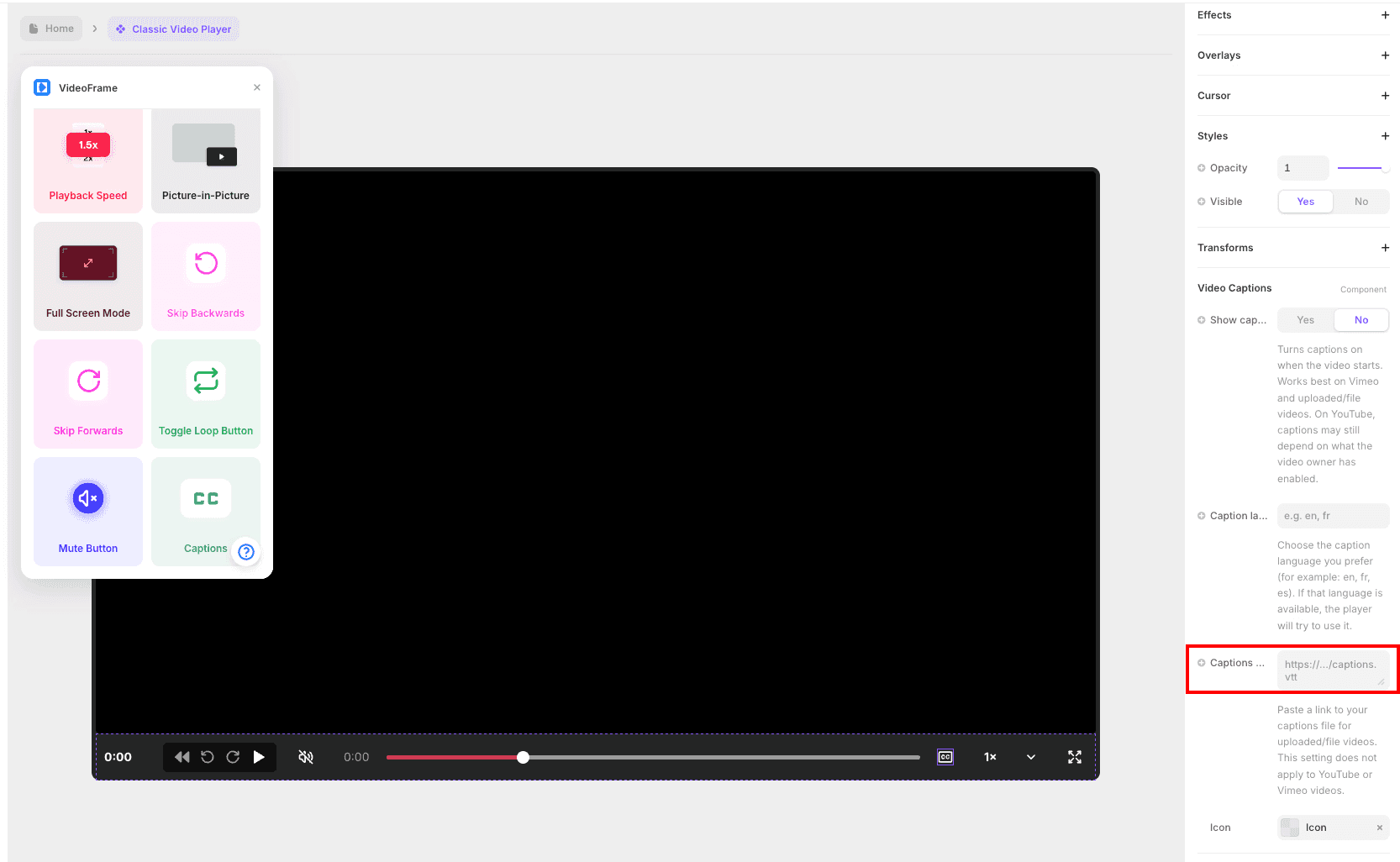
The Video Captions component is a track selector. Users pick a caption track from a dropdown, or select No Captions to turn them off. The language choice and on/off state are combined into a single selector.
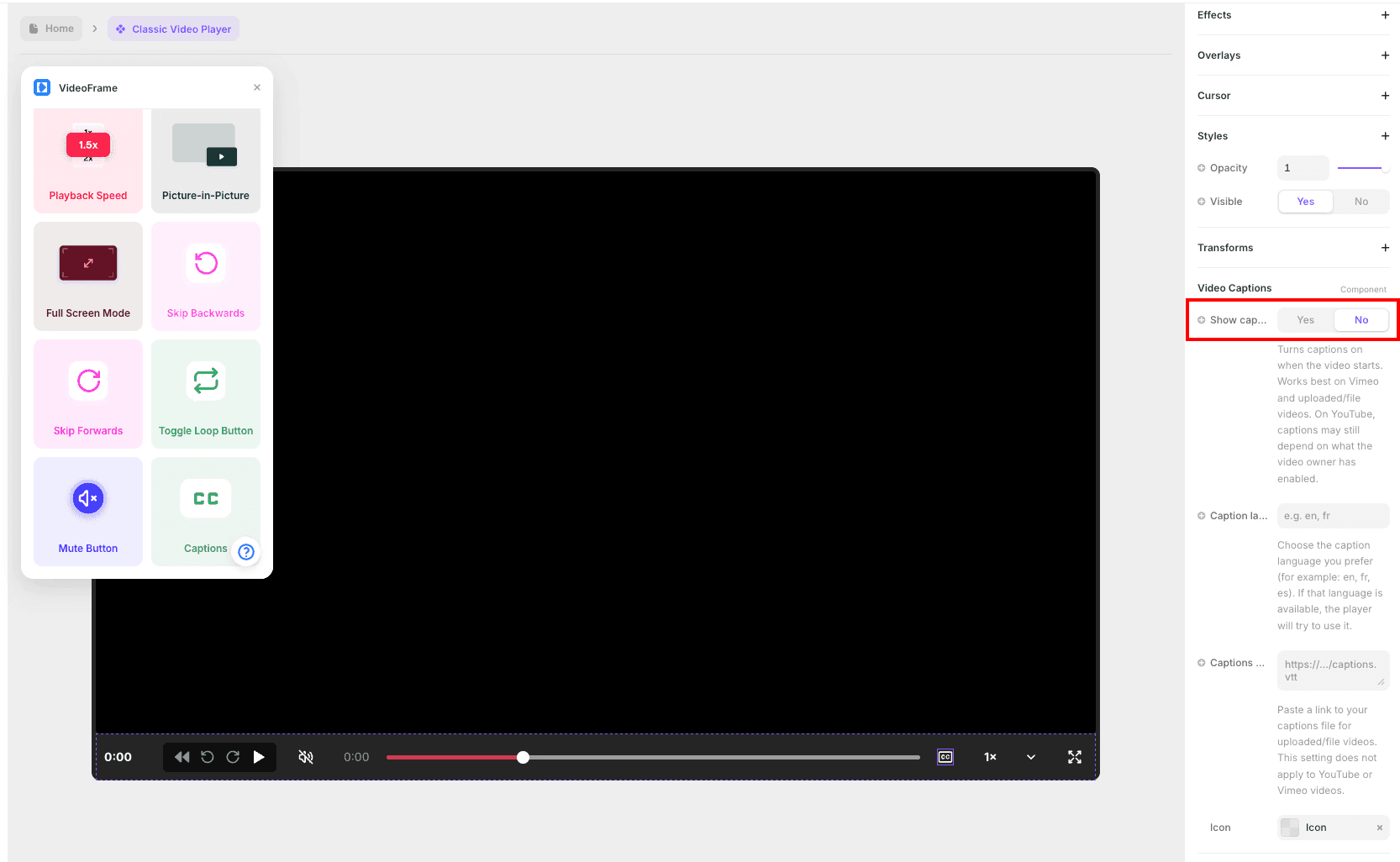
Show captions by default:
Sets whether captions are on when the video starts. This is not a live toggle - it just controls the default state on load.
Works best on Vimeo and uploaded/file videos. On YouTube, caption availability depends on what the video owner has enabled.
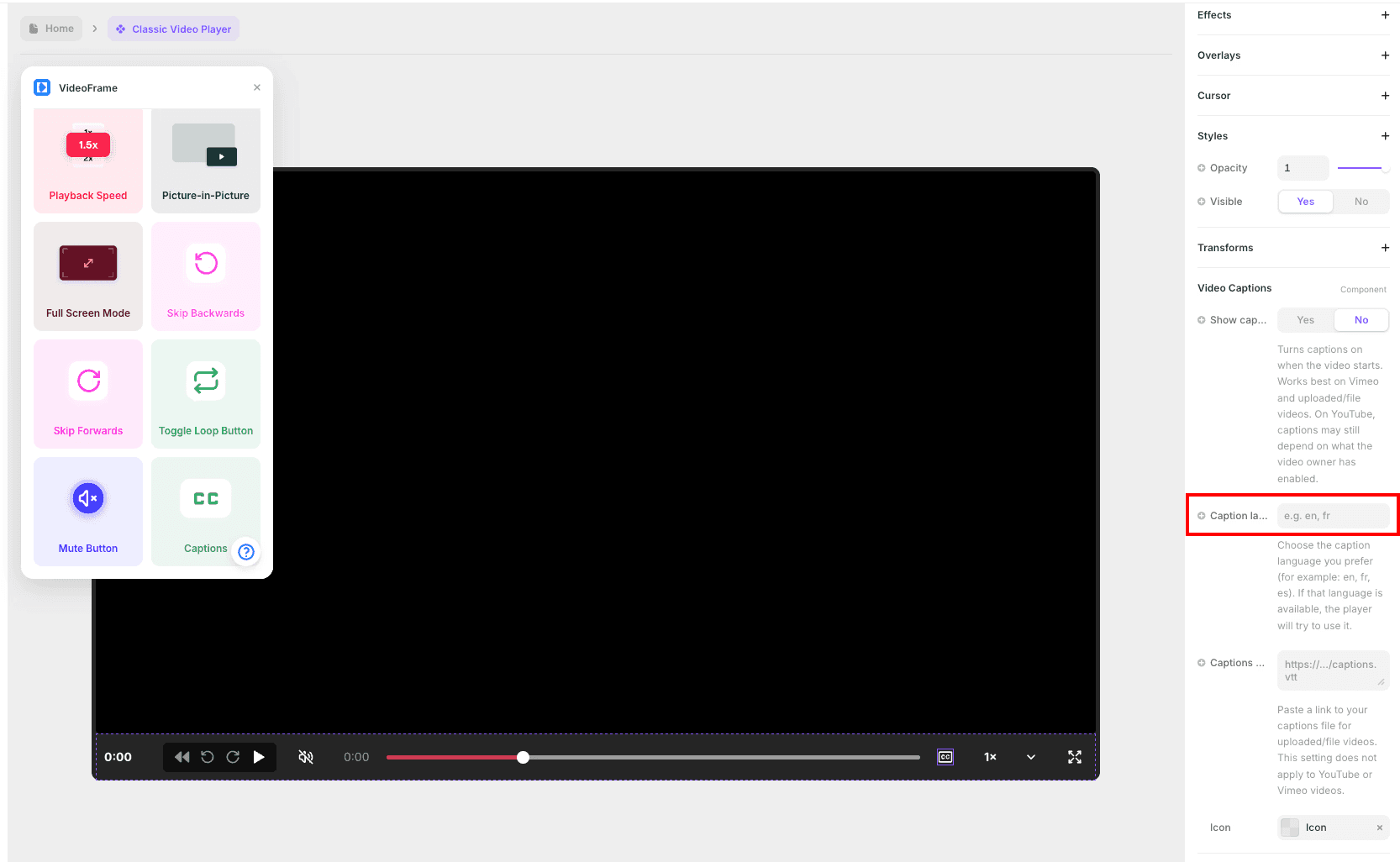
Caption Language:
Enter your preferred language code (for example:
en,fr,es).If captions are available in that language, the player will try to use them.
Captions URL:
Paste a link to your
.vttcaptions file.This setting only applies to uploaded/file videos. It does not apply to YouTube or Vimeo.
Styling the Captions Button
Icon Size: Adjust the size of the CC icon.
No Captions Image: Upload a custom icon for when captions are off.
Active Captions Image: Upload a custom icon for when captions are on.
Color: Set the icon color.
Background, Radius, Padding, Border, Shadows, BG Blur: Standard styling options to match your player design.
How Captions Work by Video Type
Uploaded / HTML5 videos:
Paste your
.vttfile URL in the Captions URL field.Make sure the file is hosted at a publicly accessible URL.
Vimeo:
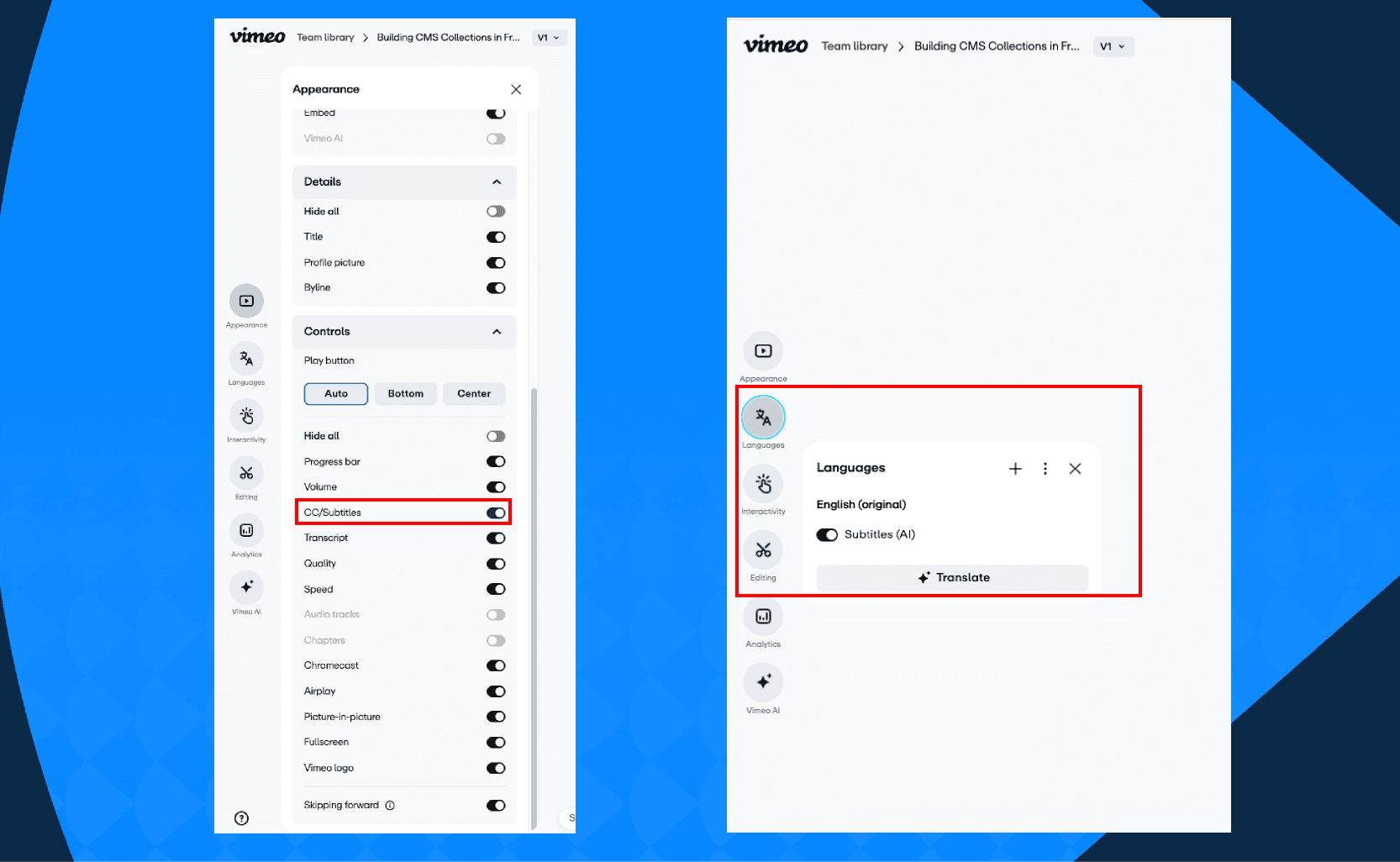
Captions are pulled from the text tracks already uploaded to your Vimeo video.
Set your preferred language using the Caption Language field.
Requires captions to be uploaded to the video on Vimeo's side — this is a Vimeo Pro or Business account feature.
YouTube:
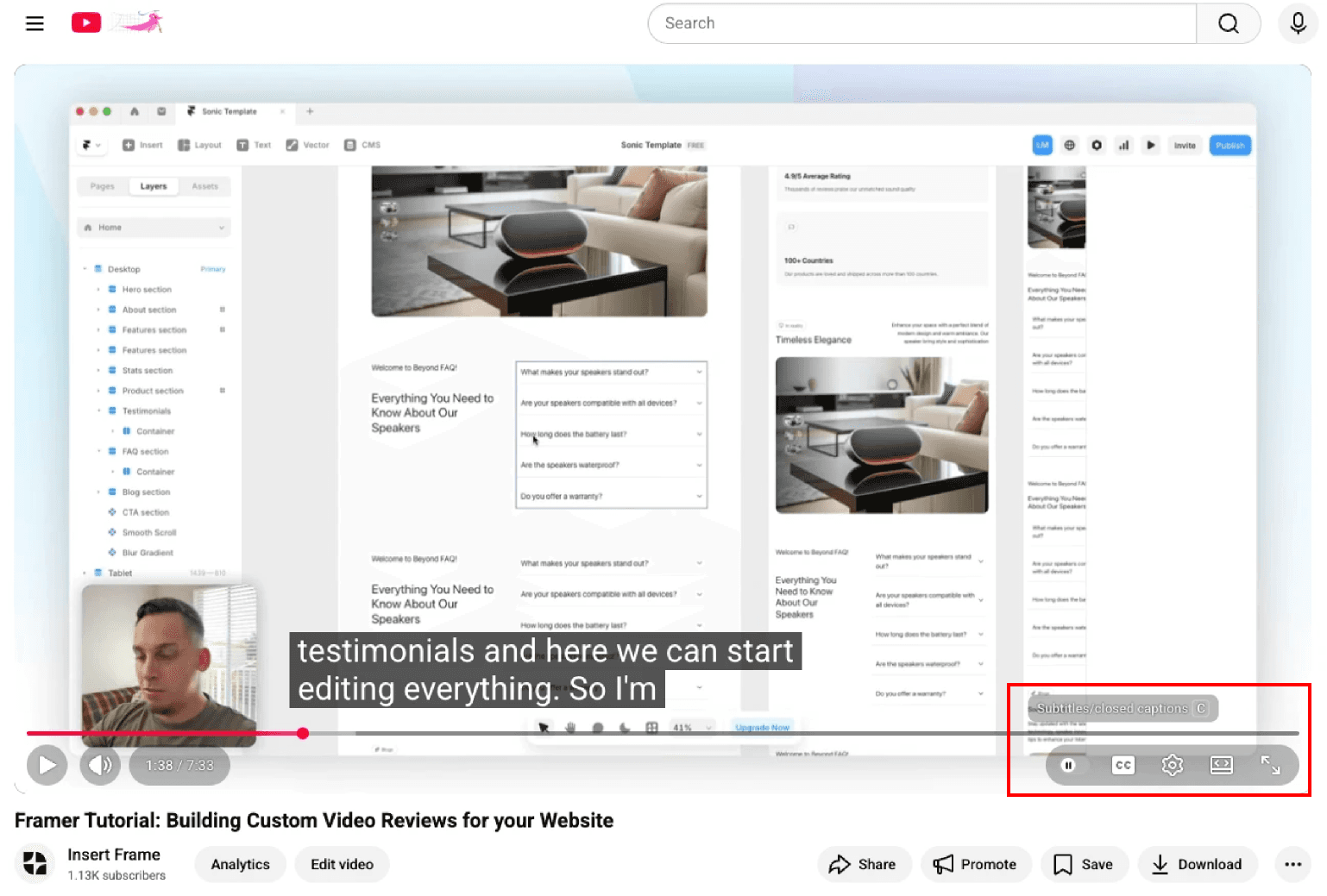
Videoframe passes your Caption Language preference through to the YouTube embed. Where captions are available, they will display.
YouTube often limits which caption tracks are accessible through its embed API. If the video owner hasn't manually added captions, or auto-generated captions aren't available for that video, they won't appear.
For most reliable results, use a YouTube video you know has manually added captions in your target language.
Troubleshooting
Captions not showing on YouTube?
YouTube controls which captions are accessible via its embed API. Auto-generated captions are not always reliable. Test with a video that has manually added captions enabled — if they appear there, the component is working correctly.
Captions not showing on Vimeo?
Check that captions have been uploaded directly to the Vimeo video. This requires a Vimeo Pro or Business account.
Captions URL not working?
The Captions URL field only applies to uploaded/file videos. Check that your .vtt file is hosted at a publicly accessible URL and that the file path is correct.
RELATED DOCUMENTATION


