setup
COMPONENTS
INTEGRATIONS
FAQ
How to integrate Advanced Filtering in Frameship
Frameship's filtering system lets shoppers narrow, sort and search your products right on your Framer site. Filters understand real Shopify variant combinations - pick a color and a size, and shoppers only see products where that exact combination exists.
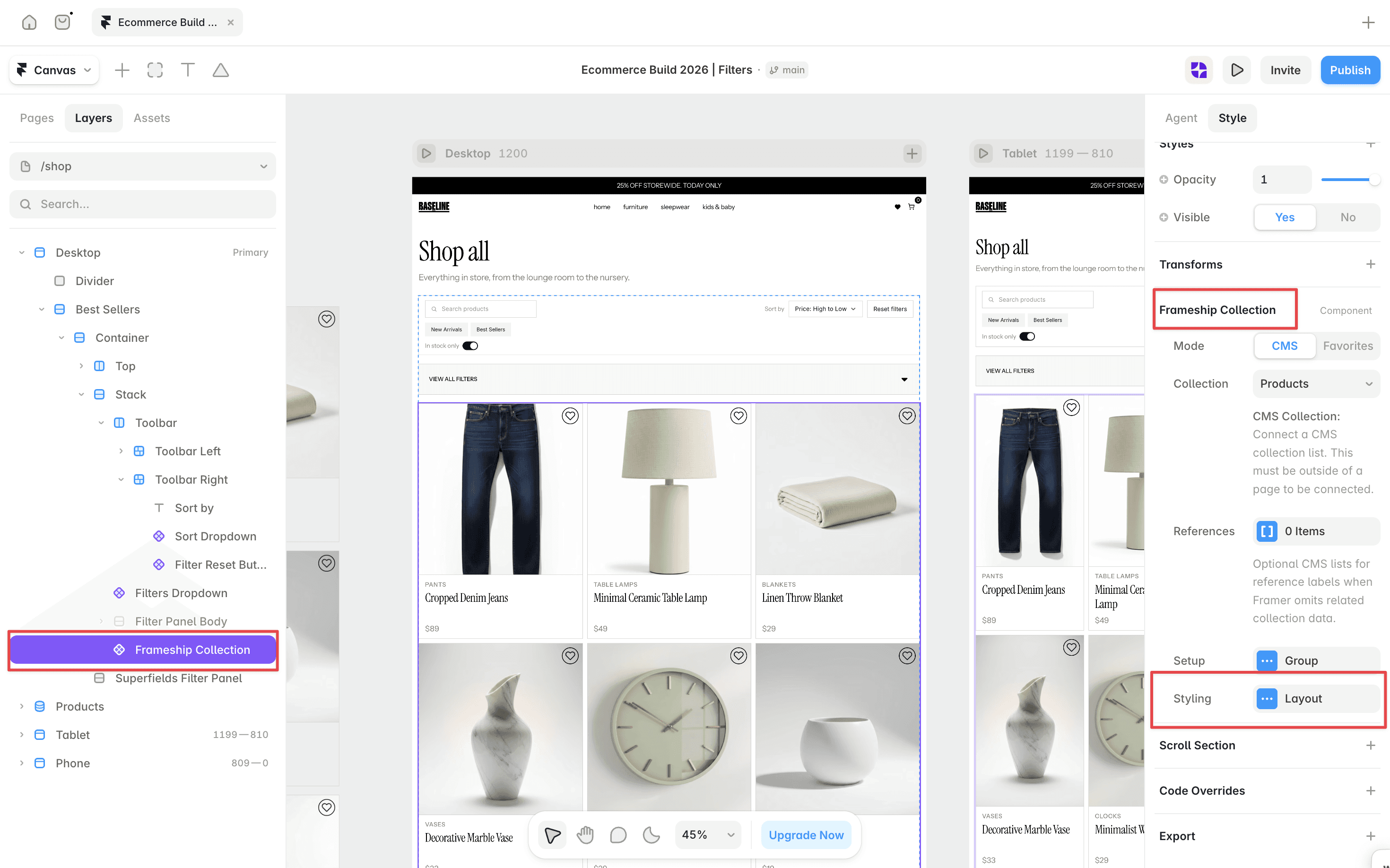
Everything hangs off one Frameship Collection connected to your CMS list. Filters, sorting and other controls attach to it through a shared ID Filter Group, so they all work together automatically.
The components
Open the Frameship plugin and go to Components. The filtering components are grouped into three tabs.
Filters
Filter Search Input - free-text search across your products
Filter Buttons - tap one option to filter
Filter Checkboxes - tick one or more values
Filter Dropdown - space-saving single-select filter
Filter Toggle - on/off filter for a single value (e.g. In Stock)
Number Input - type an exact number
Number Slider - drag to set a range (e.g. price)
Date Picker - filter by date
Filter Image Buttons - visual options, like color swatches or product types
Filter Preset Buttons - one click applies a saved bundle of filter values
Filter Preset Dropdown - the dropdown version of preset filtering
Search Preset Buttons - preset buttons for common searches
Filter Apply Button - let shoppers set several filters, then apply them together
Filter Reset Button - clear everything back to the full collection
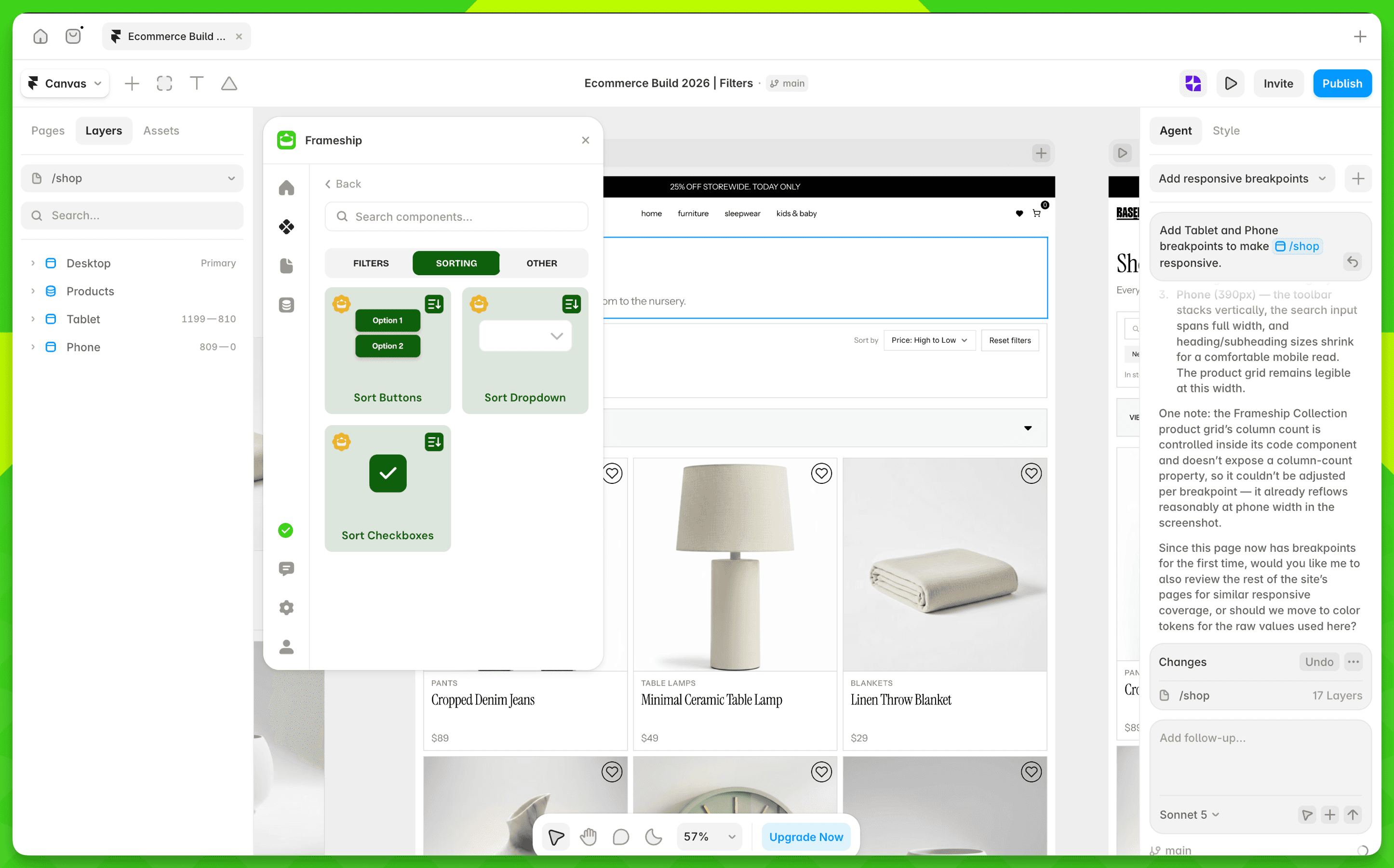
Sorting
Sort Buttons
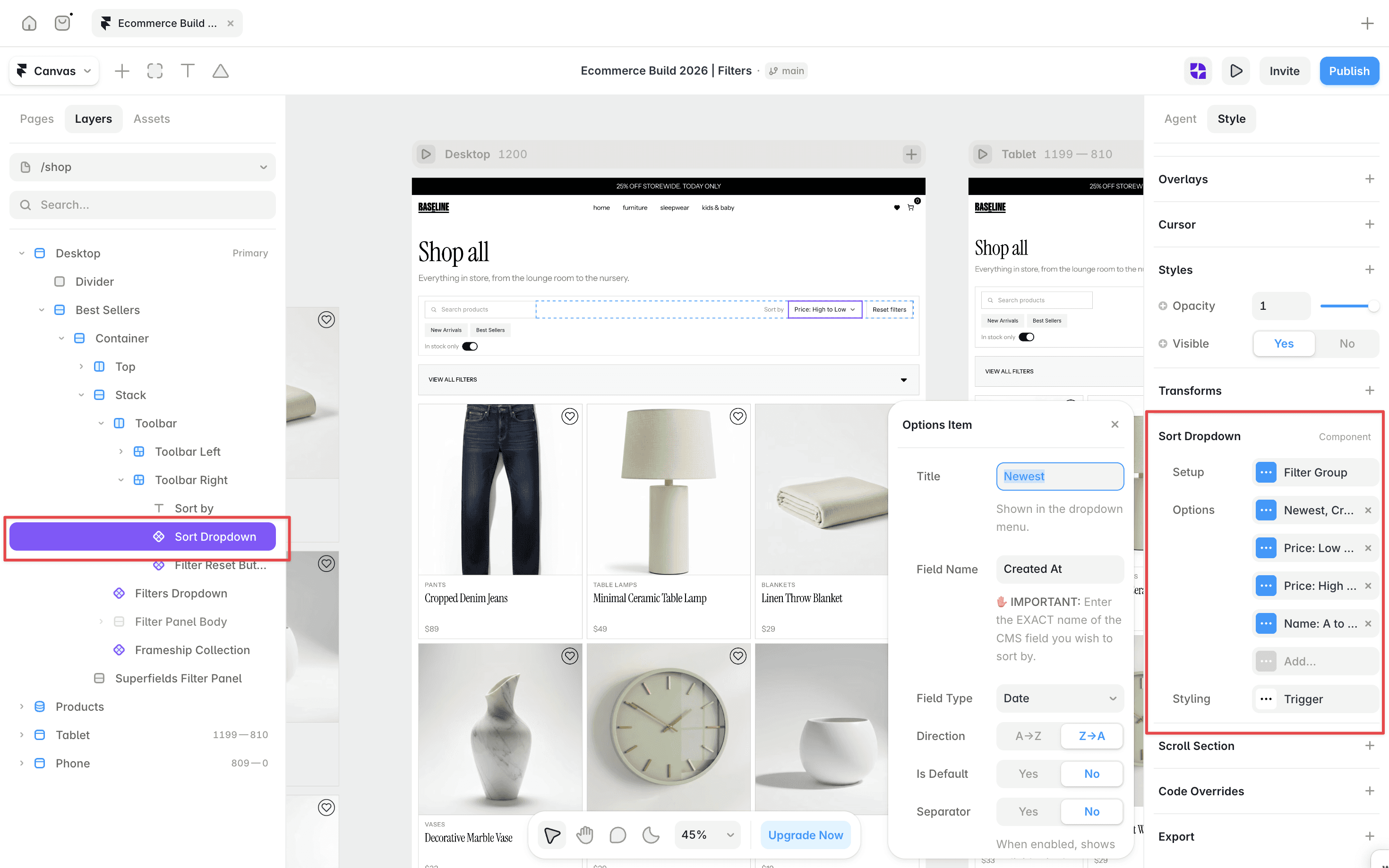
Sort Dropdown
Sort Checkboxes
Other
Frameship Collection - the heart of the system. Connects your CMS list and displays the filtered and sorted results. Add it first.
Result Counter - shows how many products match (e.g. "12 Items")
Favorite Button - lets shoppers save products; show saved items with the Frameship Collection's Favorites mode
How it fits together
Drag Frameship Collection onto the page.
Connect your CMS Collection List. Keep the source list off-canvas - Frameship renders its results in the component.
Drag in your filters, sorting and other controls from the tabs above.
Give related filters, sorting, buttons, chips and counters the same ID Filter Group as your collection.
Use CMS mode for a normal filtered collection. Use Favorites mode to show items saved with the Favorite Button - connect the same CMS collection and add an Empty State.
Choose a layout type for your collection: Stack, Grid, Masonry, or Infinite Grid. Infinite Grid repeats visible items; it does not load more CMS items.
For the full walkthrough, see Getting Started with Product Filters.


