
Blog
Tips & Tricks
Design Pages in Framer: The Canvas Most People Don't Know About

Ryan Hayward
Most people don't know this exists. Framer has two types of pages - web pages that appear on your site, and design pages that don't. Here's what they are and how to use them.
This is one of the lessons we added to the Ultimate Framer Masterclass - here's how it works.
Step 1 - Add a design page to your project
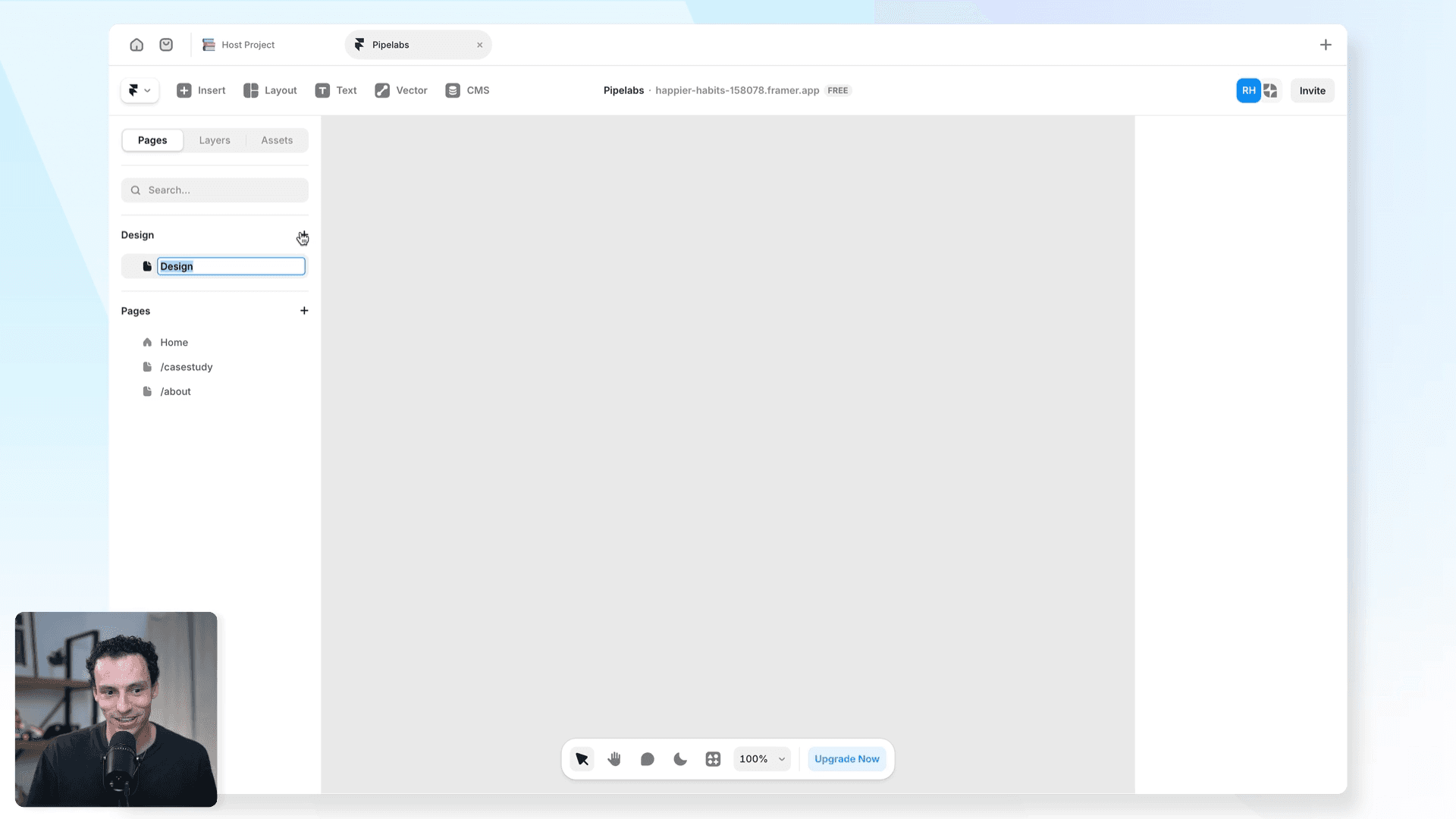
Open the Pages panel on the left
Click the + icon at the top
Choose Add Design Page
Name it whatever makes sense - "Experiments," "Component Library," "Brain Dump"
Step 2 - Understand what you can do here
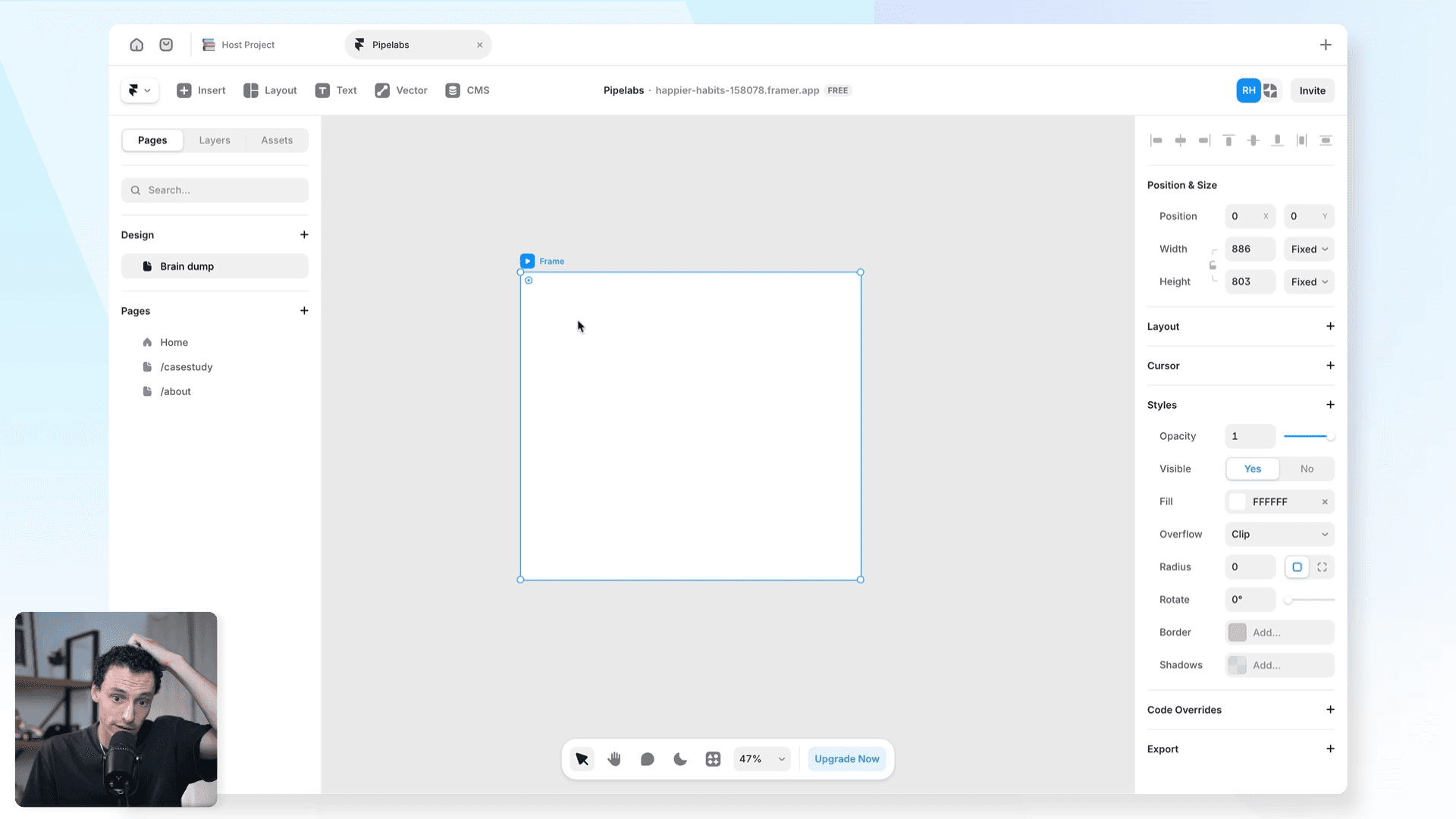
Draw frames and experiment with layouts freely
Try five different versions of a hero section before committing to your live site
Map out your design system before building it
Copy your best ideas across to actual web pages when ready
Step 3 - Use it with Wireframer
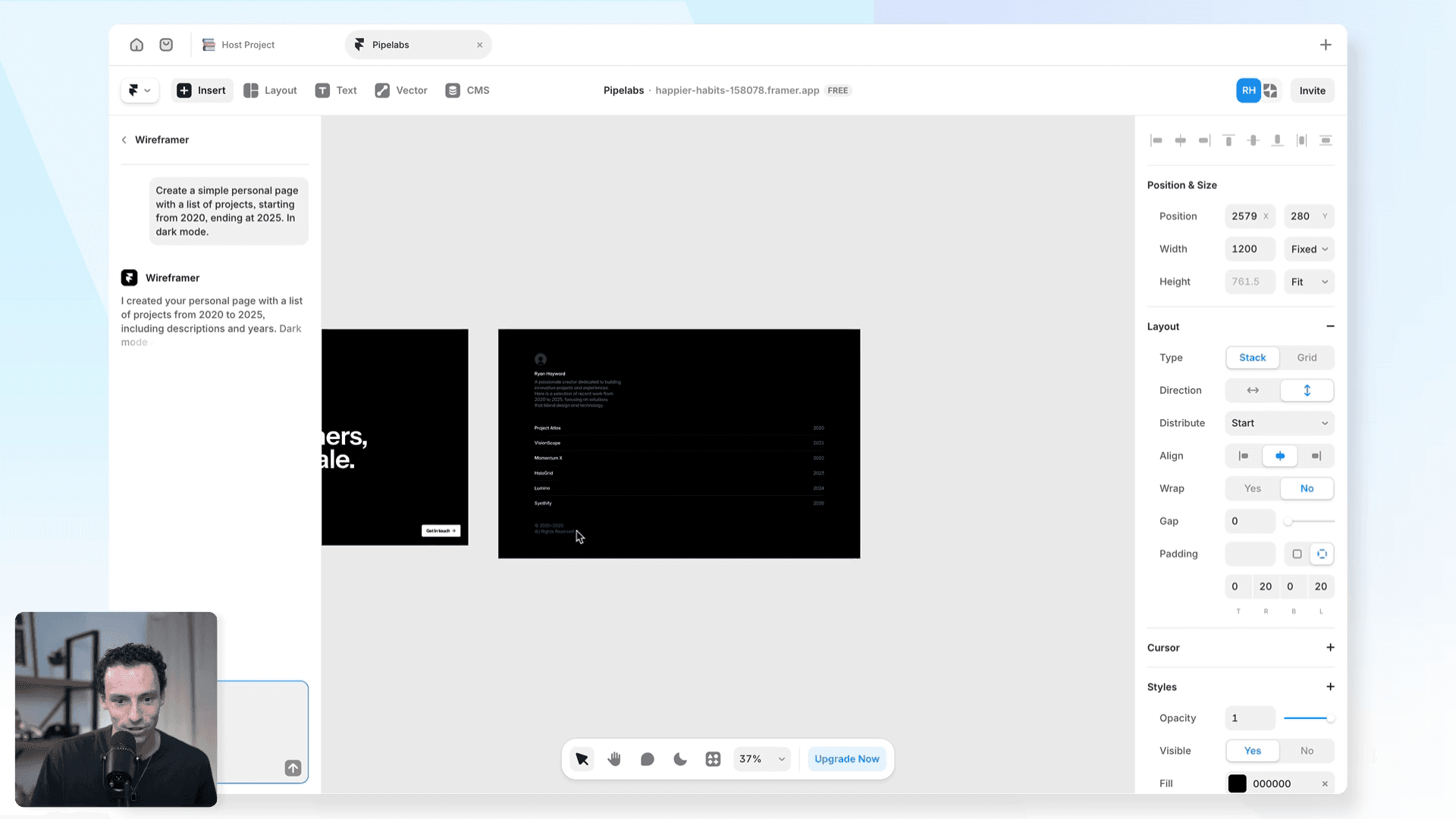
Open the Insert panel (press I) and open Wireframer
Type your prompt and generate a rough structure
Review the output, copy what works, paste it to your real page
Step 4 - Know the one limitation
Create the effect on a web page, copy it, then paste it into your design page element
You can preview it there but can't edit the effect settings
The key rule: web page = appears on your site. Design page = lives only inside Framer.
Frequently asked questions
Will anything on my design page appear on my published site?
No. Design pages never appear on your published site, no matter what you put there.
Can my client see my design page?
Only if they have editor access to the Framer project. Viewers and CMS-only users cannot see design pages.
Can I apply effects on a design page?
Not directly. Create the effect on a web page, copy it, then paste it onto your design page element to preview it.
What's the best way to use design pages in a real workflow?
Treat it like a whiteboard. Dump ideas, iterate fast, then copy only what you want onto your actual pages.
How do I learn Framer?
Honestly, the best place to start is just right inside Framer - keep building stuff. If you want a structured path from zero to client-ready sites, that's what we built the Ultimate Framer Masterclass for. 100+ lessons, updated as Framer evolves.
KEEP READING

AI won't take your design job. The designer next to you will.
The gap between what you design and what actually ships has been the defining frustration of this job. It closed this year, and most designers haven't noticed yet.

Ryan Hayward

Everything we announced at the Framer CMS Launch Event
The Framer CMS Launch Event by Insert Frame

Georgia Back
How to Build a Pricing Calculator in Framer (No Code)
A step-by-step guide to building a live pricing calculator in Framer using FramerForms, plus real examples of what you can build with calculators and quizzes.
Georgia Back


