Blog
Tips & Tricks
How to Build a Pricing Calculator in Framer (No Code)

Georgia Back
If you're a freelancer or agency building sites in Framer, a pricing calculator is one of the highest-value things you can add to a client site or your own.
Instead of a contact form that just collects an email, a calculator lets visitors self-serve. They fill in their details, see a live number update in real time, and submit when they're ready. By the time they hit send, they already know roughly what they're paying. Less back and forth for you, more qualified leads coming in.
This guide walks through how to build one using FramerForms Calculators - no code required.
Step 1 - Add the calculator to your canvas
Open the FramerForms plugin inside Framer, go to Calculator, and insert it onto your canvas. Everything you add needs to sit inside the Form component boundary.
Step 2 - Choose your mode
Select the Answer Display component and set the Mode to either Basic or Advanced.
Basic mode gives you two inputs and a single operation - add, subtract, multiply, or divide. Good for simple one-step calculations.
Advanced mode gives you unlimited inputs and a custom expression. Use this for anything more complex - conditional logic, multiple outputs, tiered pricing. For most pricing calculators, you'll want Advanced.
Step 3 - Add your inputs
From the plugin, add the input types you need. FramerForms supports Number, Slider, Dropdown, and Buttons. Give each input a Name in the properties panel - this is how your expression will reference them. Names are case-sensitive and can't contain spaces.
For a service pricing calculator you might set up:
Buttons - Name:
serviceButtons - Name:
packageNumber - Name:
hoursDropdown - Name:
locationSlider - Name:
lead_weeks
Step 4 - Set up value mapping
If you're using Dropdowns or Buttons, you need to tell FramerForms what number each option represents. Select the Answer Display, open the Calculate panel, then Map values. Add one map item per text-based input and set each option label alongside its number.
For a service input for example:
Photography → 150
Videography → 200
Photography + Video → 300
Set a fallback number for when nothing is selected yet.
Step 5 - Write your expression
In the Calculate panel, enter your expression using the input Names as variables. FramerForms supports standard JavaScript math and conditional logic.
A simple example: hours * rate
With a rush fee based on lead time: (service * hours * package) + (lead_weeks < 4 ? 500 : 0)
Not sure how to write yours? We made a free Expression Generator at framerforms.com/expression-generator builds it for you.
Step 6 - Configure the output
Select the Answer Display and open the Details panel. Set your prefix ($), suffix (per month), decimal places, and a fallback that shows before any inputs are filled. You can add multiple Answer Display components to show different calculations side by side.
Step 7 - Test it
Preview the form and fill in each input. Everything should update live as you go. If a value isn't changing, check that the input Name matches the expression variable exactly - names are case-sensitive.
What else can you build?
Calculators and quizzes open up a lot more than just pricing estimators. Here are some real things you can build with FramerForms:
ROI calculator - show a client or customer how much they'll save or earn by working with you. Results update live as they adjust their numbers.
Savings estimator - common for SaaS tools and finance sites. Visitors enter their current spend and see how much they'd save by switching.

Subscription cost builder - let visitors build their own package and see the price update as they add features.
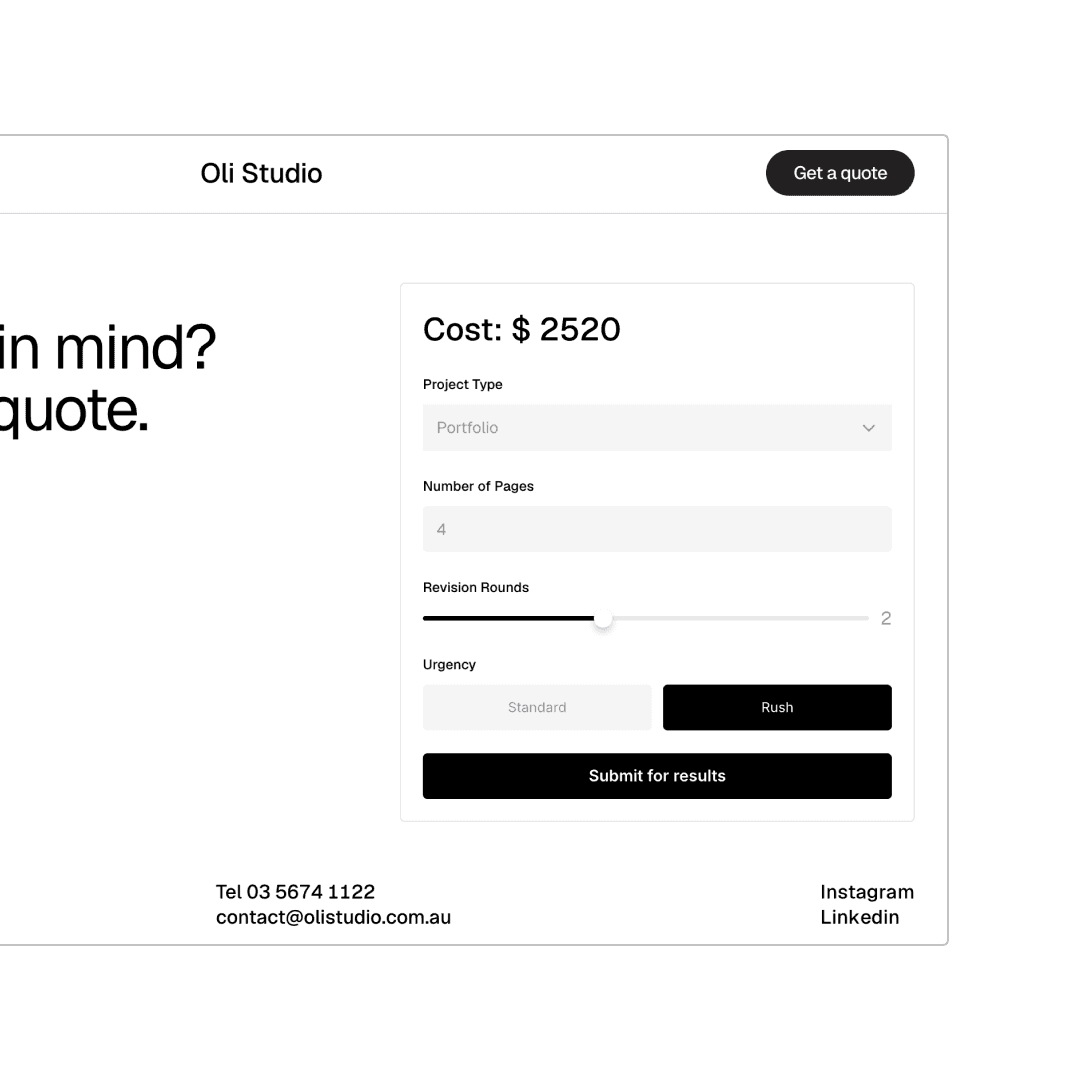
Lead qualification quiz - score visitors based on their answers, show a custom result card, and redirect them to a different page based on their score.
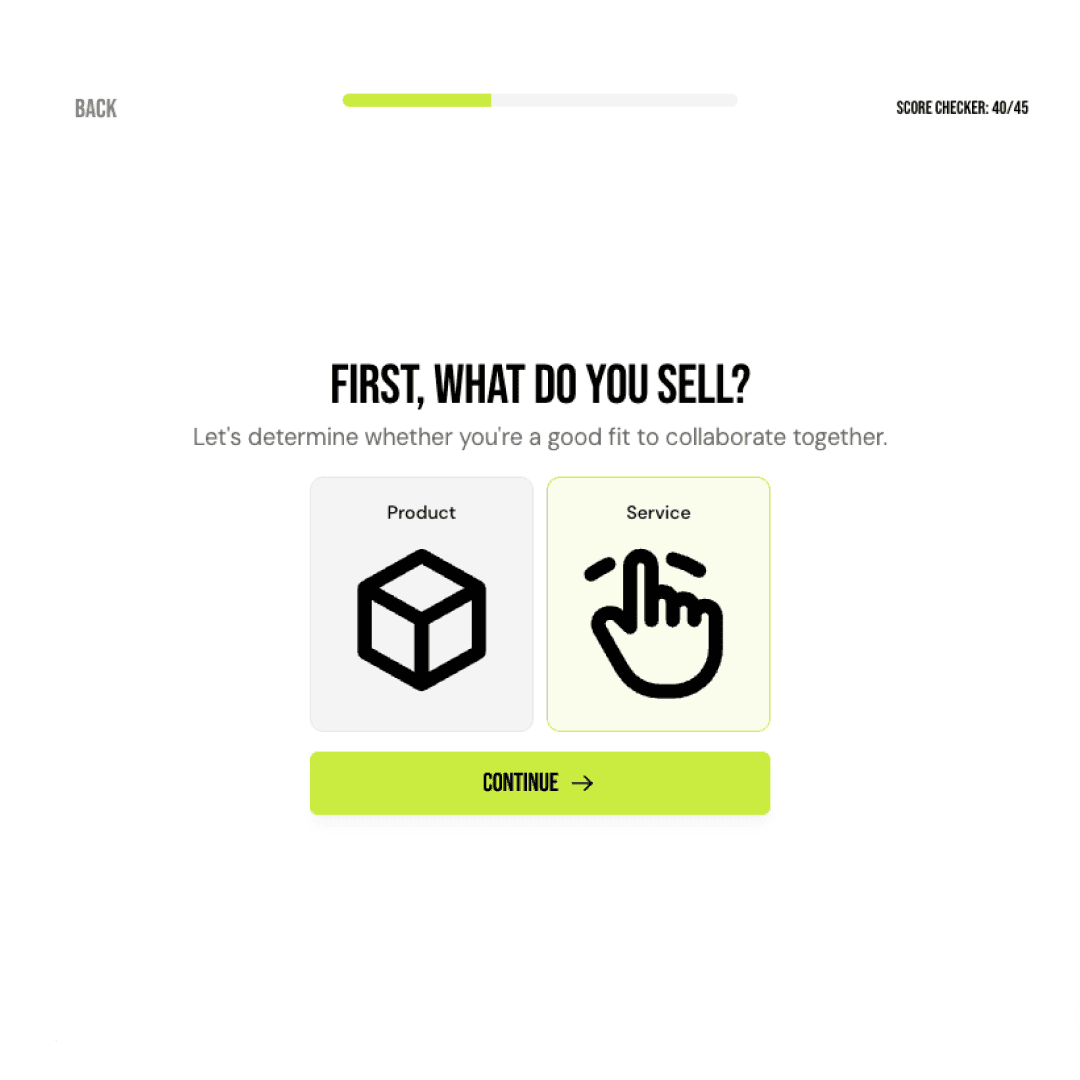
Product finder - quiz visitors on their needs and serve them a personalised recommendation at the end.
Client fit quiz - visitors answer a few questions and find out if they're a good fit to work together, before either of you has spent time on a discovery call.
All of these use the same setup - FramerForms form components, inside Framer, zero code.

Get started
Watch the full tutorial: youtube.com/watch?v=AOLUv3FaTmU
Calculators & Quizzes is available as an add-on for any FramerForms plan.*
KEEP READING

AI won't take your design job. The designer next to you will.
The gap between what you design and what actually ships has been the defining frustration of this job. It closed this year, and most designers haven't noticed yet.

Ryan Hayward

Everything we announced at the Framer CMS Launch Event
The Framer CMS Launch Event by Insert Frame
Georgia Back

Design Pages in Framer: The Canvas Most People Don't Know About
Framer has a hidden infinite canvas inside every project that never appears on your published site. Most people don't know it exists.

Ryan Hayward


