Blog
Tips & Tricks
Intro to the New Framer Editor

Ryan Hayward
Framer is generally intuitive to use, but if you've been learning from older tutorials, your editor might look nothing like what's on screen. The UI changed significantly in 2025 - here's what's new and where everything lives.
This is one of the lessons we added to the Ultimate Framer Masterclass - here's how it works.
Step 1 - Understand the three core panels
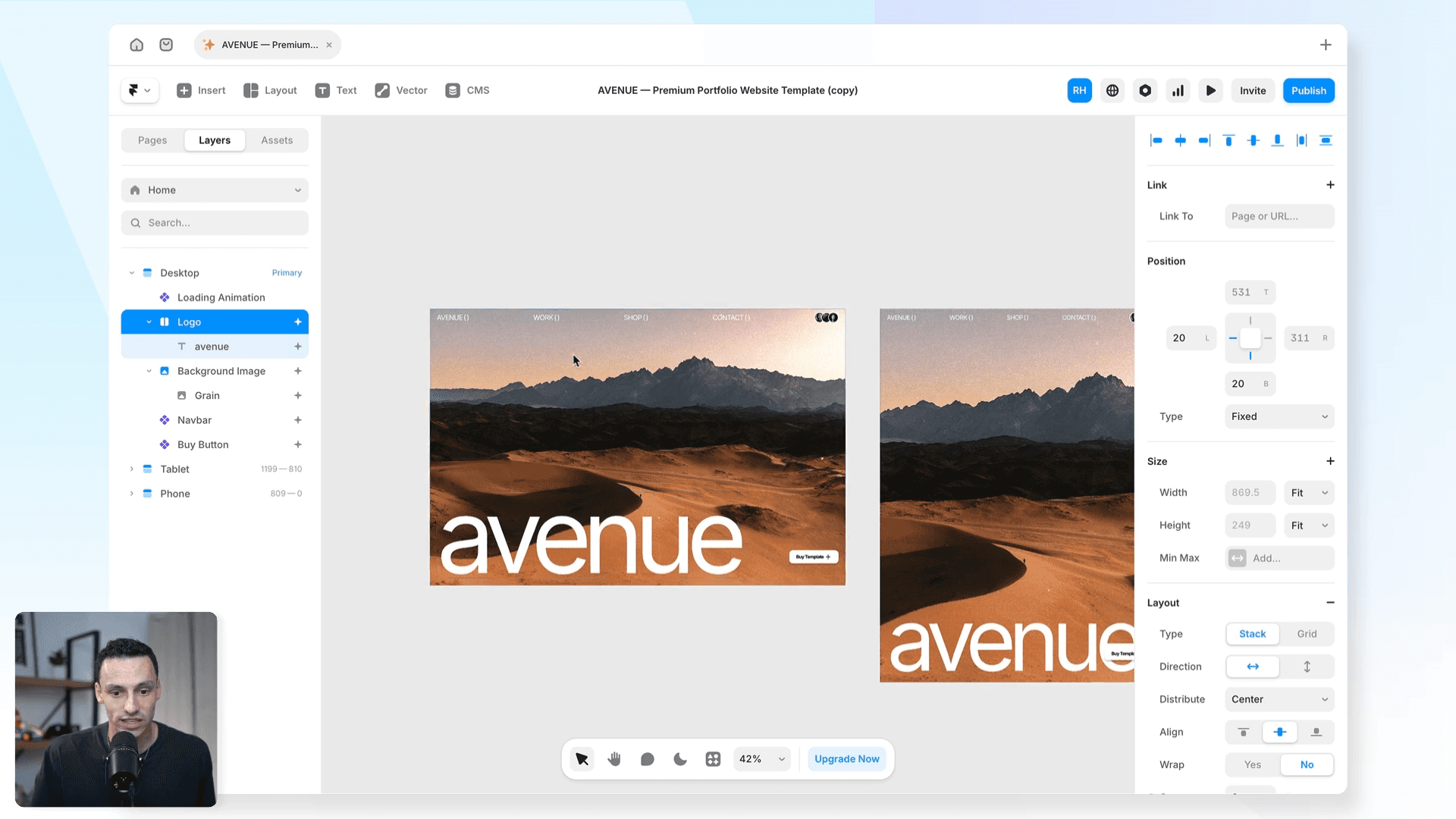
The canvas in the center - where you build
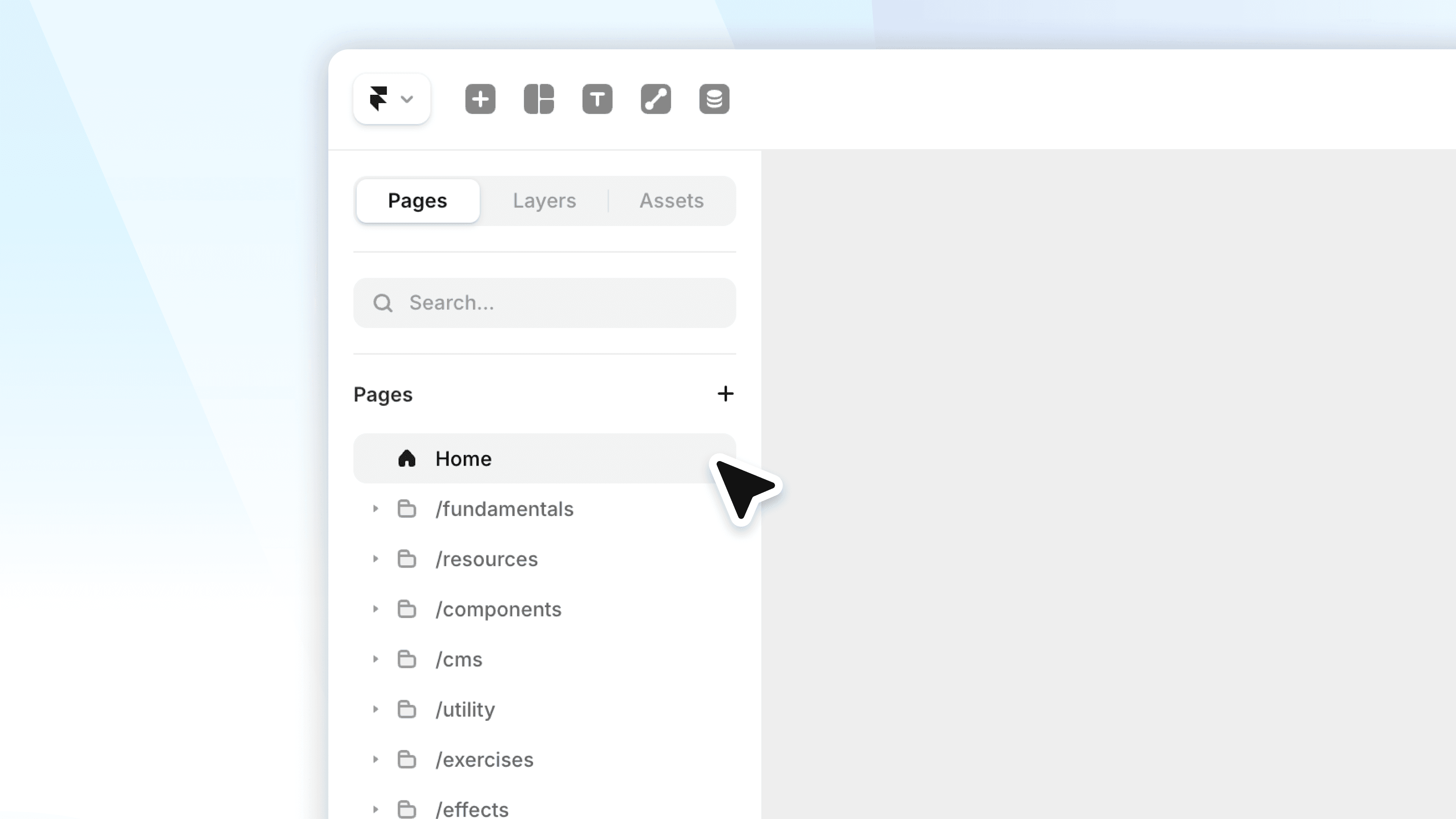
The layers panel on the left - shows your page structure
The properties panel on the right - controls styling and settings
Everything you build in Framer is a live website. There's no export or handoff step. What you see on the canvas is what gets published.
Step 2 - Get familiar with the rebuilt Insert panel
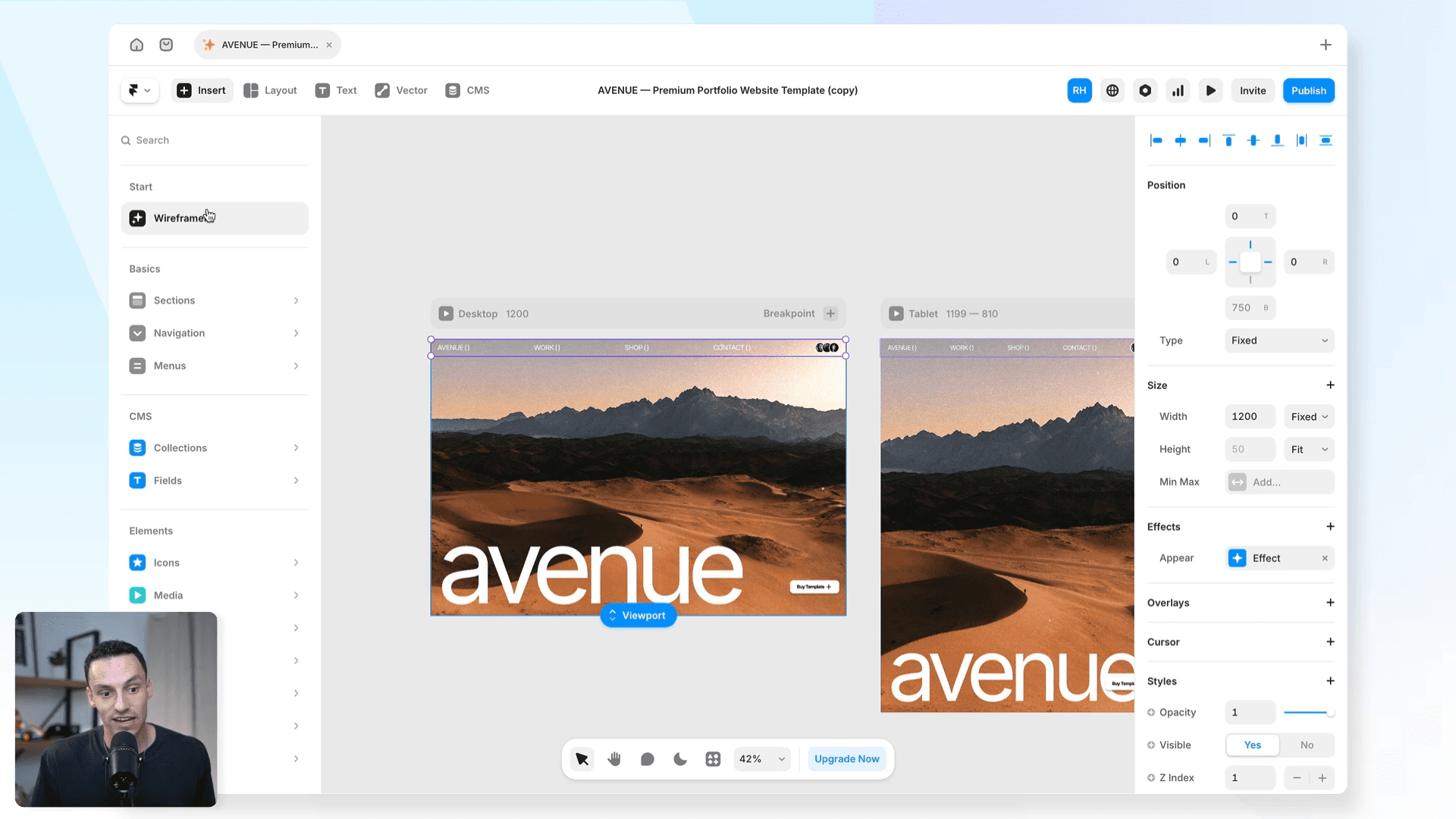
Framer shipped Insert 2.0 in 2025, rebuilding the panel from scratch. Press I to open it.
The Pages tab gives you full page templates to insert instantly
The Sections tab has hero, pricing, footer, and other common sections
Components shows everything saved in your project's Assets
Step 3 - Learn the updated Pages and Assets panels
In September 2025, Framer completely re-engineered both panels:
Hold Cmd and click to select multiple pages at once
Right-click any selection to bulk draft, delete, or duplicate
In Assets, drag multiple components onto the canvas simultaneously
Use folders to organise components and styles as your project grows
Step 4 - Key keyboard shortcuts
F - draw a new frame / T - add text / I - open Insert panel
Cmd + D - duplicate / Cmd + P - preview
Cmd + Enter - enter a component / Escape - exit
Now you're oriented. Everything else in Framer builds from here.
Frequently asked questions
Why does my editor look different to tutorials I've watched?
Framer ships updates frequently. The Insert panel was rebuilt with Insert 2.0 in 2025, and Pages and Assets panels were re-engineered in September 2025. If a tutorial is more than 6 months old, things will look different. The core concepts - frames, stacks, components - stay the same.
What's the difference between Framer and Figma?
Figma is a design tool - you create mockups then hand off to developers. Framer is a website builder - what you design is the actual live website. No handoff step.
Do I need to code to use Framer?
No. Framer is no-code. Code components exist for advanced customisation but are completely optional.
Can I use Framer for client projects?
Yes. You can transfer ownership, connect custom domains, and give clients CMS-only access so they can update content without touching the design.
Is Framer free?
Framer has a free plan with a framer.app subdomain. Paid plans start from $5/month and add custom domains, more pages, and more CMS items.
How do I learn Framer?
Honestly, the best place to start is just right inside Framer - keep building stuff. If you want a structured path from zero to client-ready sites, that's what we built the Ultimate Framer Masterclass for. 100+ lessons, updated as Framer evolves.
KEEP READING

AI won't take your design job. The designer next to you will.
The gap between what you design and what actually ships has been the defining frustration of this job. It closed this year, and most designers haven't noticed yet.

Ryan Hayward
Everything we announced at the Framer CMS Launch Event
The Framer CMS Launch Event by Insert Frame

Georgia Back
How to Build a Pricing Calculator in Framer (No Code)
A step-by-step guide to building a live pricing calculator in Framer using FramerForms, plus real examples of what you can build with calculators and quizzes.
Georgia Back


