setup
COMPONENTS
INTEGRATIONS
FAQ
Add a Calculator to Your Framer Site with FramerForms
FramerForms Calculator lets you add live pricing estimators, ROI calculators, and quote builders to any Framer site. Users fill in inputs and the result updates instantly - no code required.
Add a calculator
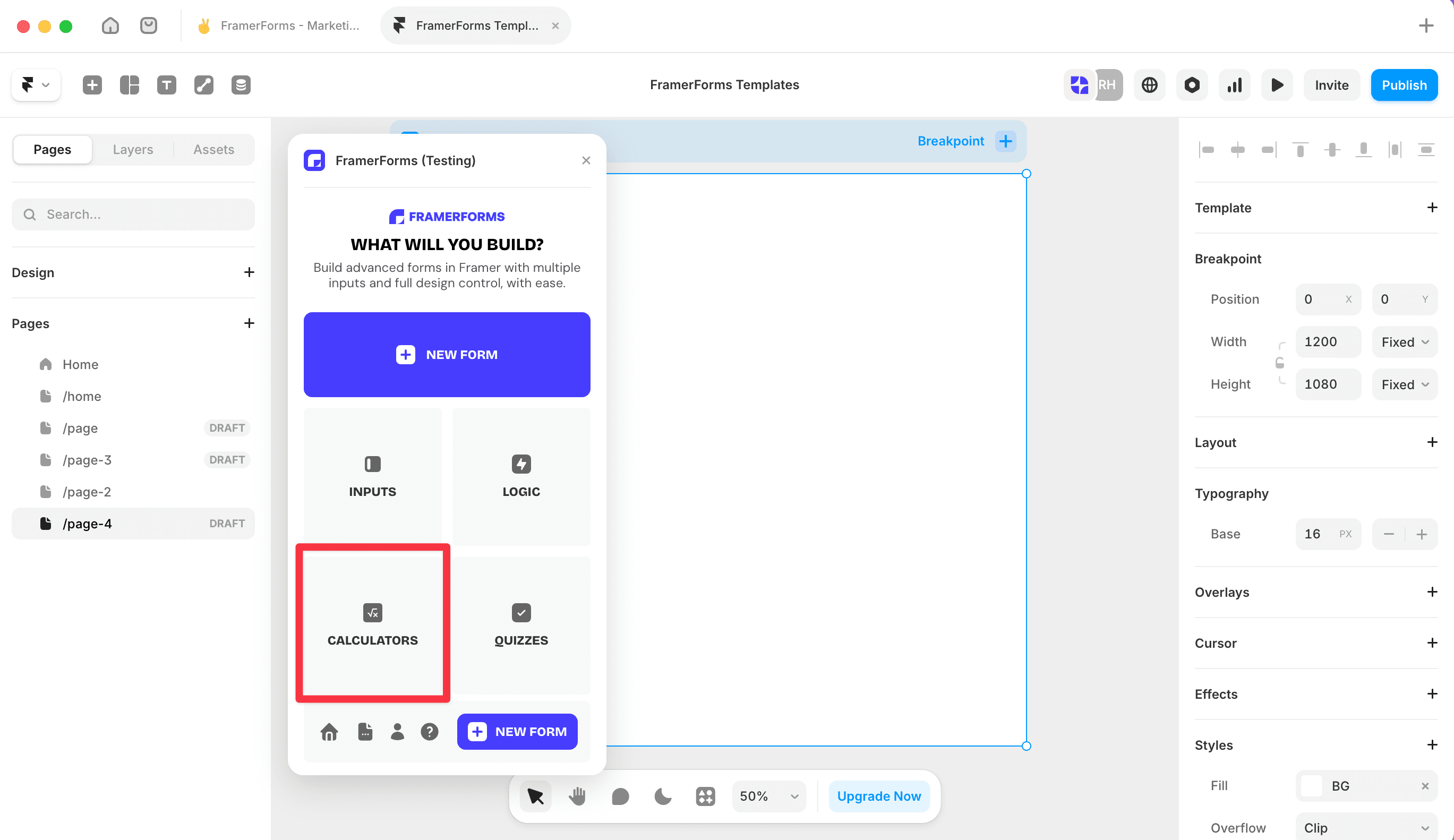
Open FramerForms, go to Calculator and insert it onto your canvas. Everything needs to sit inside the Form component boundary.
Choose your mode
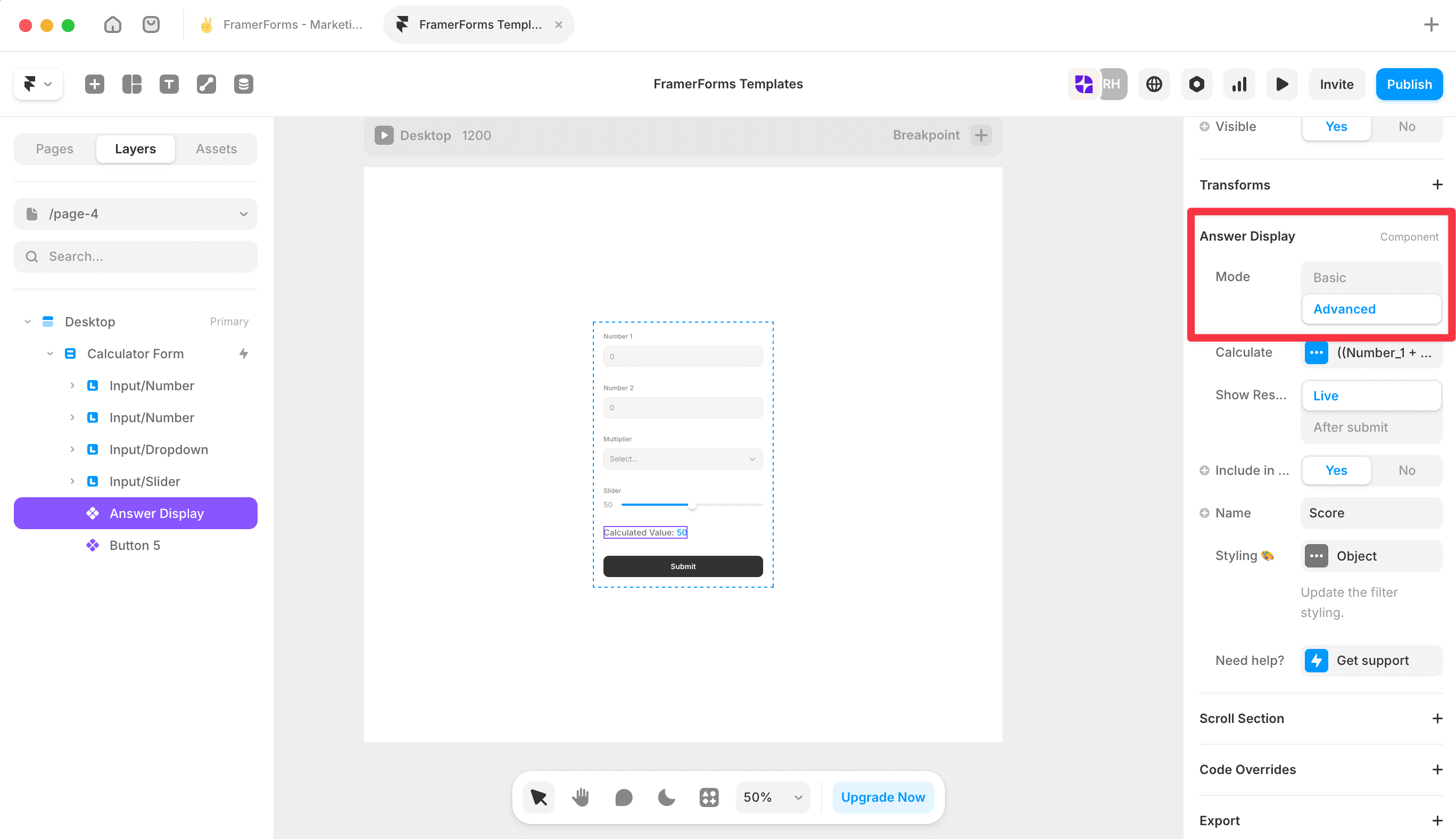
Select the Answer Display component and set Mode to Basic or Advanced.
Basic - two inputs with a simple operation (add, subtract, multiply, divide). Good for quick single-step calculations.
Advanced - unlimited inputs with a custom JavaScript-style expression. Use this for anything more complex.
Add your inputs
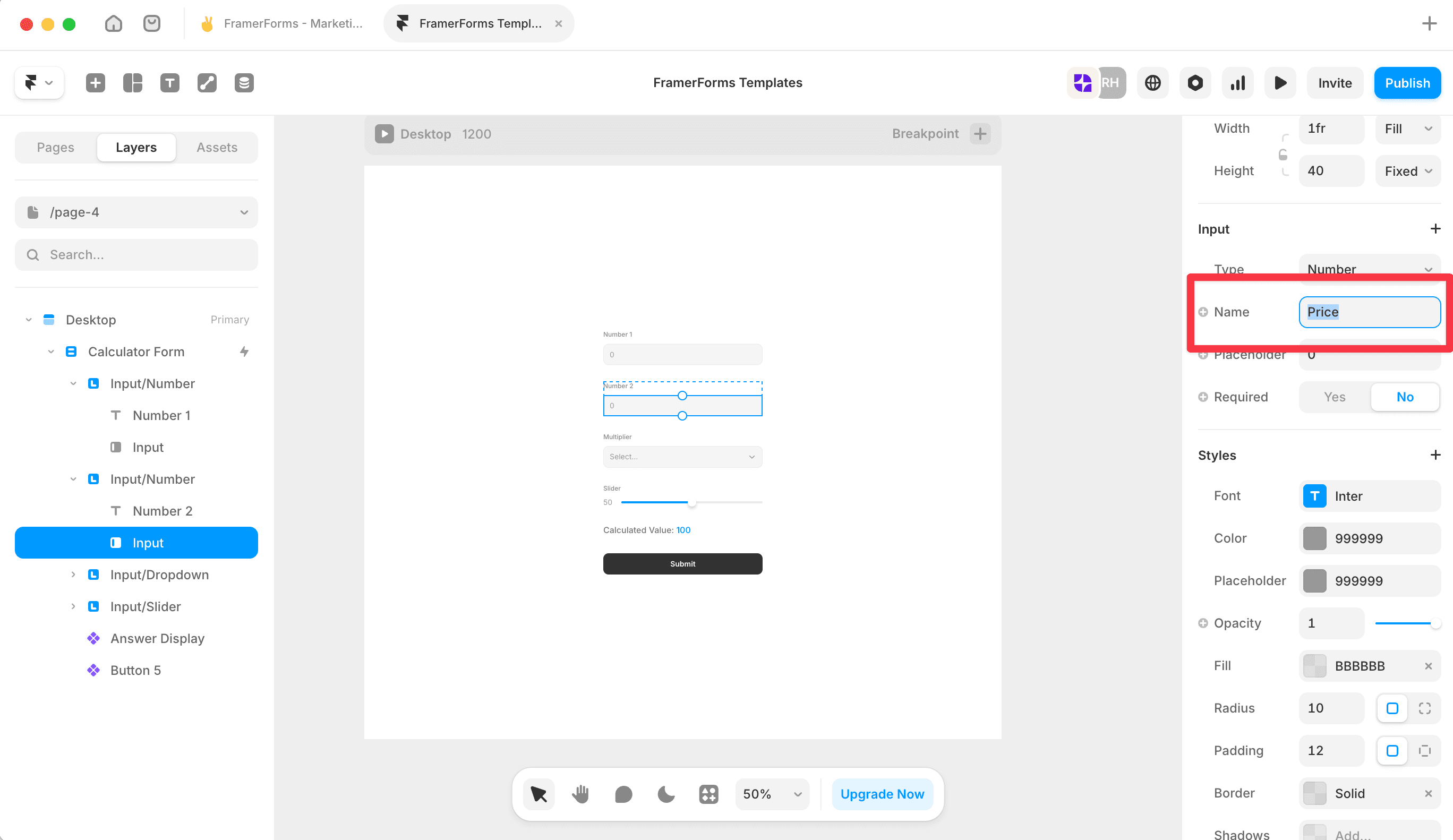
From the plugin, add the inputs you need: Number, Slider, Dropdown, or Buttons. Give each one a Name in the properties panel - this is how the expression references them.
⚠️ Names are case-sensitive and cannot contain spaces. If the Name doesn't match the expression exactly, the calculation won't work.
Set up value mapping (Dropdowns and Buttons only)
Text-based inputs like Dropdowns and Buttons need a value map so FramerForms knows what number each option represents.
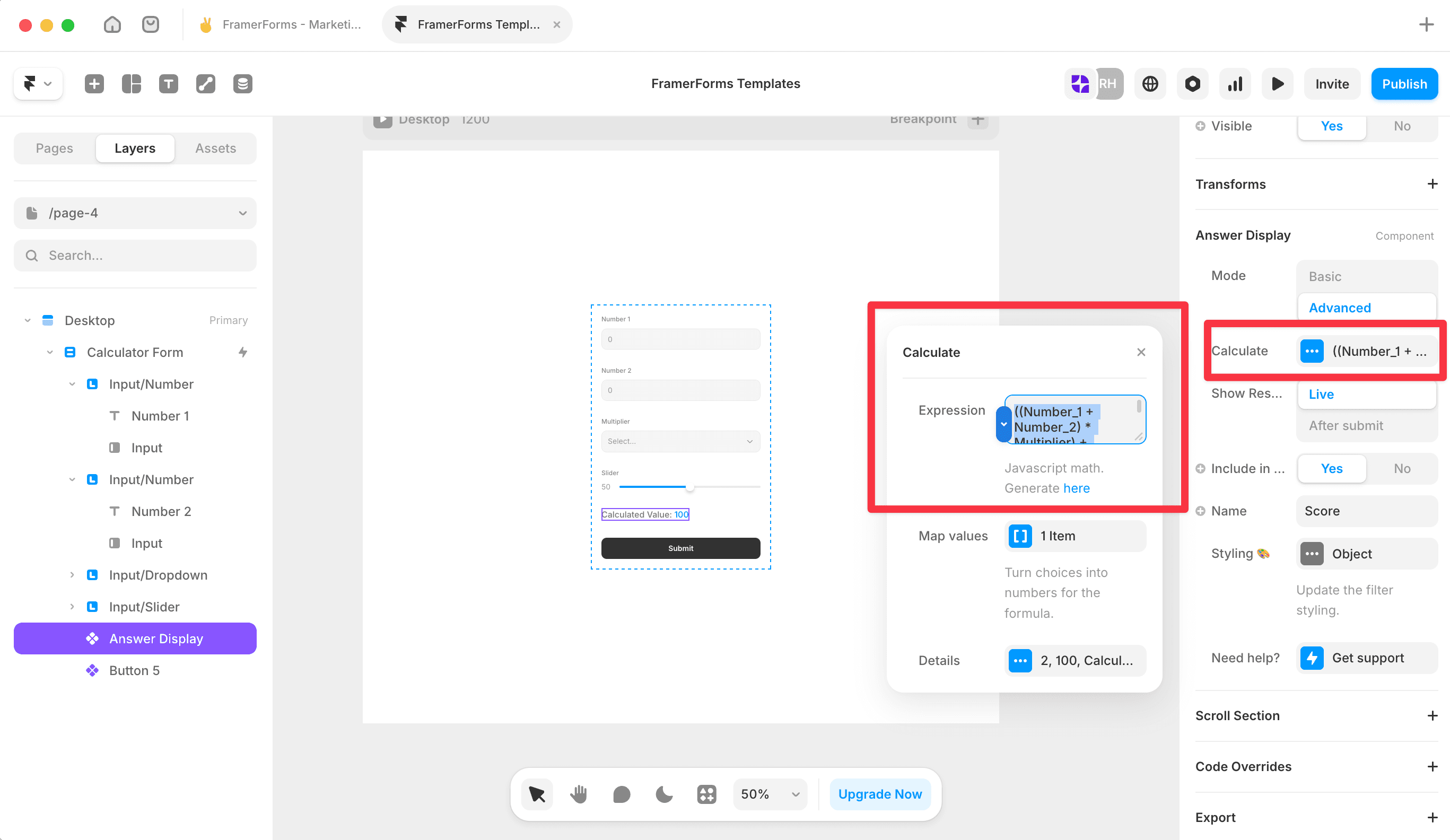
Select the Answer Display, open the Calculate panel, and open Map values. Add one map item per text input. Set the Field name to match the input's Name exactly, then open Option values and add each option label alongside its number. Set If no match to a sensible fallback number - this shows when the calculation fails (e.g. an empty or non-numeric input in Basic mode, or a non-finite result like divide by zero in Advanced mode).
Write your expression
In the Calculate panel, enter your expression using the input Names as variables. Supports standard JavaScript math and ternary conditionals.
For example: (hours * rate) + addon
With a conditional: (hours * rate) + (lead_weeks < 4 ? 500 : 0)
💡 Not sure how to write your expression? Use the free Expression Generator to build it for you, then paste it in.
Configure the output
Select the Answer Display and open the Calculate → Details panel to set:
Decimal places - how many decimal points to show
Fallback - what shows before any inputs are filled (e.g.
-)Prefix - text before the result (e.g.
$)Suffix - text after the result (e.g.
per month)Limit minimum / Limit maximum - clamp the output to a range
You can add multiple Answer Display components to the same form to show different calculations side by side.
Common issues
Result showing the fallback and not updating - check that all inputs have a Name set, names match the expression exactly, and the Answer Display is in Advanced mode.
Text inputs not calculating - add a value map for every Dropdown or Buttons input used in the expression. If an option label doesn't exactly match a map entry, it falls back to the If no match number.
Expression not working - check for typos in variable names, mismatched brackets, and confirm you're in Advanced mode. Names are case-sensitive.


