setup
COMPONENTS
INTEGRATIONS
FAQ
How to Build a Pricing Calculator in Framer
Pricing calculators help visitors understand what they'll pay before they get in touch. This guide walks through building a service pricing estimator in Framer using FramerForms, with a live total that updates as users fill in their details.
Add a calculator
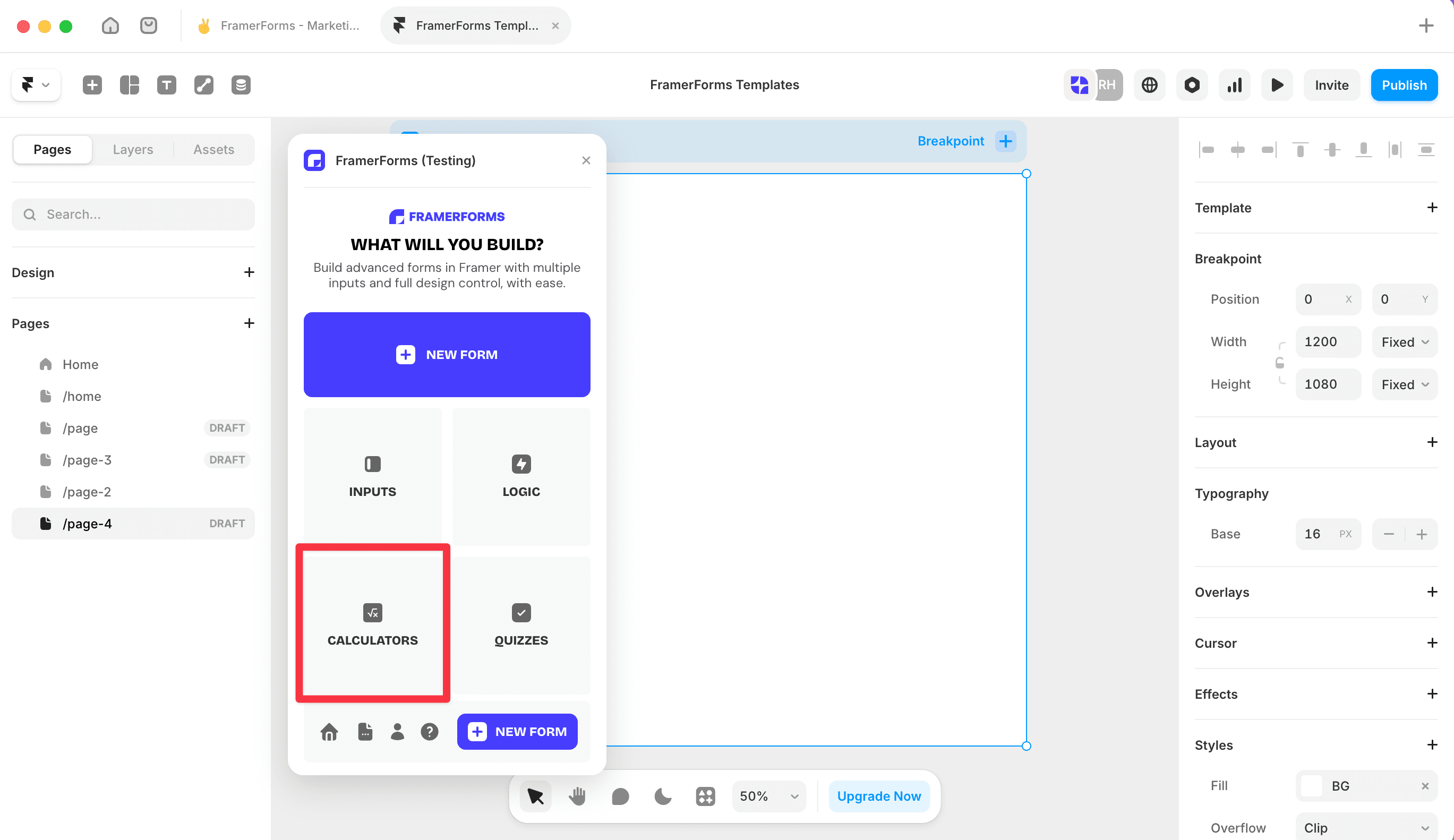
Open FramerForms, go to Calculator and insert it onto your canvas. Select the Answer Display and switch Mode to Advanced.
Add your inputs
Add the following inputs from the plugin and give each one a Name in the properties panel:
Buttons - Name:
serviceButtons - Name:
packageNumber - Name:
hoursNumber - Name:
guestsDropdown - Name:
locationDropdown - Name:
addonSlider - Name:
lead_weeks
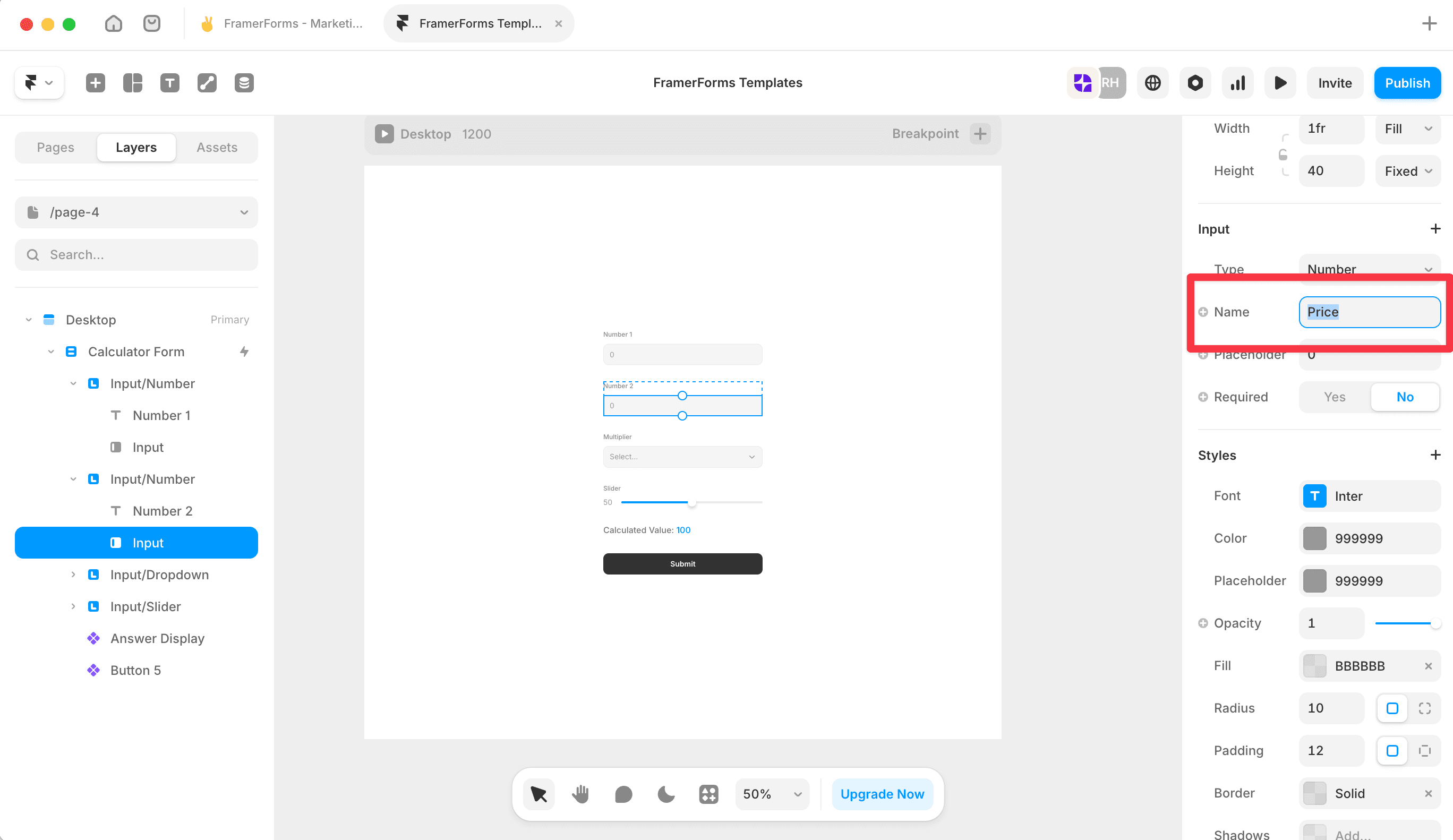
Label each one clearly so visitors know what they're selecting.
Set up value maps
Select the Answer Display, open Calculate, then Map values. Add a map item for each text-based input: service, package, location, and addon.
For each map item, open Option values and add the option labels alongside their numeric values. For example, for service:
Photography → 150
Videography → 200
Photography + Video → 300
Set If no match to a sensible fallback number for each.
Write your expression
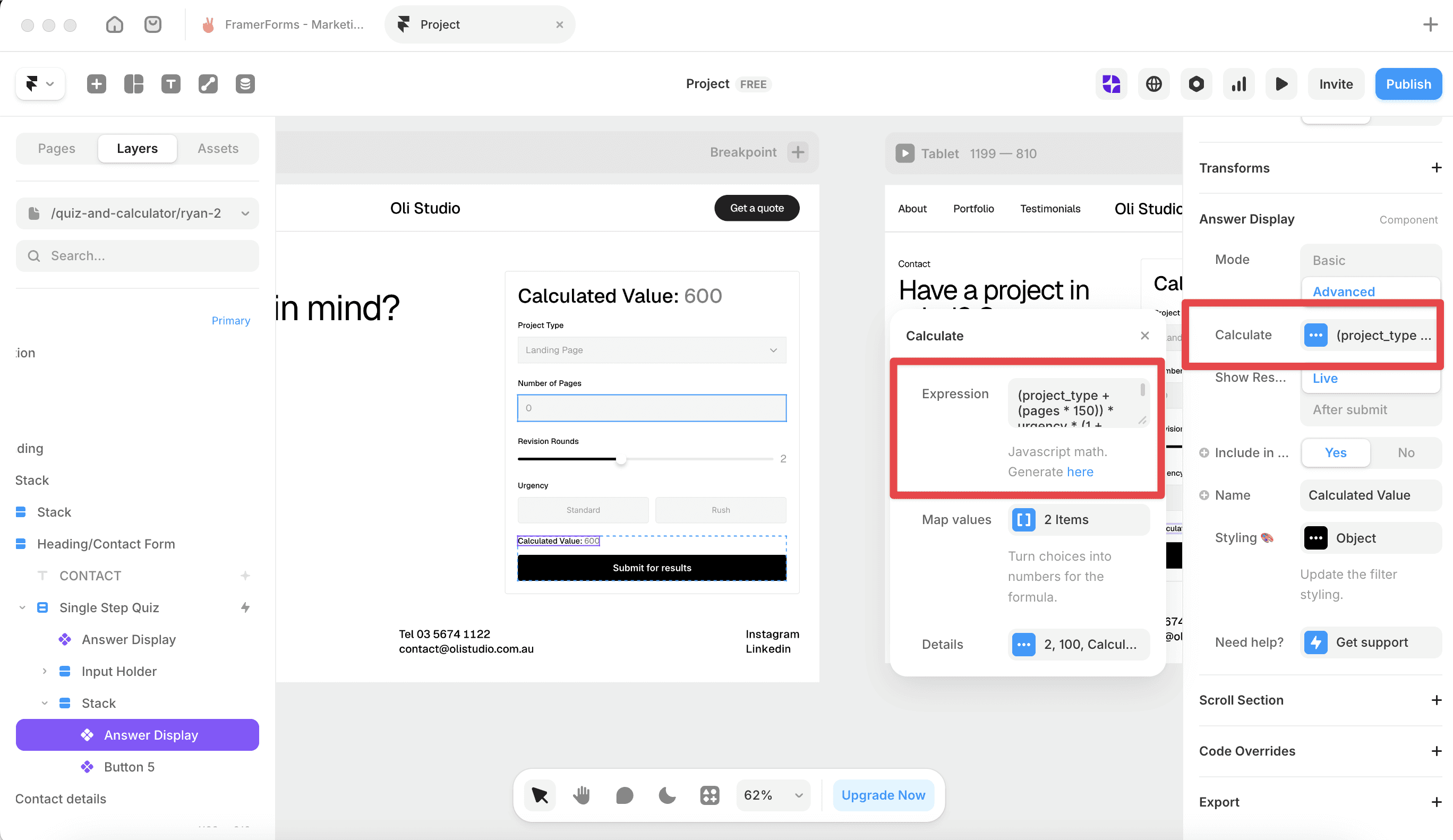
In the Calculate panel, enter your expression. This example includes a rush fee that applies automatically based on lead time:
(((service * hours * package) + addon) * location) + (lead_weeks < 4 ? 500 : (lead_weeks < 8 ? 200 : 0))
💡 Not sure how to write your expression? Use the free Expression Generator to build it for you, then paste it in.
Add a second output
Duplicate the Answer Display. In the duplicate, update the expression to divide by guests:
((service * hours * package) + addon) * location + (lead_weeks < 4 ? 500 : (lead_weeks < 8 ? 200 : 0)) / guests
Open Details and set Prefix to Per guest: so visitors can see both figures at once.
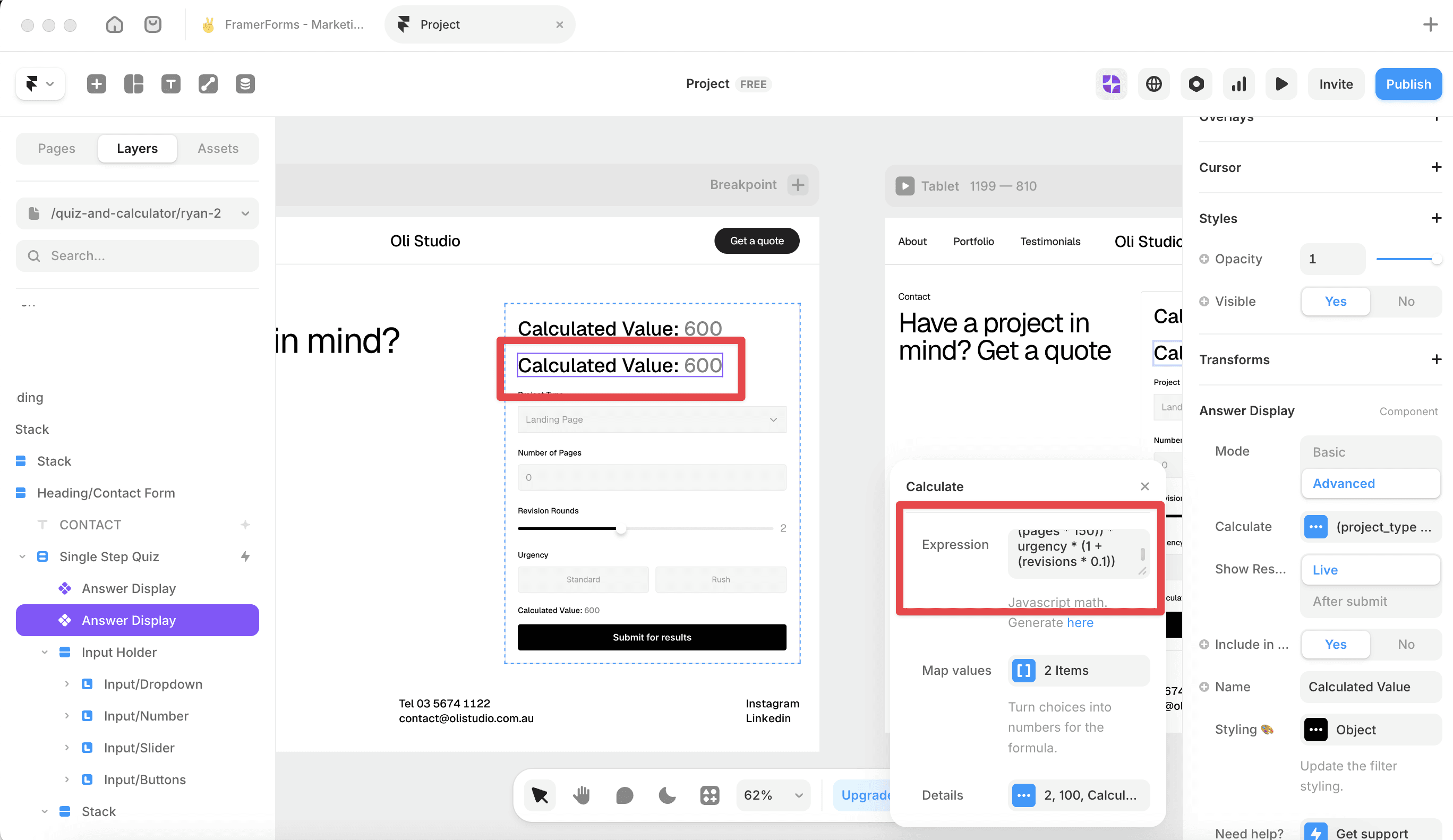
Configure the output details
On both Answer Display components, open Details and set:
Decimal points - 0 for a whole number, 2 for cents
Fallback -
-so something shows before inputs are filledPrefix -
$or your currency symbol
⚠️ Both Answer Display components must sit inside the same Form as your inputs. If they're outside the form boundary, they won't read the input values.
Test your calculator
Preview the form and fill in each input. Both totals should update live. If a value isn't changing, check that the input Name matches the expression variable exactly - names are case-sensitive.
You're all set!


