setup
COMPONENTS
INTEGRATIONS
FAQ
How to Add Cart Upsells to Your Ecommerce Store
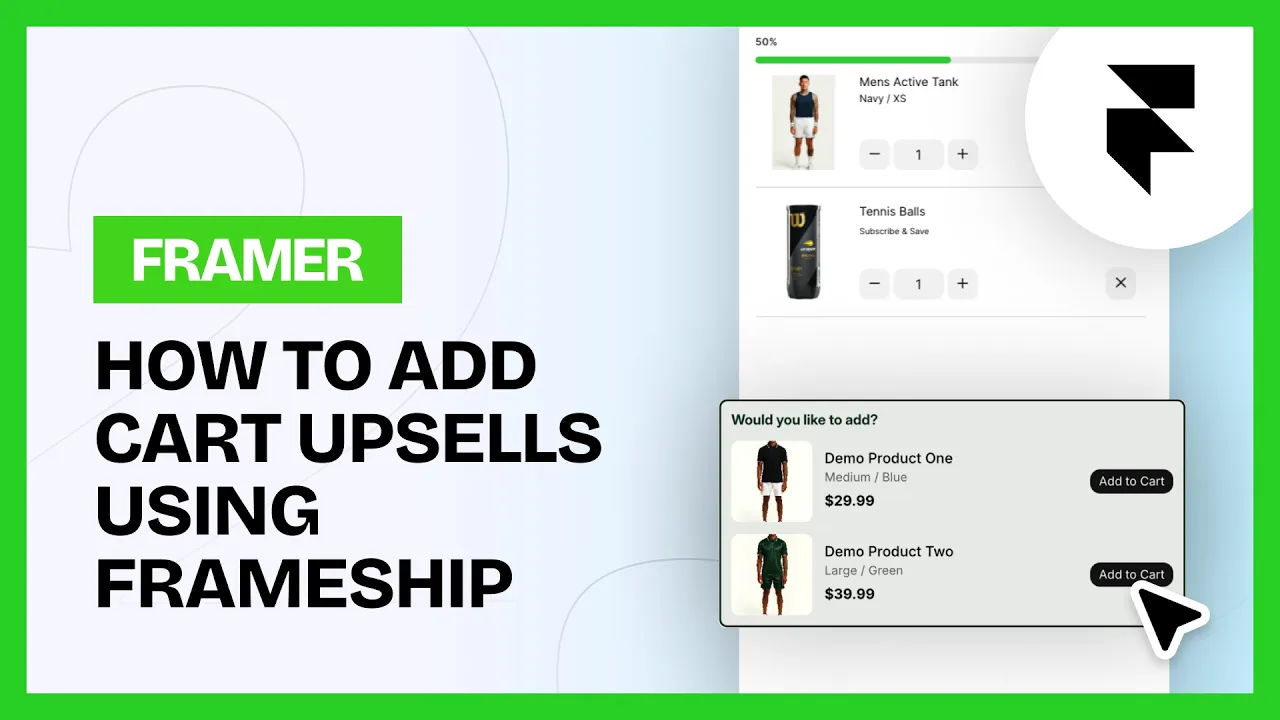
Recommendations are pulled directly from Shopify, using either auto-generated suggestions or products you’ve manually set up in Search & Discovery. You can choose how many products to show while the component handles the rest— keeping upsells clean, relevant, and easy to manage.
💡 Note: This component is only available for Scale tier of Frameship license. You can upgrade your license at any time through the plugin.
How to add a Cart Upsell Component in your Frameship project:
In your Shopify store settings, go to Apps and add 'Search & Discovery' app (free).
Go to your individual product page, and scroll down to Product Metafields. Click on Complementary Products or 'View All' if not visible.
Set up all your Products with their intended Complementary Products
In your Framer project, insert the 'Cart Upsell' component within your Cart component.
Fill in the Collection Route in the component settings, this is your CMS name with '/' infront.
Update the color, styling and text in the Properties panel.
That's it! You have upsells in your cart.
💡 Note: The cart upsell component can show up to 3 complementary products.
If you are experiencing issues, try the following:
Make sure the Frameship CMS is synced once the changes have been made on the Shopify side.
Make sure the product page you are testing on is set up with Complementary products.
Make sure all components are up to date.
RELATED DOCUMENTATION


