setup
COMPONENTS
INTEGRATIONS
FAQ
How to add discount codes to frameship
How to set up discounts in your Frameship store
In Shopify, there are native discounts available. There are four discount types:
Amount off products
Buy X, get Y
Amount off order
Free shipping
Frameship supports all of these.
💡 Note: These are Scale components only. To access these components, you will need to have a Scale licence.
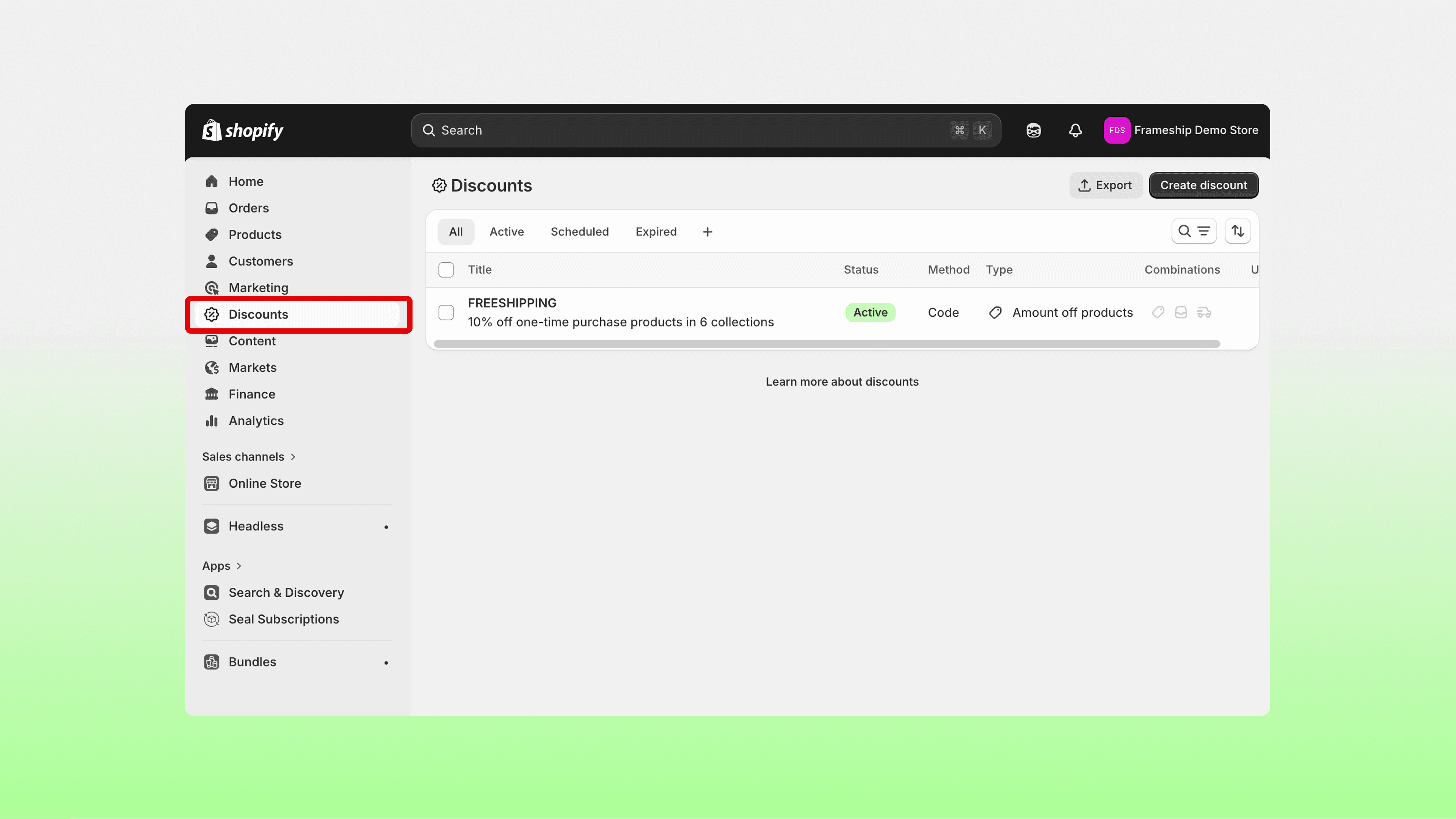
In Shopify
Set up your discount code with the products and rules you wish to have.
In Framer
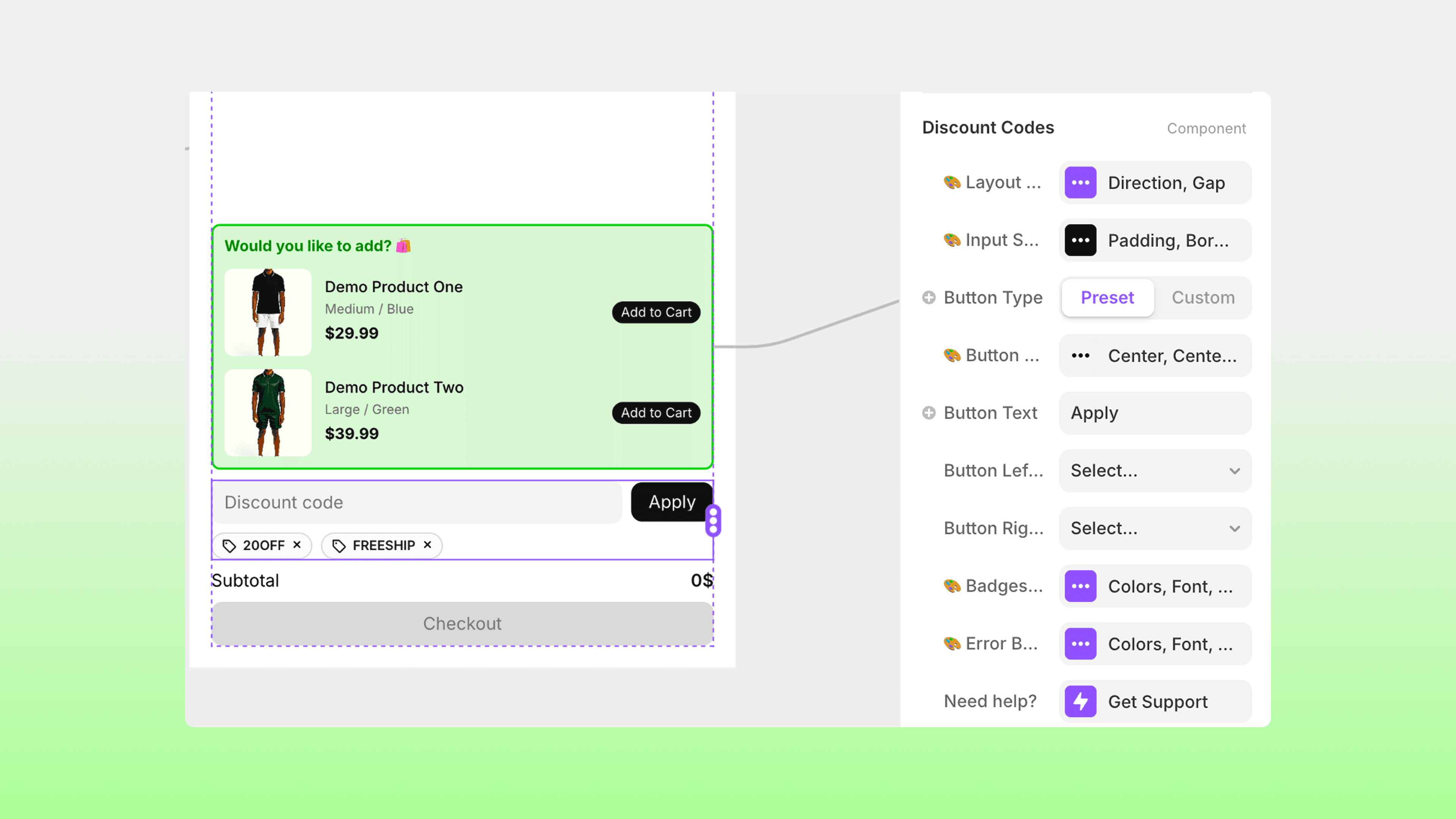
Open the Frameship plugin.
Go to Components, then Cart, and drag the Discount Codes component into your Cart Layer.
Under the Properties panel, you can change all styling options, including layout, sizing, spacing, colors etc. This also includes control over badges (discount labels) and error box styling. Customise it as you wish!
To show all price updates when discount codes are applied
Within the cart, if you would like your customer to be shown what discount is being applied and what the updated price is due to that discount, you can use the Cart Discount Label component.
Drag in the Cart Discount Label component into your cart’s footer layer (where the Total and Checkout button are).
Create a Label outsides of the cart component and connect that to Label.
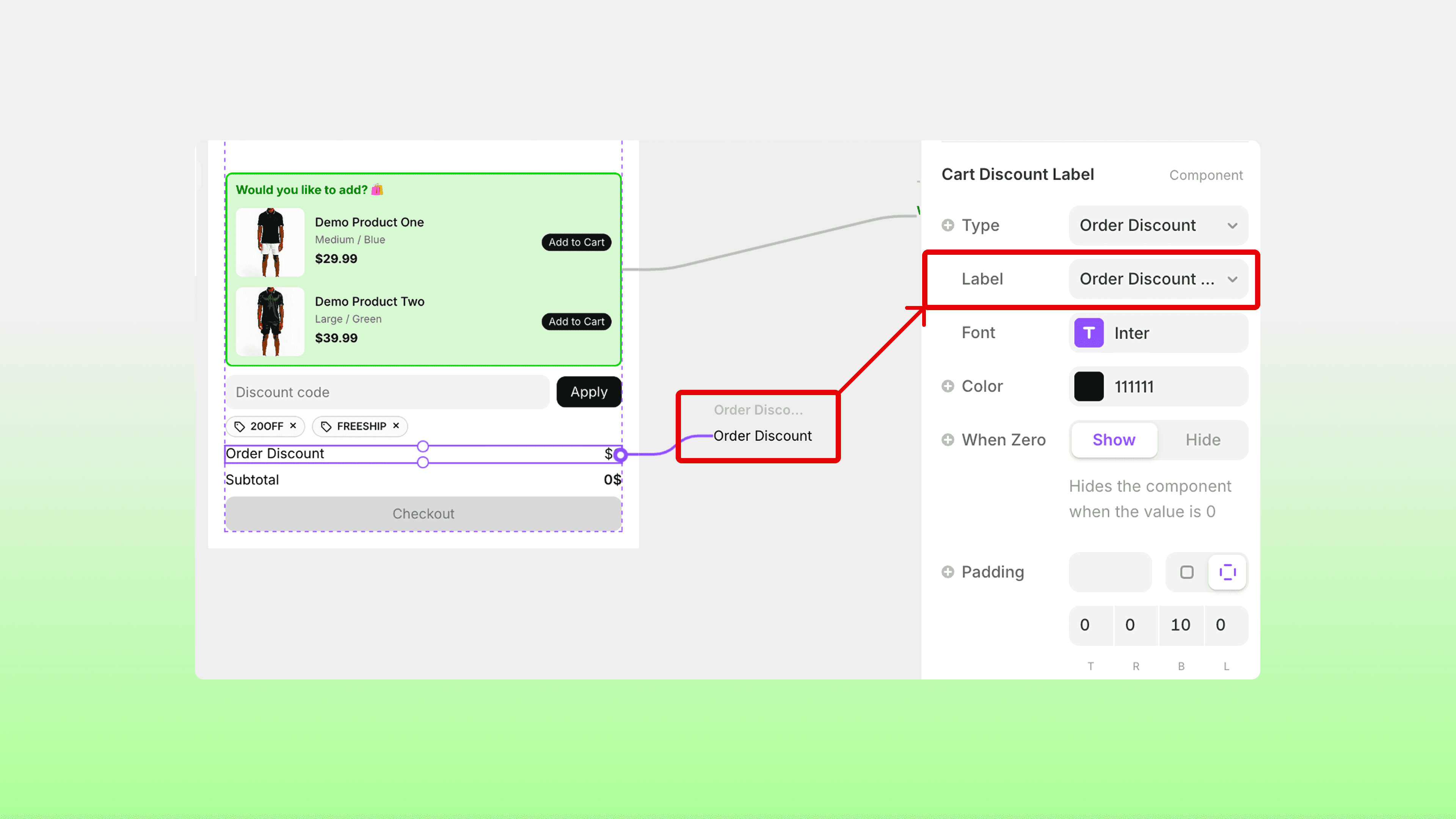
You can choose between order discount, product discount or total discount (or all three), depending on which discount code type you have.
If you set all these components to When Zero = Hide in the Properties panel, they will not be shown when no discounts are applied, only when a discount code is applied to the cart, they will be shown.
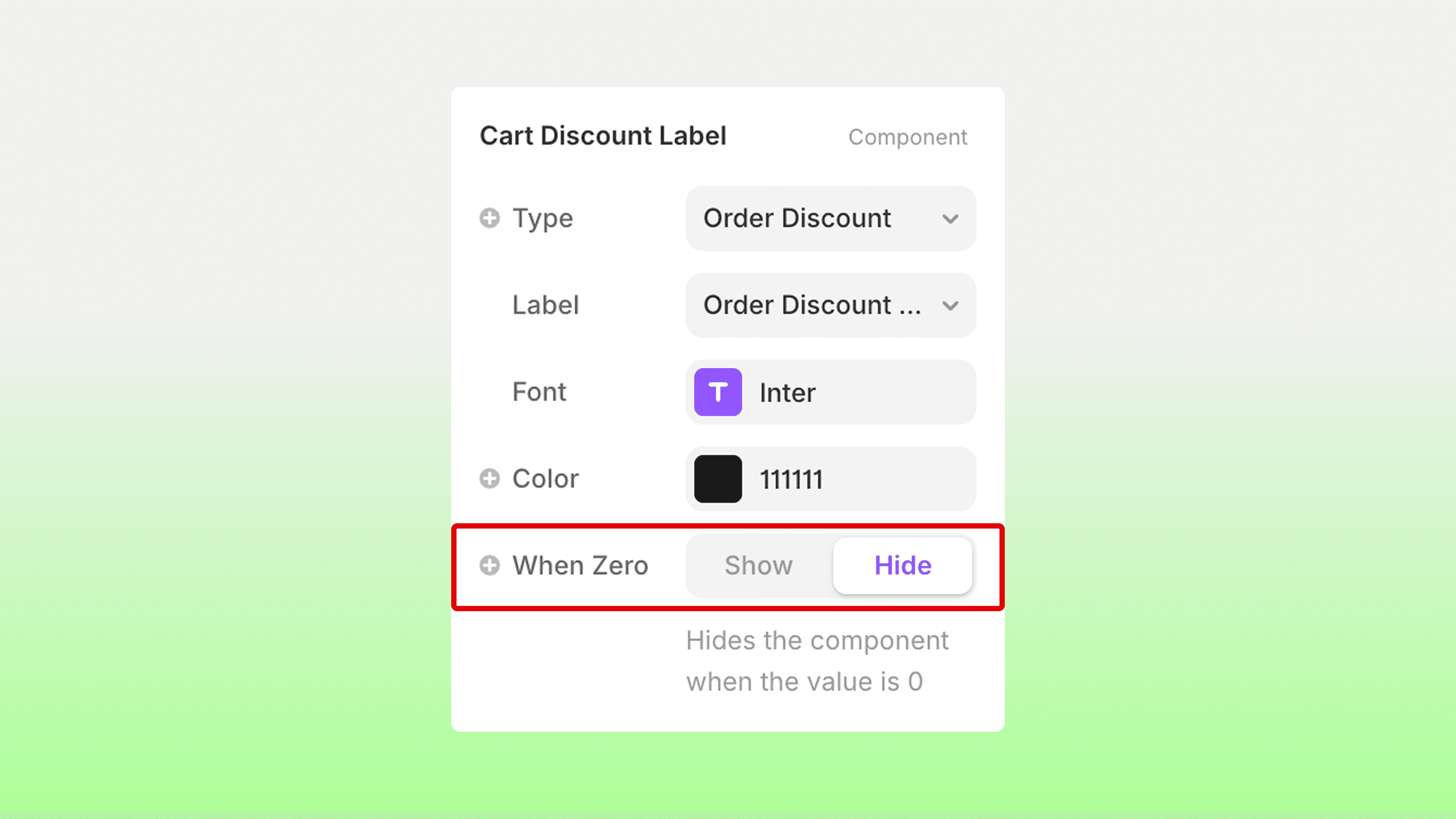
This shows/hides the appropriate automatically as the cart is updated.
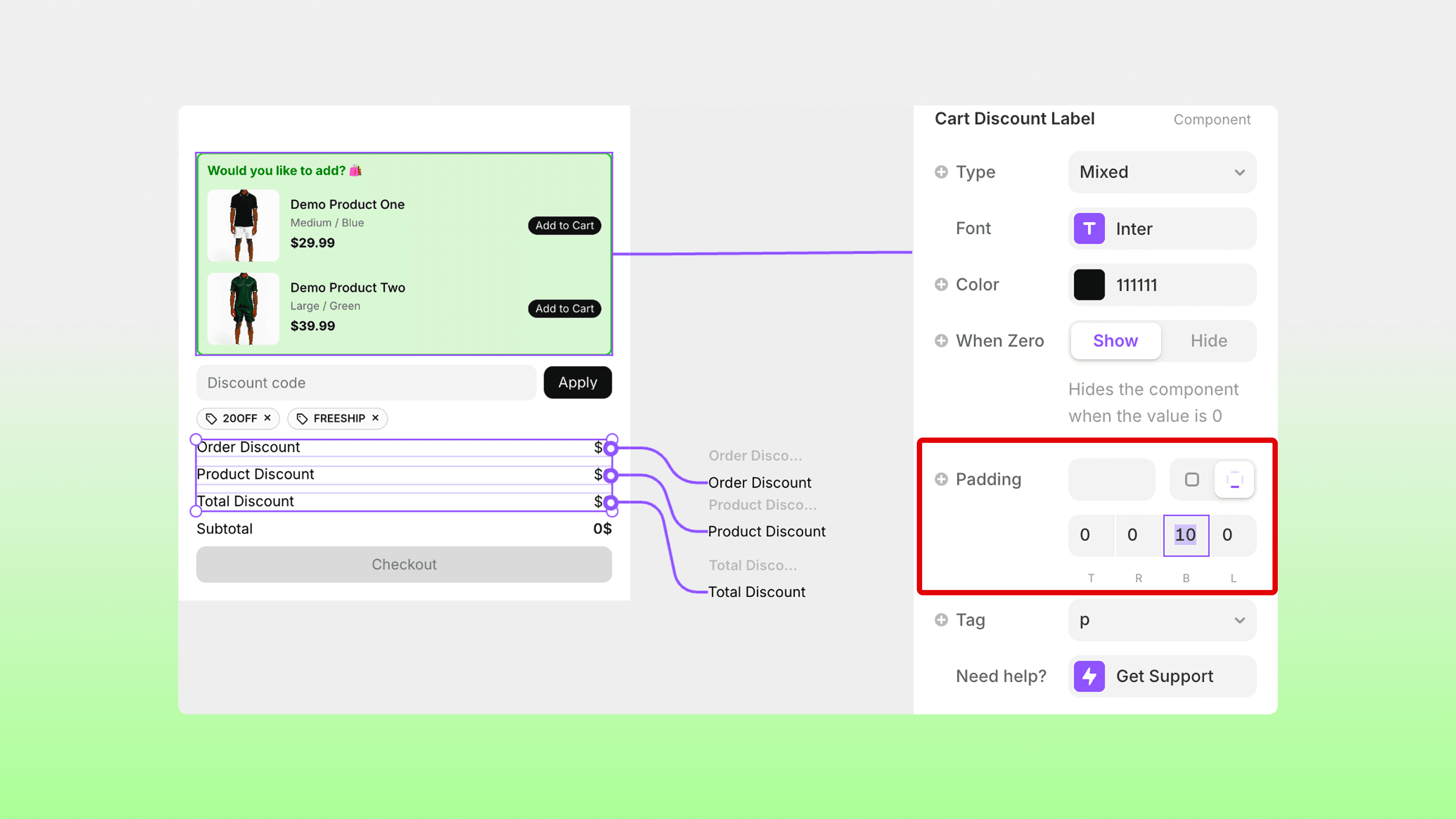
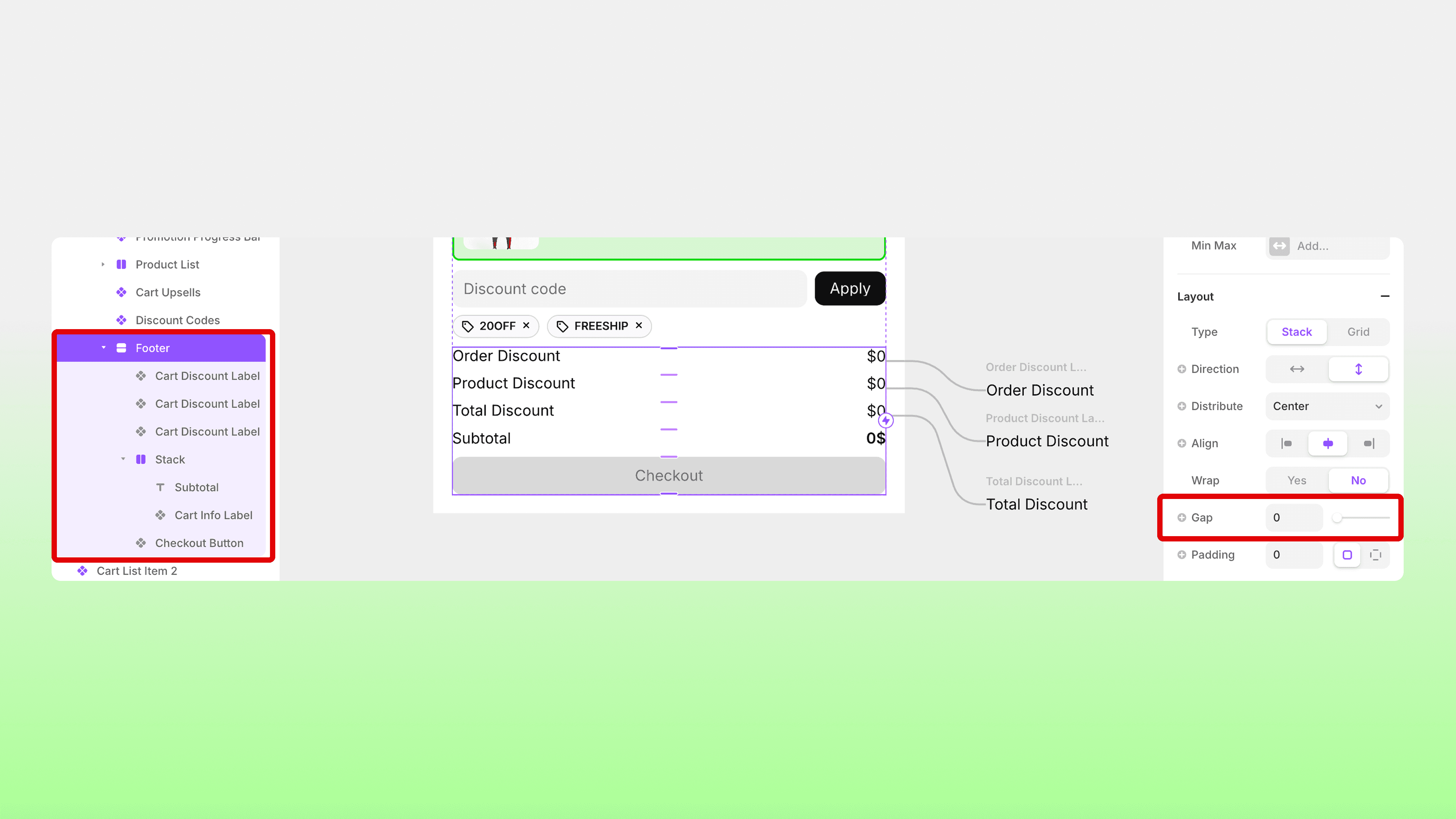
💡 Note: To ensure there is no extra gap when these layers are hidden, make sure that you do not have Gap set up on the Footer layer (the parent layer). Instead, add 10px of bottom padding to each of these components individually. This way, when the components are hidden, there will not be empty space in the cart. This is due to how Framer is set up.
Shopify Limitations
There are a few limitations to be aware of due to Shopify's own limitations. Please read the linked help document from Shopify carefully.
https://help.shopify.com/en/manual/discounts/discount-combinations
Main considerations:
You can only have up to 25 discount codes active.
Products part of Buy X get Y discount are ineligible for further product discounts.
RELATED DOCUMENTATION


