setup
COMPONENTS
INTEGRATIONS
FAQ
How to add bundles into your Framer store
How to create a Bundle option with Frameship
The Bundle Variant Selector component displays variant options for each product inside a Shopify bundle. Customers can select different options (color, size, style, etc.) for each included product.
It supports three display types: Text buttons, Color swatches or Product images.
The component automatically pulls bundle data and tracks selections in real time.
💡 Note: Bundles in Frameship only work with the native Shopify bundle app. This can be installed through Shopify itself.
How to integrate this in your Frameship store
In Shopify
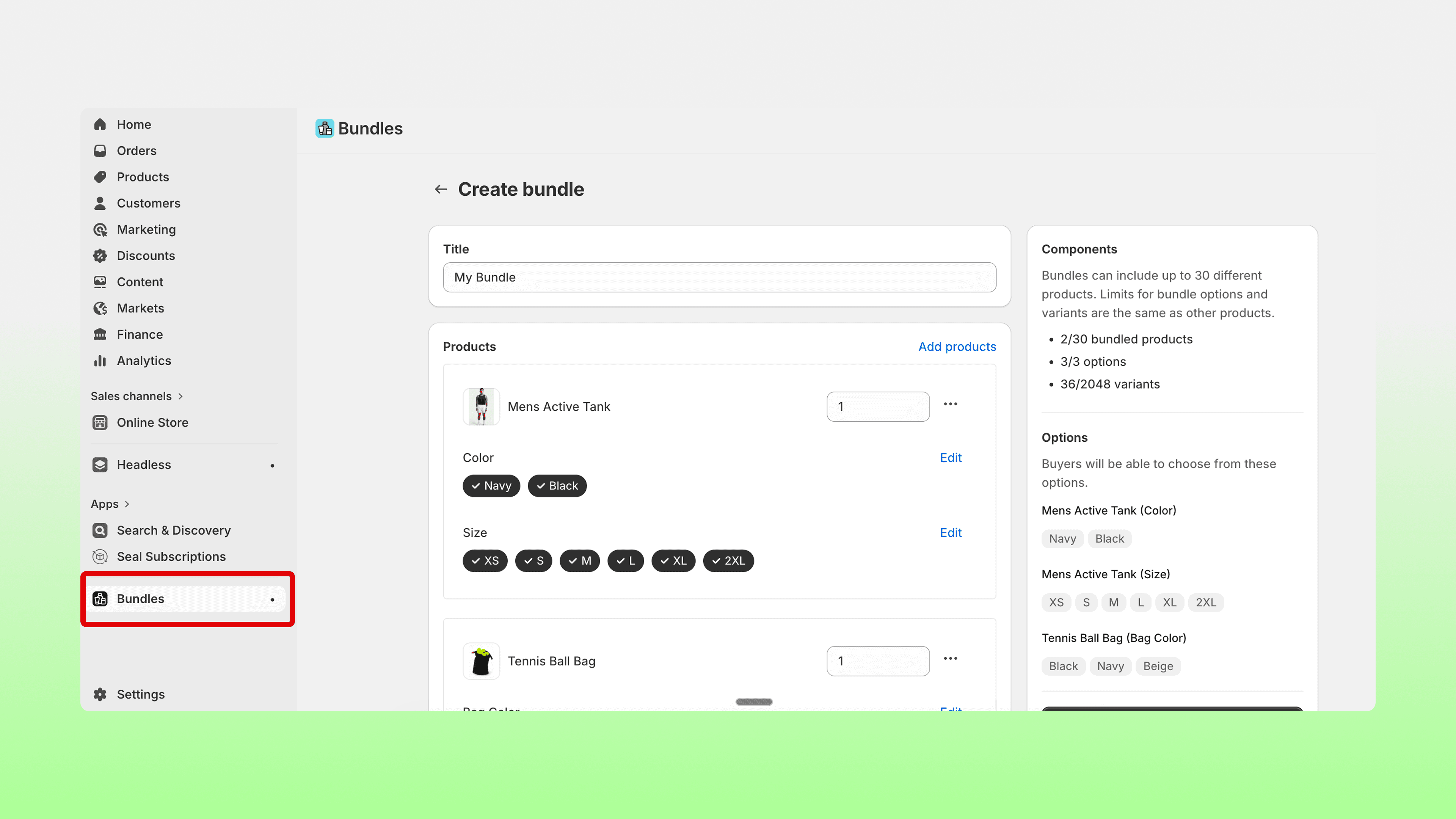
Install the native Bundles app from Shopify in your store backend.
Create a new bundle and set up product, quantity.
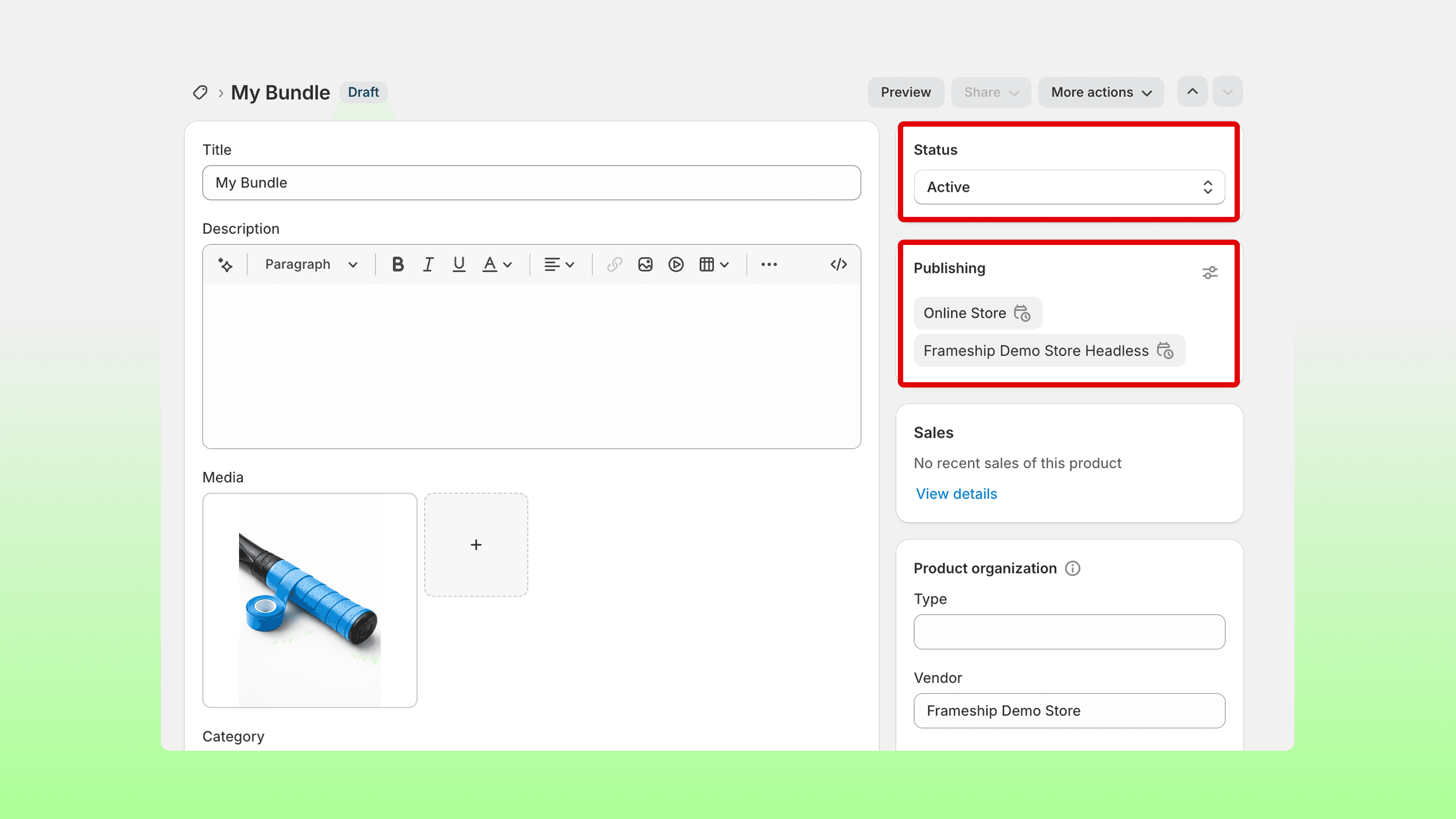
Then set up the title, description, media and category of this bundle. It is very important that you upload at least one image for the bundle; otherwise it will not work with the cart.
💡 Note: It is important to make sure that your bundle setting is set to Active, not draft, and also that your publishing is set to Online Store as well as your Headless app, otherwise this will not sync through to Framer.
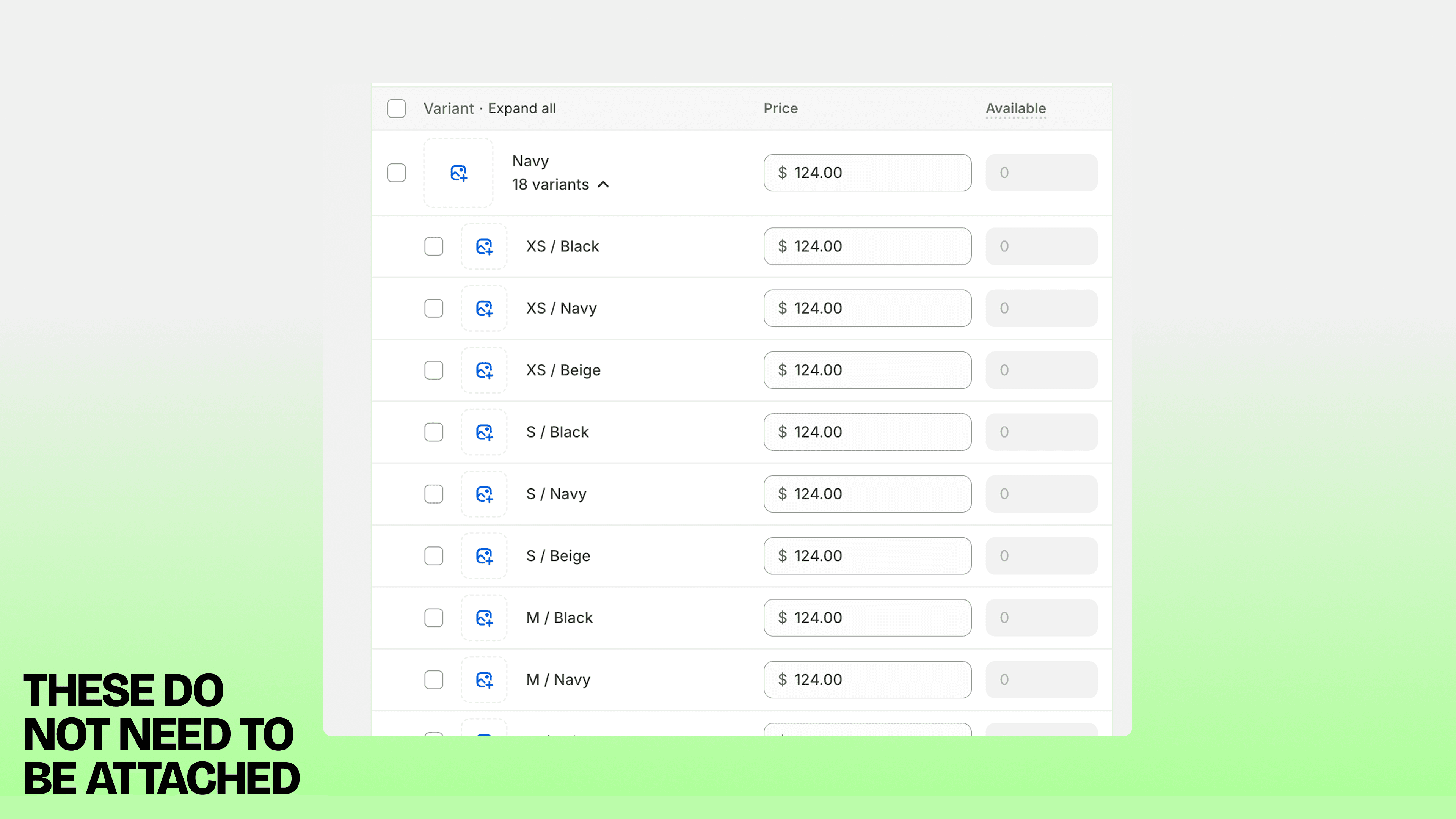
You do not need to add individual product variant images— these are pulled automatically.
In Framer
Resync your CMS.
Open the Frameship plugin on the canvas and navigate to the Component tab.
Under Product, you will see the Bundle Variant Selector component. Drag that into your product detail page in Framer.
💡 Note: This is a Scale component only. To access this component, you will need to have a Scale licence.
Once on your page, connect the Shopify Data and Bundle Products Data.
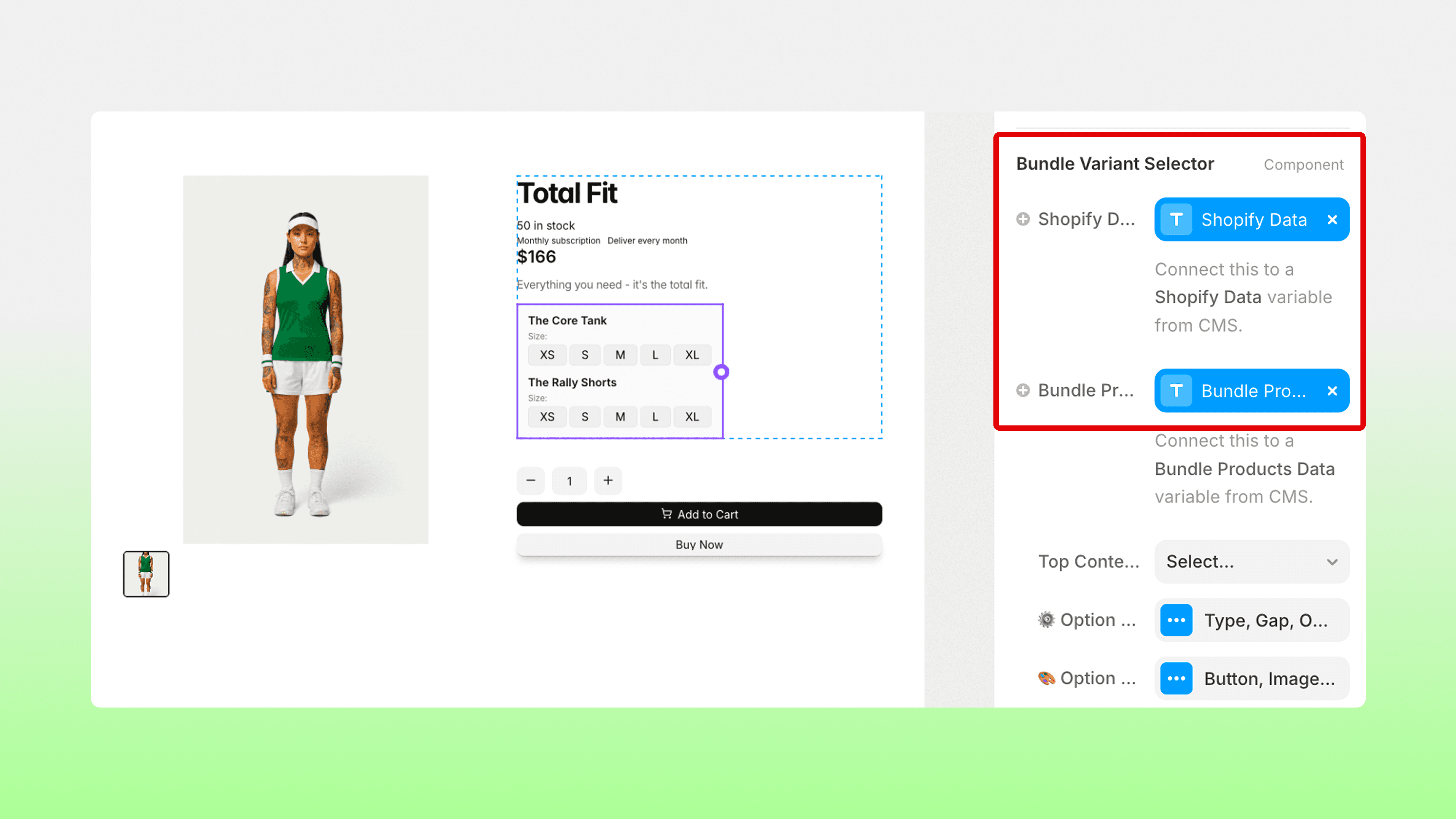
You can then customise the look and feel of the selector as you wish through the Properties panel, including type of selector, which can be buttons, colour swatches or images as well as labels, styling and sizing.
💡 Note: To ensure this component does not leave an empty gap when it is not applicable to a different product or variant, make sure you use Margin settings under Layer Style in the component settings, instead of a gap on the parent layer.
For cart set up & Styling
Go into your Cart component, then Cart Layer, then Cart List Item.
Open the Frameship plugin, go to Components, and under Cart you'll see the Cart Item Bundle Products component. Drag this into your product list item layers.
Connect the Bundle Products data and Line id data in the Properties panel.
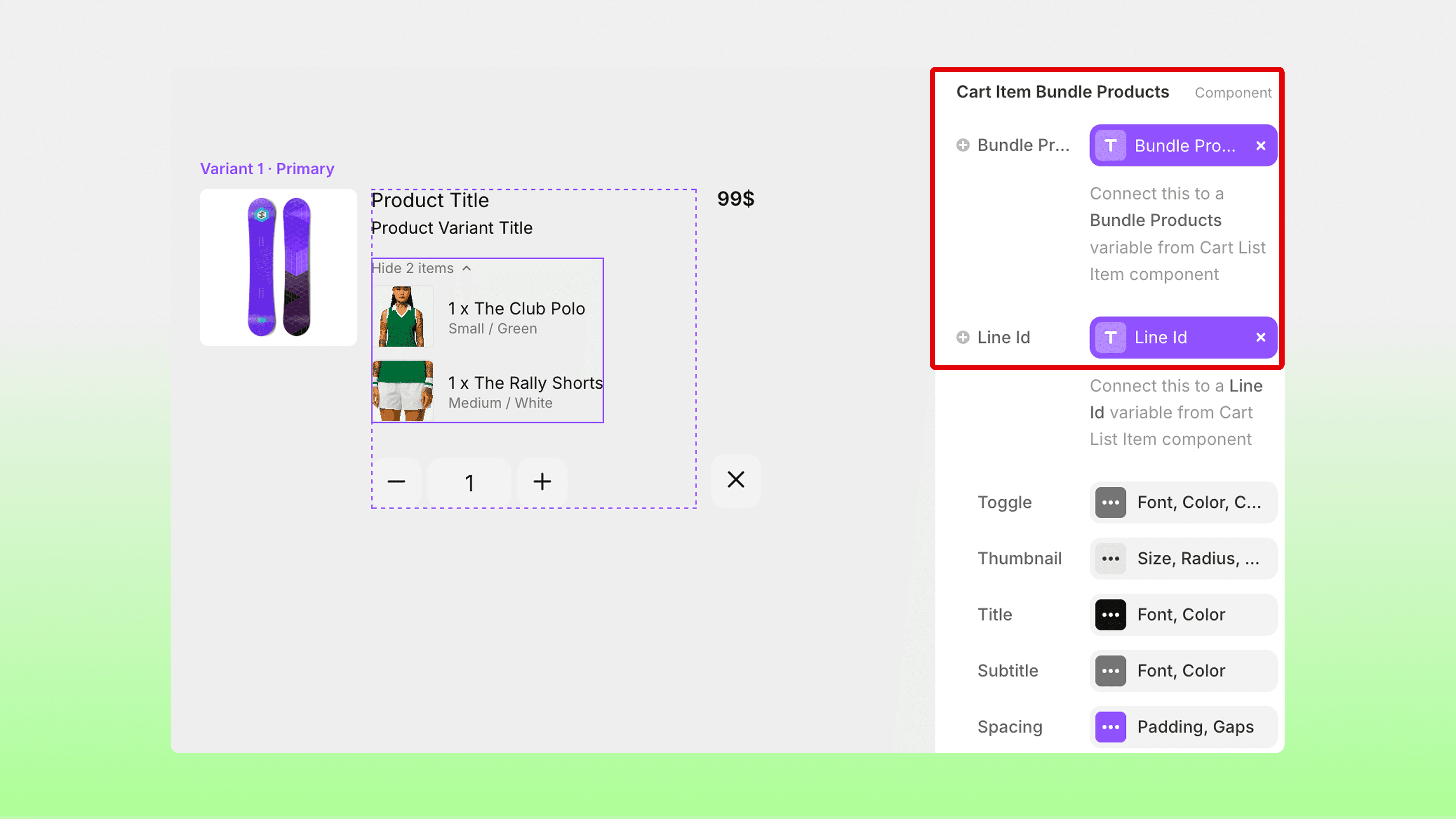
Under the component settings, you can change the settings and styling for: the toggle, thumbnail, titles, spacing and more.
And you’re done! That is how you set up bundles in your Frameship store.
RELATED DOCUMENTATION


