setup
COMPONENTS
INTEGRATIONS
FAQ
How to Add Favorites to Your Frameship Store
Favorites let shoppers heart a product and come back to it later. It's two pieces: the Favorite Button, which sits on each product card, and Favorites mode on a Frameship Collection, which shows only the products that shopper has saved.
Favorites are saved in the shopper's browser, so they work without an account and without any code.
Before you start
You'll need a Framer project connected to Shopify with Frameship (see Connecting Shopify to Framer) and your products synced to the CMS.
Step 1 - Add the Frameship Collection
If you already have a Frameship Collection on your page, skip to Step 2.
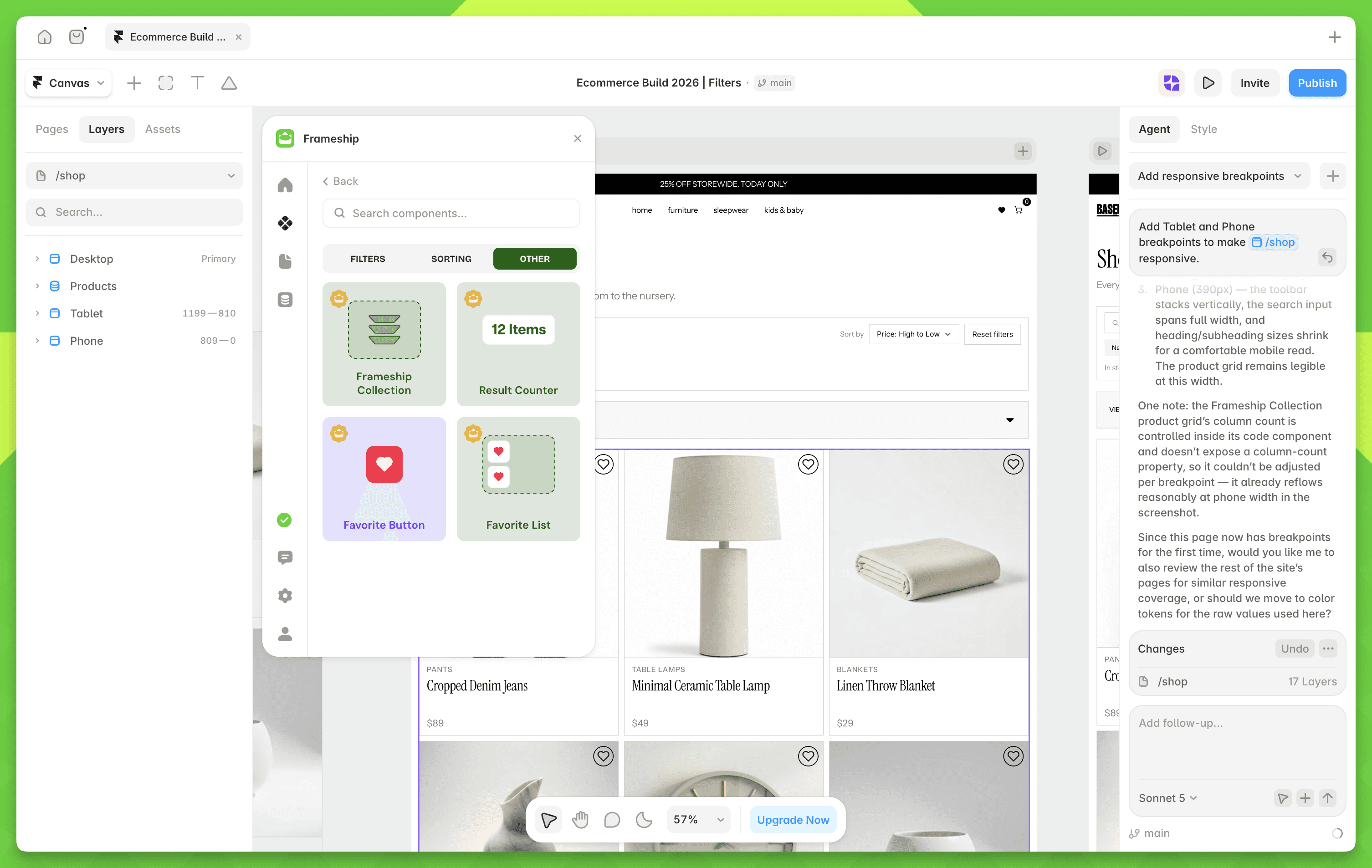
Open the Frameship plugin and go to Components, then the Other tab.
Select Frameship Collection and click Insert Component.
Pull your CMS Collection List off-canvas and connect it to the Frameship Collection. This step is easy to miss - Frameship renders the results itself, so the source list should not be visible on the page.
Under Styling, choose a layout type: Stack, Grid, Masonry, or Infinite Grid.
Under Setup, check the ID Filter Group matches your other filter components.
You do not need to turn on Favorites mode here. That's only for a dedicated favorites page (Step 3).
Step 2 - Add the Favorite Button
In the plugin, go to Components, then the Other tab.
Select Favorite Button and click Insert Component.
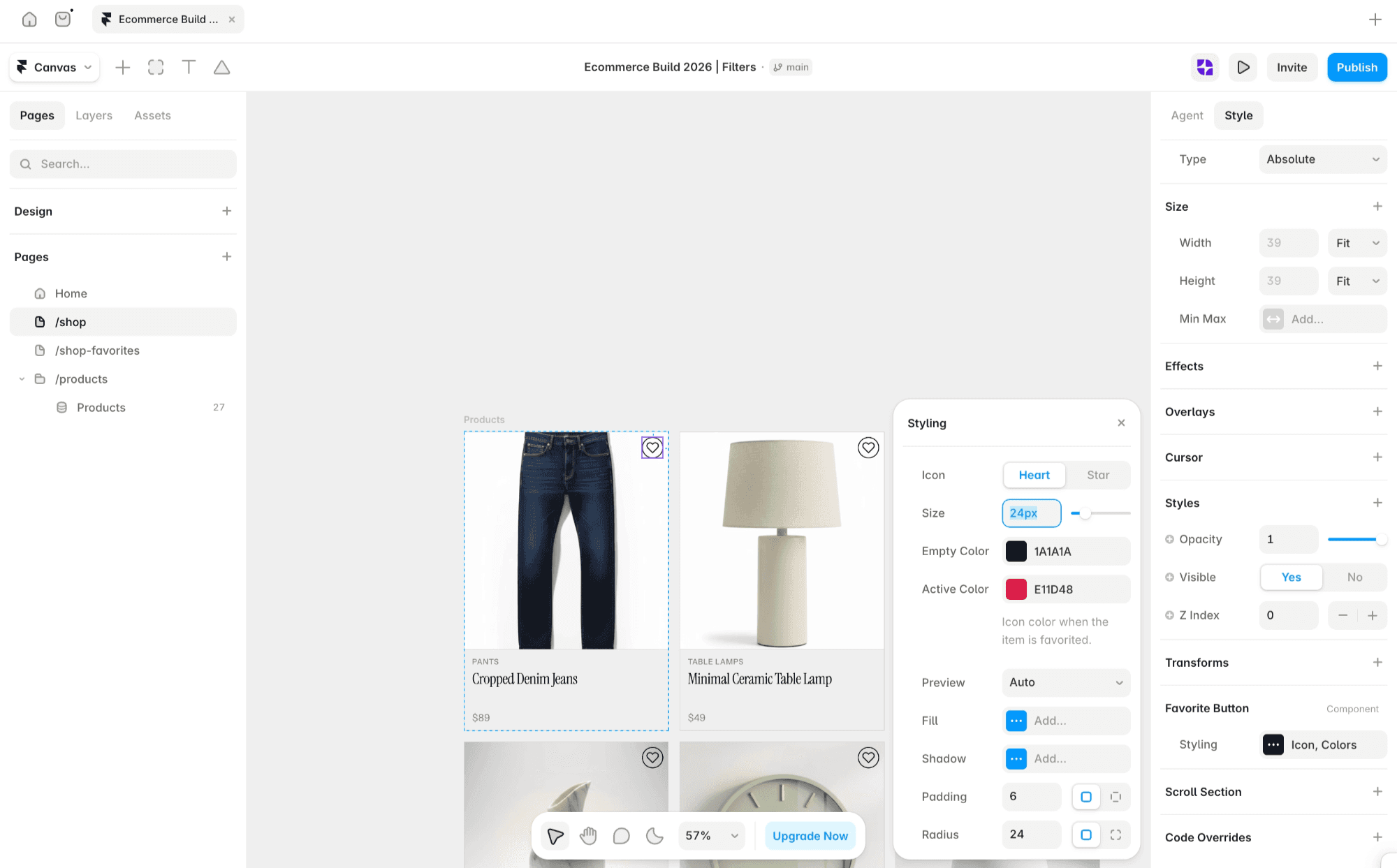
Place it on your product card and style it to match your store - it behaves like any other Framer component.
Preview the page and click a heart to test it. Favorites work alongside filtering and sorting, so a shopper can filter the collection and their saved items stay saved.
Step 3 - Build a dedicated favorites page
Want a "My Favorites" page in the nav, or a heart icon in the header that leads to one?
Duplicate your shop or collection page.
Select the Frameship Collection on the new page and switch it to Favorites mode.
Connect the same CMS collection.
Add an Empty State so the page still looks right before a shopper has saved anything.
Preview the page and you'll see only the products that shopper has favorited.


