setup
COMPONENTS
INTEGRATIONS
FAQ
How to Build a Lead Qualification Quiz in Framer
A lead qualification quiz scores potential clients based on their budget, timeline, and needs - then shows different next steps depending on how strong a fit they are. Hot leads get a booking link. Warm leads get a nurture path. Poor fits get pointed toward a better resource. FramerForms handles the scoring and sends results straight to your CRM or email tool on submit.
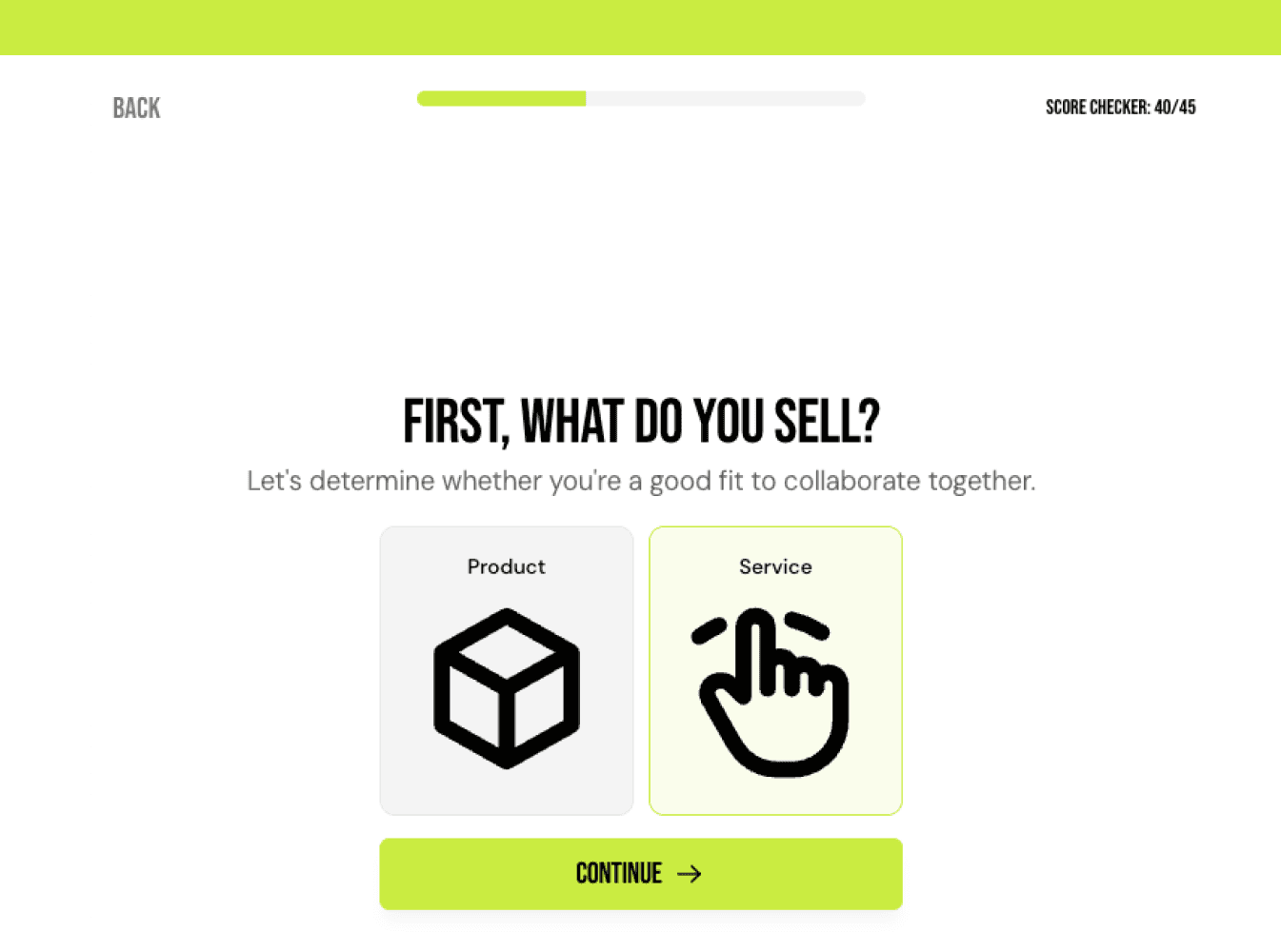
Plan your scoring first
Before building, decide what makes a qualified lead for your business. Common questions cover budget range, project timeline, company size, and decision-making authority. Map each answer to a point value - higher points for stronger fit.
For example, with 5 questions worth up to 4 points each, your range is 5-20:
15-20 points - Hot lead, show a booking link
10-14 points - Warm lead, show a nurture CTA
5-9 points - Poor fit, point to a self-serve resource
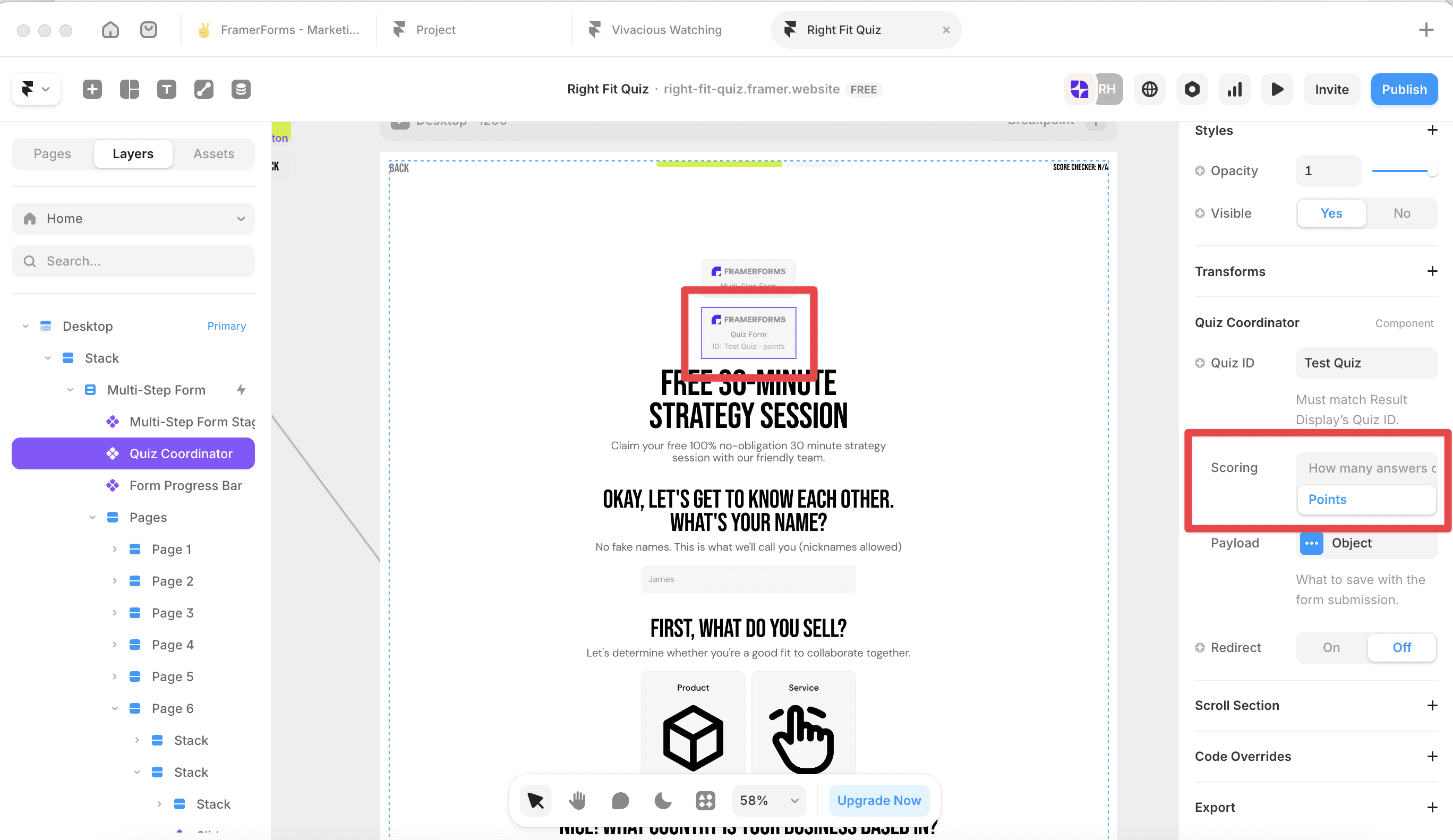
Set up your Quiz Form
Open FramerForms, go to Quiz and insert a Quiz Form. Set the Quiz ID (e.g. lead-qual) and Scoring to Points. Open the Payload panel and turn on Points earned - this sends the score to your integration when someone submits so you can tag or segment them automatically.
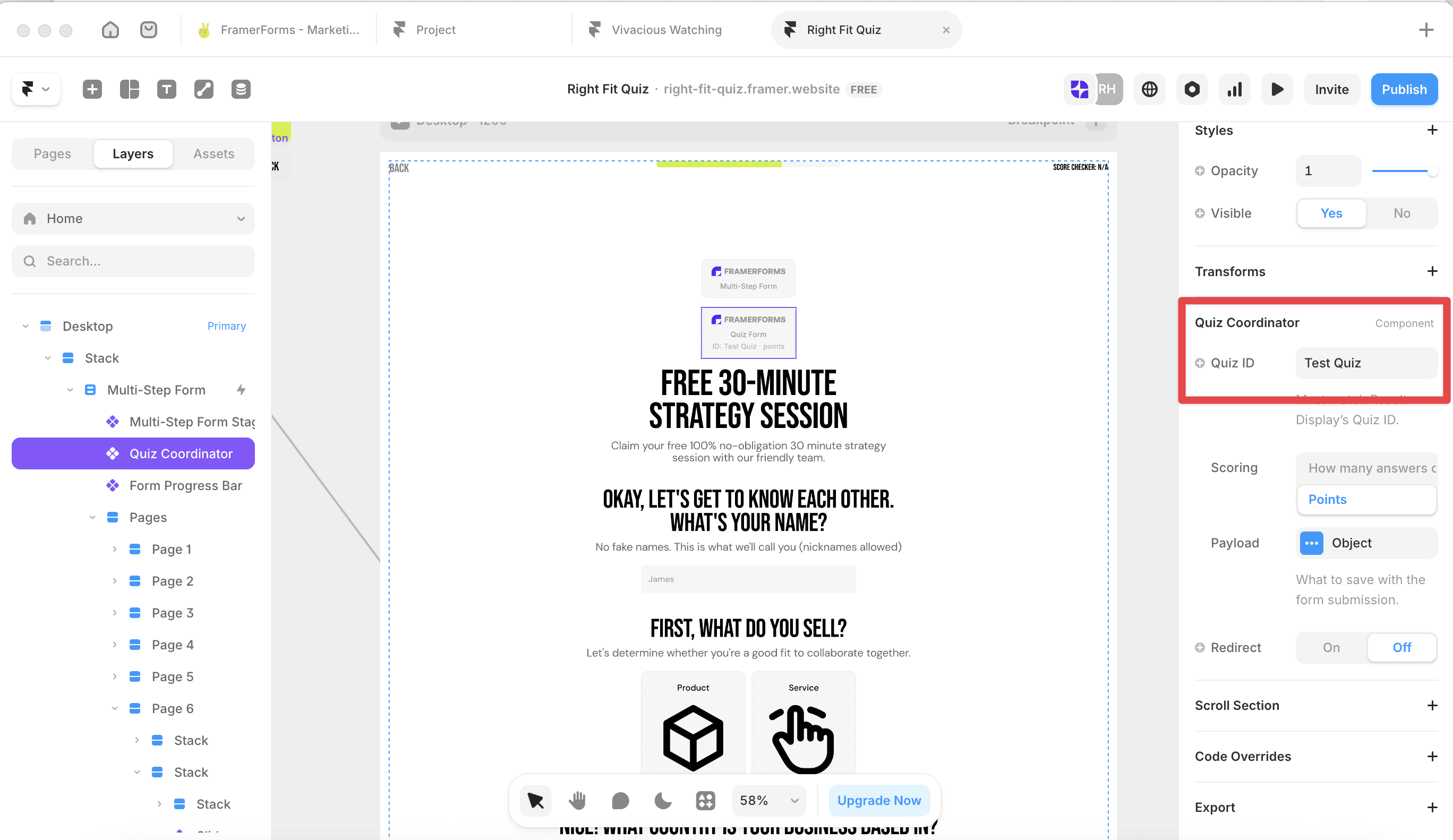
💡 If you're sending results to MailerLite, turning on Points earned only means the score arrives as a plain number rather than a JSON object - much easier to use in automations and segments.
Add your questions
Buttons work best for lead qualification - fast to answer, no typing required. Select each input, open the Quiz panel, turn Quiz On, and set Scoring to Weighted options. Open the Points panel and assign a point value to each option based on lead quality. Note: each row's Value is the submitted option value, not the visible label - make sure these match your input options exactly.
Design your result cards
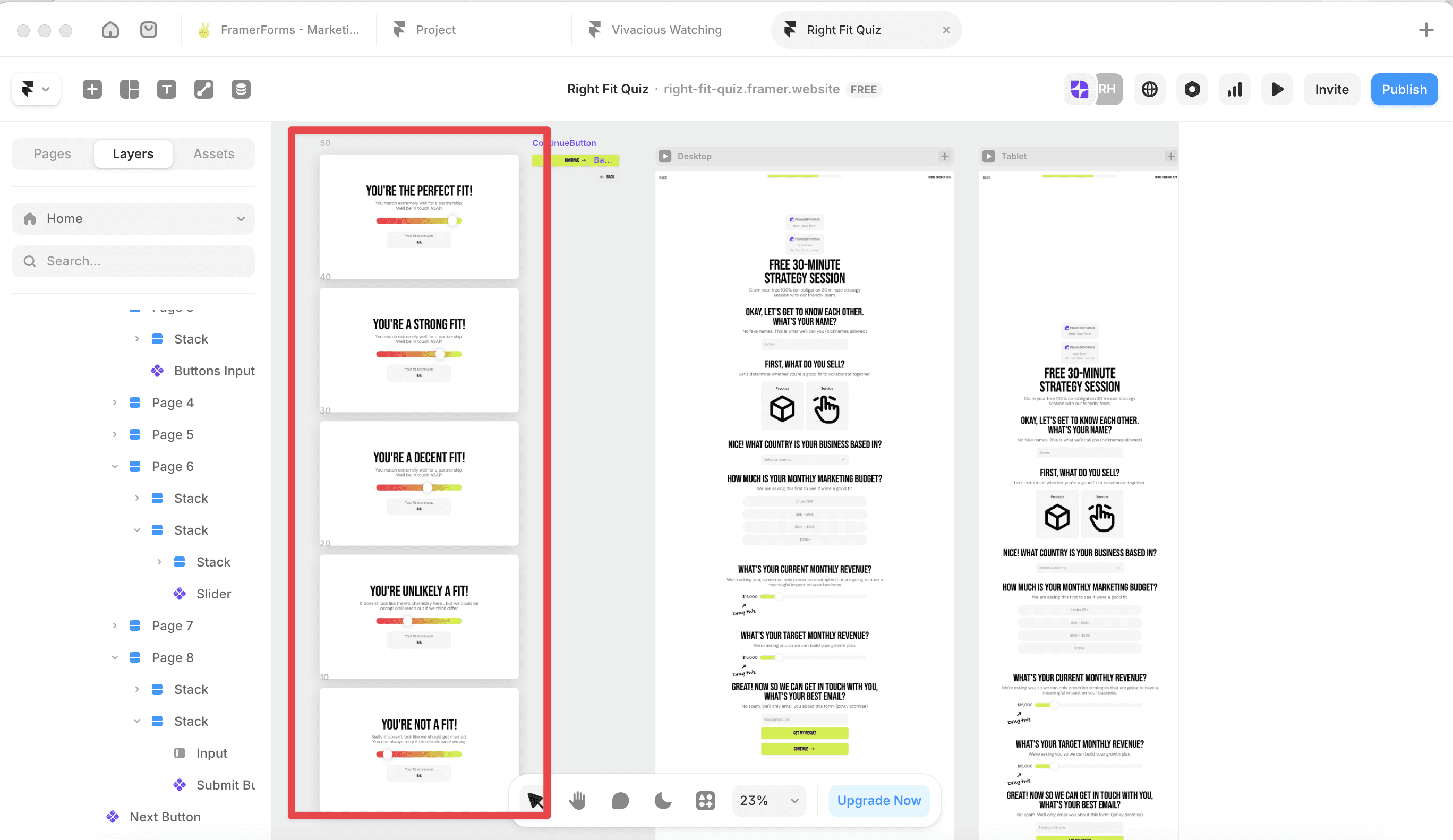
Create a result component for each lead segment on your Framer canvas before adding the Result Display:
Hot lead card - a clear CTA to book a call or start a project
Warm lead card - a softer CTA like downloading a guide or joining a waitlist
Poor fit card - a helpful redirect to a resource, blog post, or self-serve option
Add a Result Display
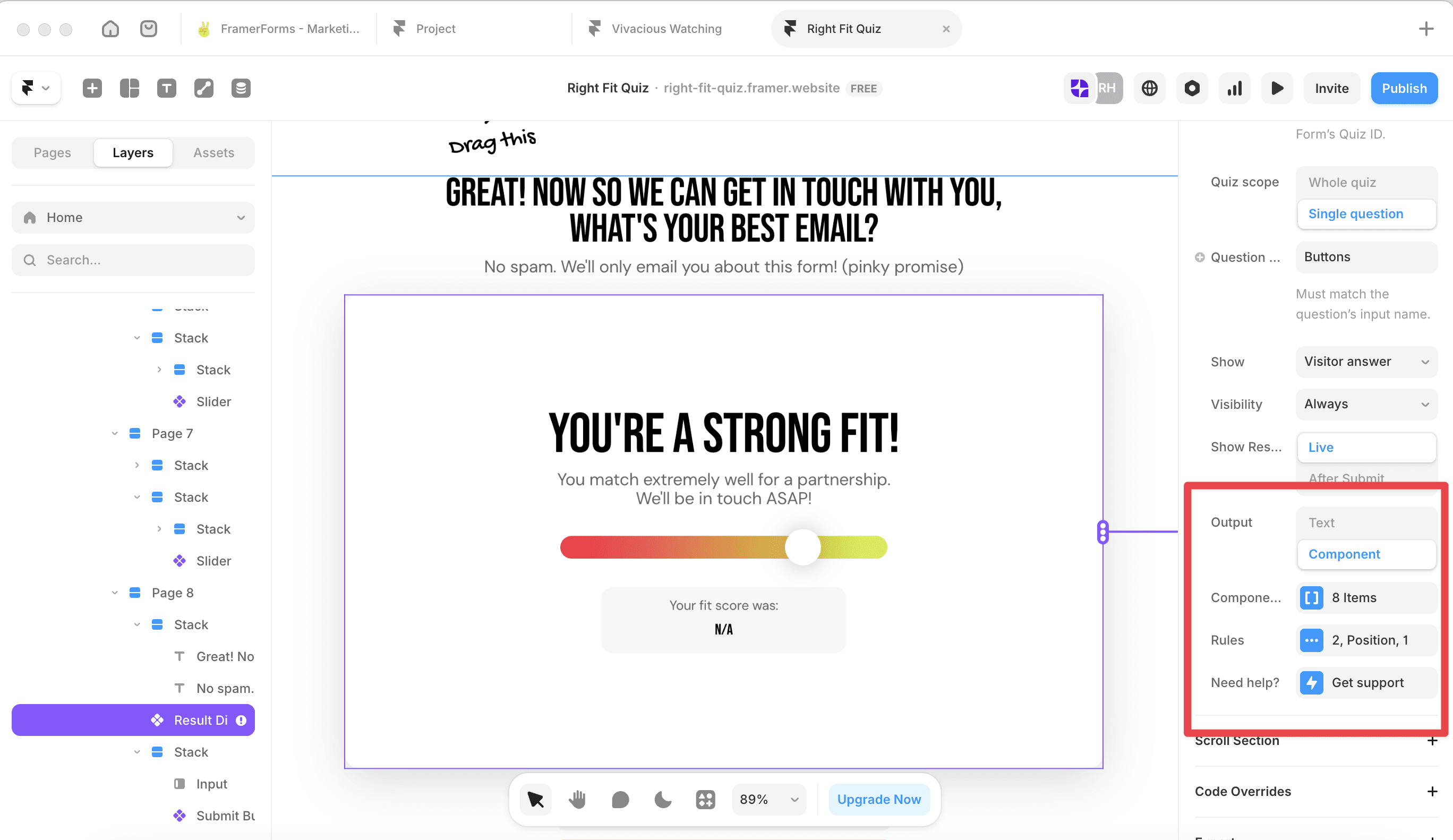
Add a Result Display and set:
Quiz ID - must match the Quiz Form exactly
Quiz scope - Whole quiz
Score - Total Points
Show result - After Submit
Output - Component
Add each result card under Components, then open Rules and add a condition for each lead segment using your score ranges. Use the card name (e.g. Hot Lead) rather than a position number so it's easy to keep track.
Test your quiz
Preview the form and answer with different combinations to check each result triggers correctly. Submit a test response and confirm the score arrives in your integration.
You're all set! 🥳
RELATED DOCUMENTATION


