setup
COMPONENTS
INTEGRATIONS
FAQ
How to Build a Product Finder Quiz in Framer
A product finder quiz helps visitors find the right product, plan, or service for their needs. Instead of listing every option on a pricing page, you guide them through a few questions and surface the best fit. FramerForms' weighted scoring makes this straightforward to build directly in Framer.
Plan your questions and results first
Before building, map out which answers point toward which product. Each question option should nudge the score toward one outcome. For example, a quiz recommending between Starter, Pro, and Agency plans might ask about team size, budget, and feature needs.
Sketch out your score ranges before you open Framer. If you have 4 questions worth 1-3 points each, your range is 4-12. Divide that into as many buckets as you have products and note the ranges - you'll need them when setting conditions.
Set up your Quiz Form
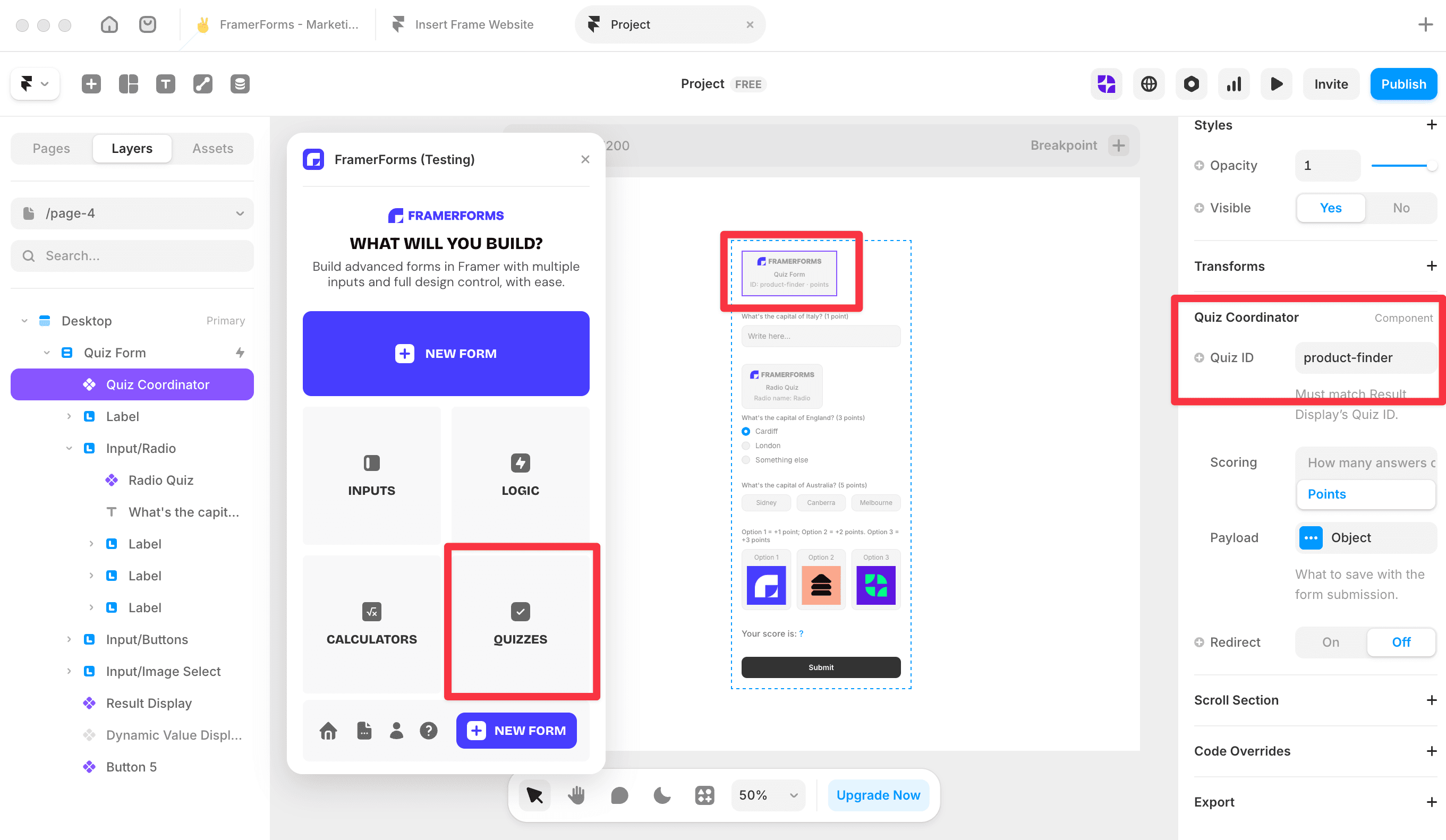
Open FramerForms, go to Quiz and insert a Quiz Form. Set the Quiz ID to something recognisable (e.g. product-finder) and set Scoring to Points.
Add your questions
Buttons and Image Select work well for product finders - they're fast to answer and visual. Select each input, open the Quiz panel, turn Quiz On, and set Scoring to Weighted options. Open the Points panel and assign a point value to each option based on which product it points toward. Note: each row's Value is the submitted option value, not the visible label - make sure these match your input options exactly.
Design your result cards
Create a result card component for each product on your Framer canvas before wiring up the Result Display. Each card should include the product name, a short description, pricing if relevant, and a clear CTA like a buy button or book a call link. FramerForms swaps between these components based on the score.
Add a Result Display
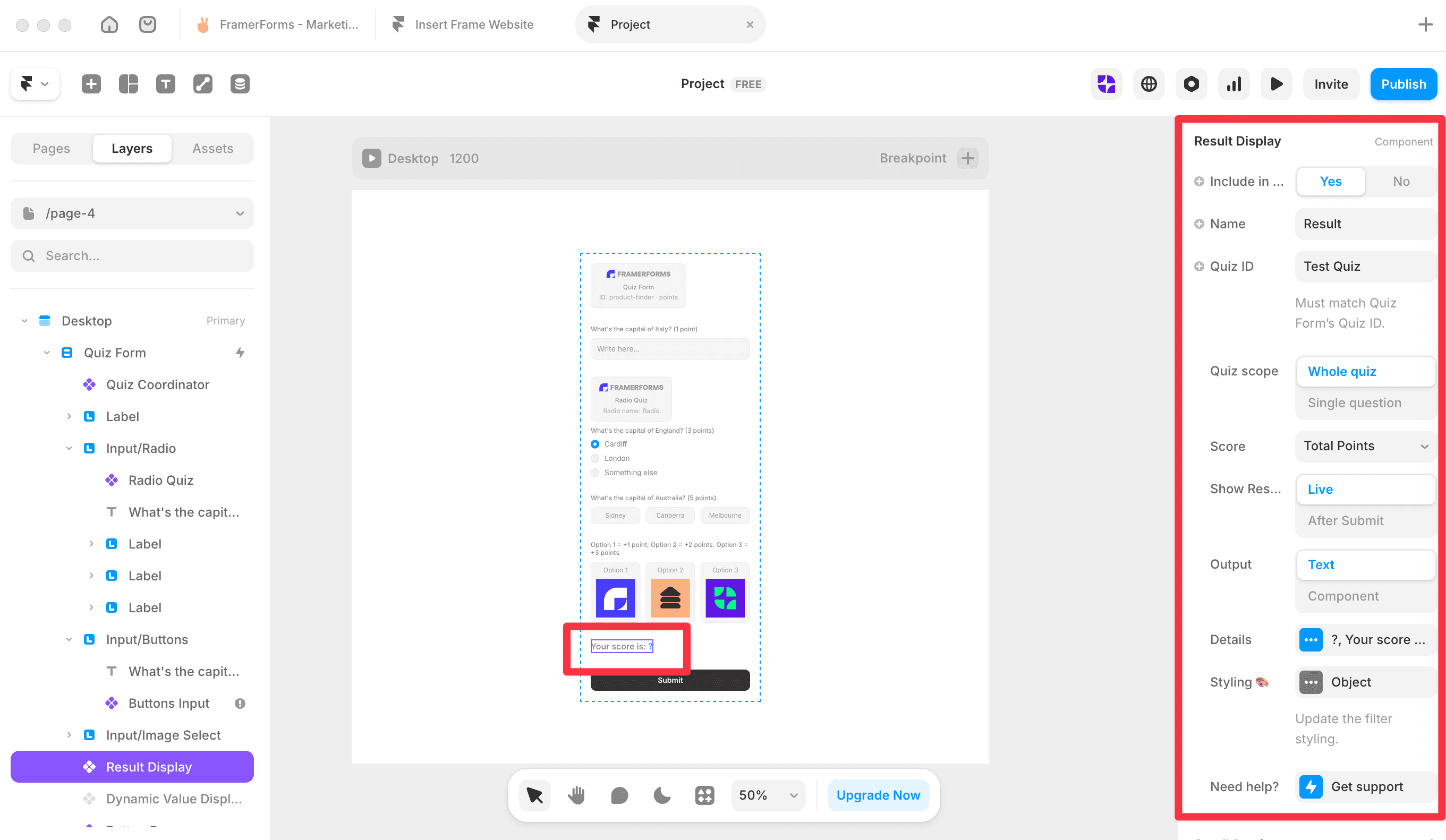
Add a Result Display to your canvas and set:
Quiz ID - must match the Quiz Form exactly
Quiz scope - Whole quiz
Score - Total Points
Show result - After Submit
Output - Component
Add each product card under Components in order. Then open Rules and add a condition for each product, mapping your score ranges to the right card. Use your product's actual name (e.g. The Starter Plan) rather than a position number so it's easy to keep track.
Test your quiz
Preview the form and answer with different combinations to make sure each product result triggers correctly. Check that your score ranges don't overlap or leave any gaps.
You're all set! 🥳
RELATED DOCUMENTATION


