setup
COMPONENTS
INTEGRATIONS
FAQ
Add a Quiz to Your Framer Site with FramerForms
FramerForms lets you add fully scored quizzes to any Framer site. Use correct/wrong scoring for knowledge quizzes and trivia, or weighted option scoring for personality quizzes and recommendation tools. Results can display as a score, or swap between your own custom Framer components based on the outcome.
Add a Quiz Form
Open FramerForms, go to Quiz and insert a Quiz Form onto your canvas. Give it a Quiz ID (e.g. designer-quiz) and set Scoring to either Points (weighted scoring) or How many answers correct (right/wrong scoring).
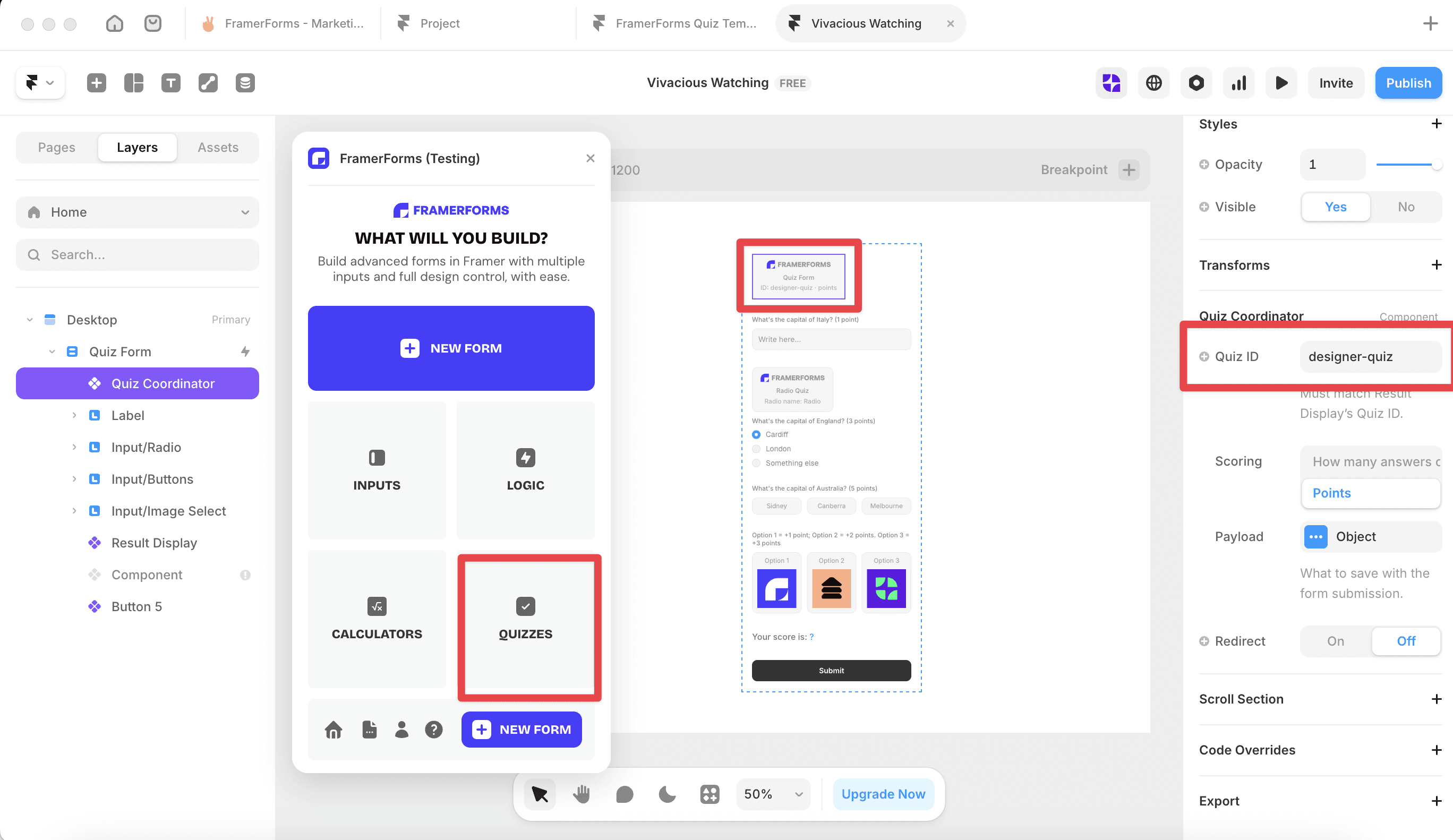
Use the Payload panel to control what score data gets sent to your integration on submit. If you only turn one value on, it sends as a plain number. Multiple values send as a JSON object - useful to know if you're piping results into MailerLite or a Google Sheet.
Set up your question inputs
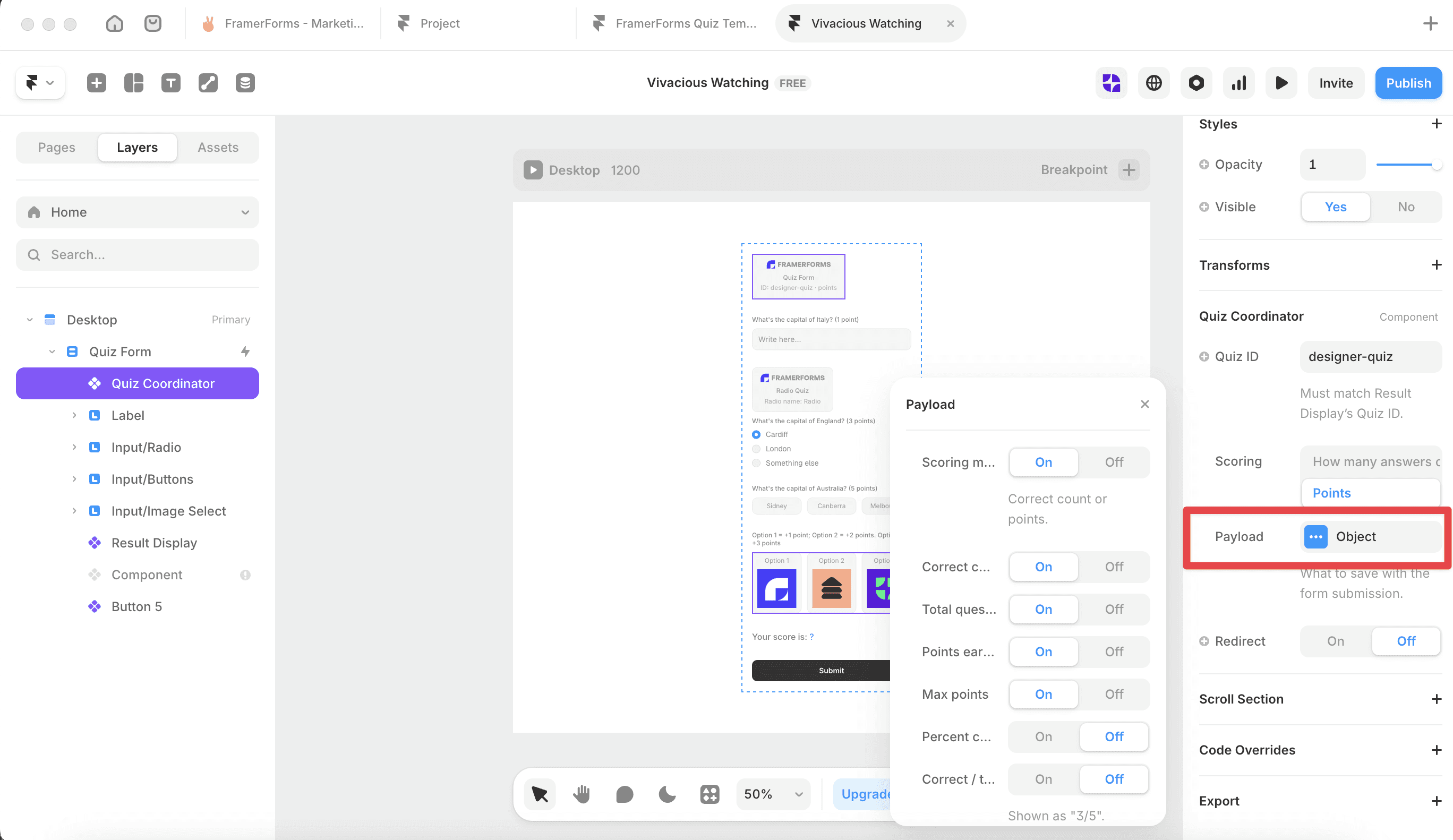
Select any input inside the Quiz Form and open the Quiz panel. Turn Quiz On, then choose a scoring mode.
Correct/wrong - pick the correct answer and set point values for correct and wrong responses. Works with Buttons, Image Select, Dropdown, and Text inputs. For Radio inputs, use the dedicated Radio Quiz component instead.
Weighted options - assign a different point value to each individual option. Best for personality quizzes where there's no right or wrong, just different weights per answer.
For Text inputs you can also set case sensitivity, whether spaces matter, and regex matching.
Add a Result Display
Add a Result Display component from the plugin and configure:
Quiz ID - must match the Quiz Form exactly, including capitalisation
Quiz scope - Whole quiz reads the total score across all questions. Single question reads one input's score only.
Score - how to calculate the result. This affects both how the score displays and the threshold values you use in conditions:
Show result - applies to Text output only. Live updates the score as answers are selected. After Submit waits for form submission. Component output always swaps live regardless of this setting.
Output - Text shows the score as a string with prefix/suffix options. Component swaps between your Framer components based on conditions.
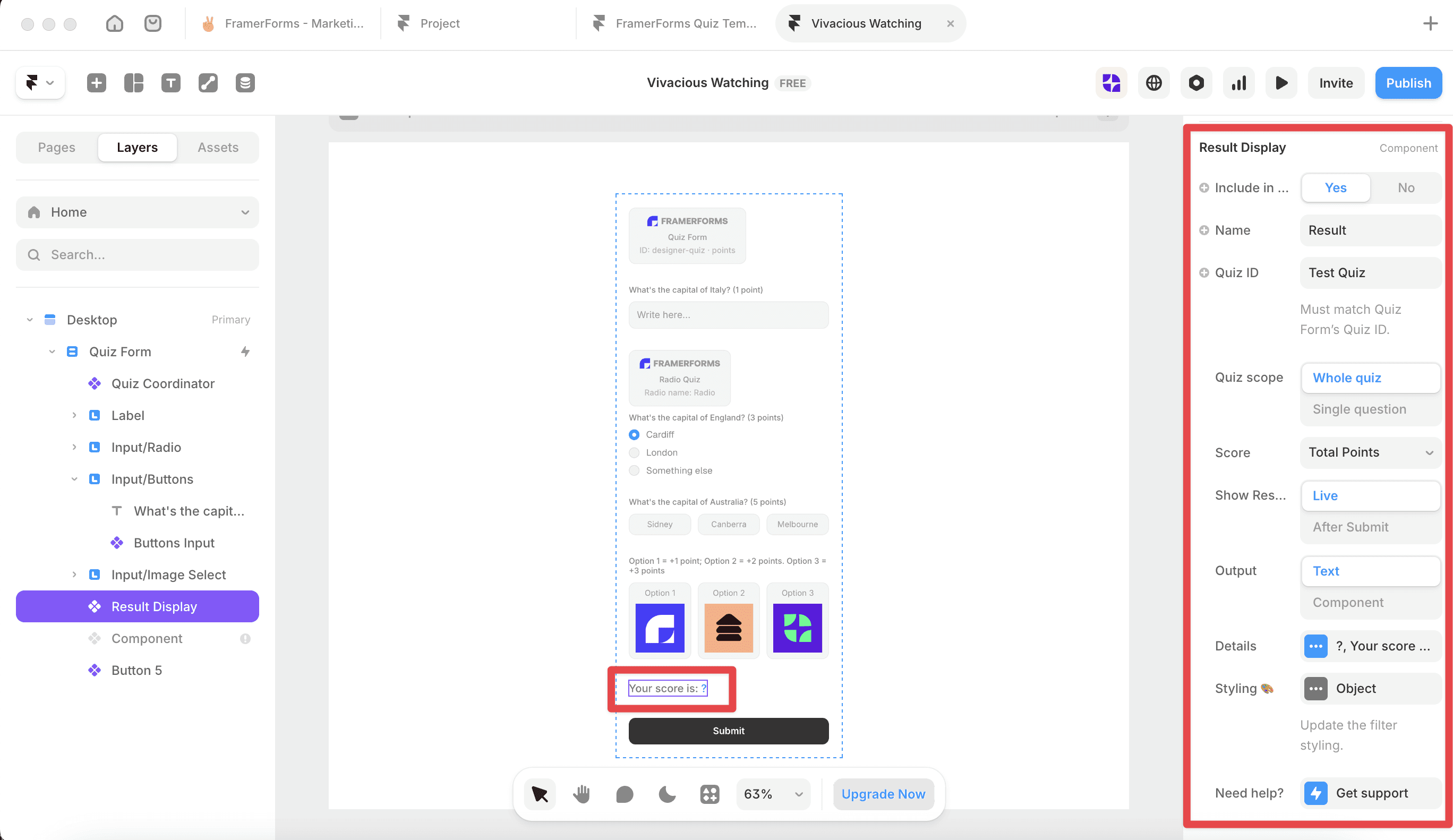
⚠️ Quiz scope defaults to Whole quiz. Only switch to Single question if you specifically need per-question output.
Set up your output
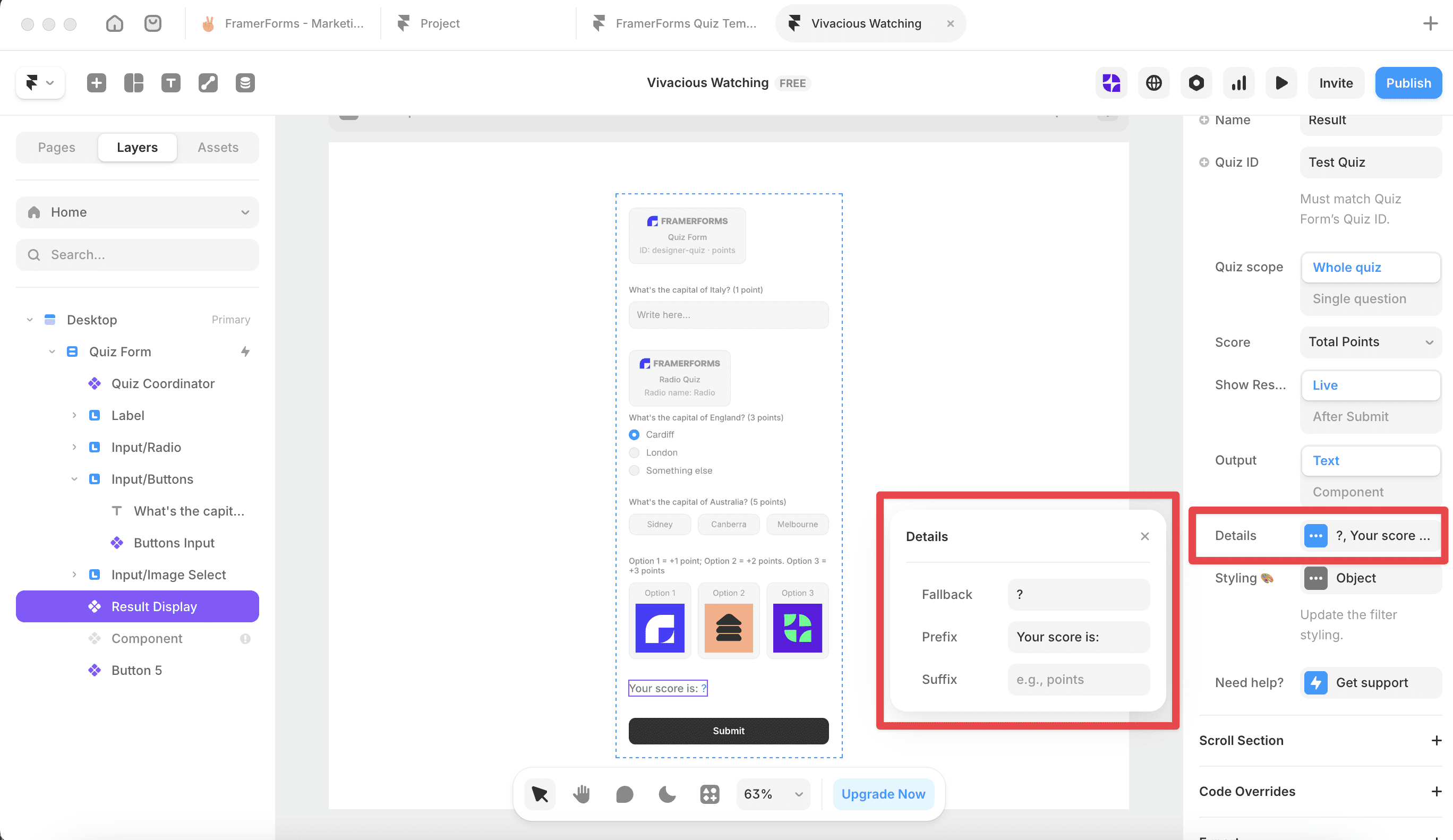
Text output shows the score as text on your page. Open Details to add a Prefix (e.g. Your score is:), a Suffix (e.g. points), a Fallback for before anything is answered, and decimal place control. No conditions needed - it just displays the number.
Component output swaps between different Framer components based on the score. Add your result cards under Components in order. Then open Rules and add a condition for each result.
For each condition, set the Metric (Points or Correct/incorrect), choose an operator (between, less than, greater than, equals), and set your threshold. Then choose how to pick which component to show:
Position - pick the component by its position number in the Components property control.
Name - pick the component by its layer name, visible in the sidebar or top left of the layer on canvas.
Set a Fallback component so something always shows when no condition matches.
Common issues
Result Display always shows the fallback - check that Conditions has at least one item. Zero conditions means it always falls back regardless of score.
Score returning a ratio instead of a number - switch Score from Correct/total to Total Points.
Result Display not responding at all - confirm the Quiz ID matches exactly on both the Quiz Form and Result Display.
Wrong card showing or score only reacting to one question - make sure Quiz scope is set to Whole quiz, not Single question.


