setup
COMPONENTS
INTEGRATIONS
FAQ
How to Build a Personality Quiz in Framer
Personality quizzes are one of the most engaging things you can add to a Framer site. FramerForms' weighted scoring lets you assign different point values to each answer option, with your own custom result cards swapping in based on the final score.
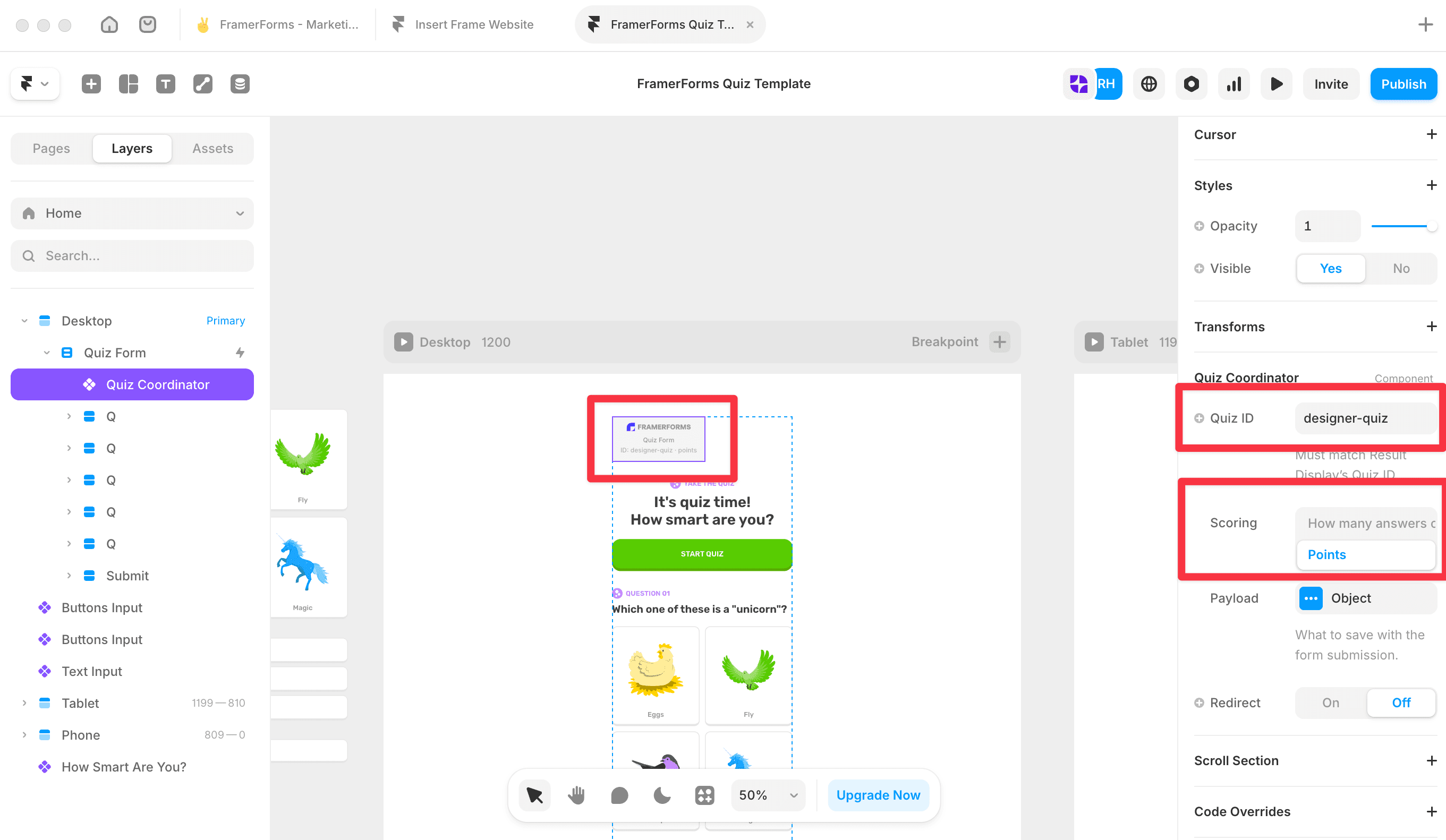
Set up your Quiz Form
Open FramerForms, go to Quiz and insert a Quiz Form onto your canvas. Set the Quiz ID to something recognisable (e.g. designer-quiz) and set Scoring to Points.
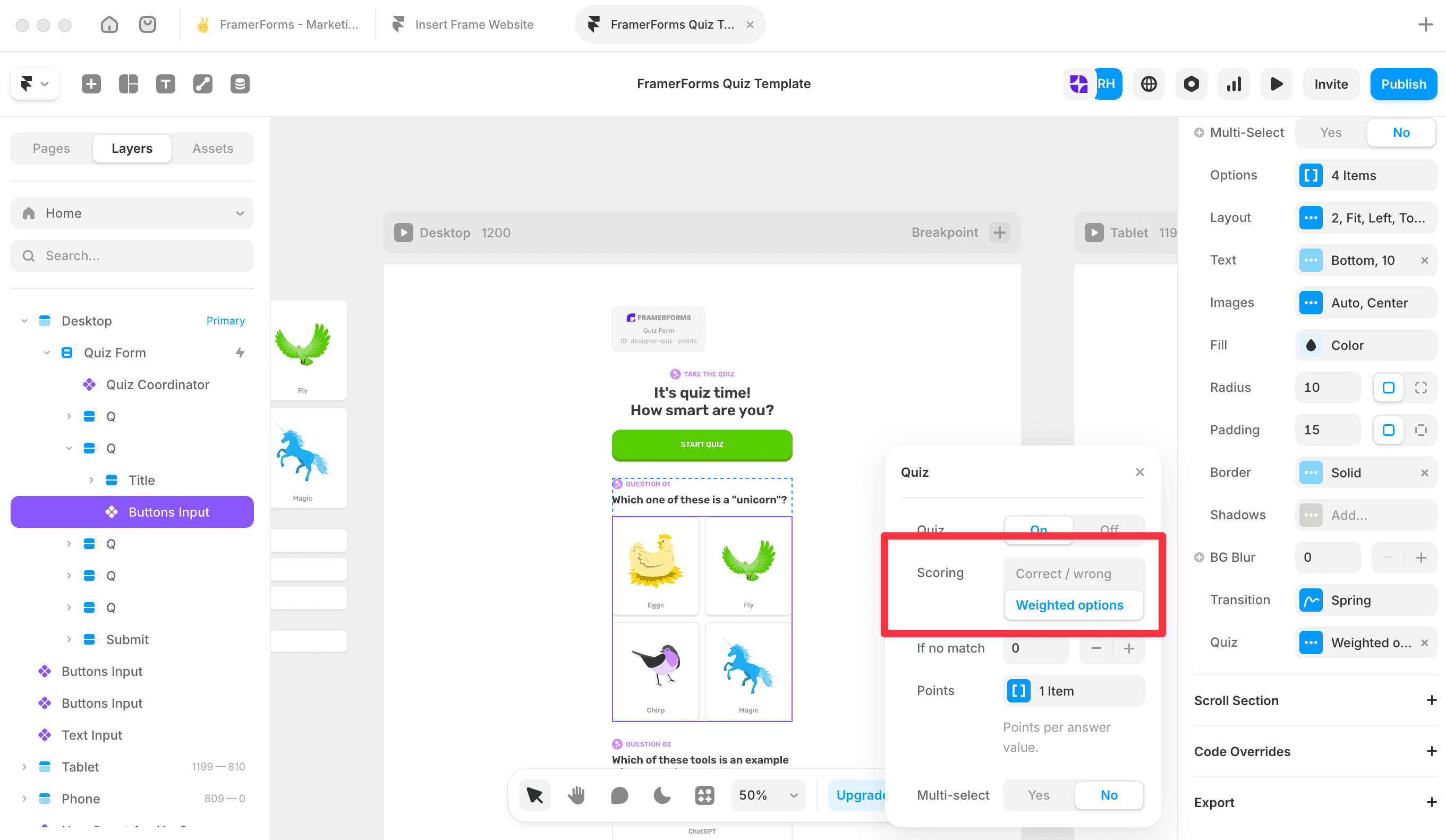
Add your questions
For personality quizzes, Buttons and Image Select work best. Select each input, open the Quiz panel, turn Quiz On, and set Scoring to Weighted options. Then open the Points panel and assign a point value to each choice. Note: each row's Value is the submitted option value, not the visible label - make sure these match your input options exactly.
💡 Sketch out your scoring before you build. If you have 5 questions each worth 1-4 points, your total range is 5-20. Divide that into result buckets and note the ranges - you'll need them when setting conditions.
Design your result cards
Create each result as its own Framer component on the canvas before adding the Result Display. FramerForms swaps between them based on score, so the design is entirely yours.
Add a Result Display
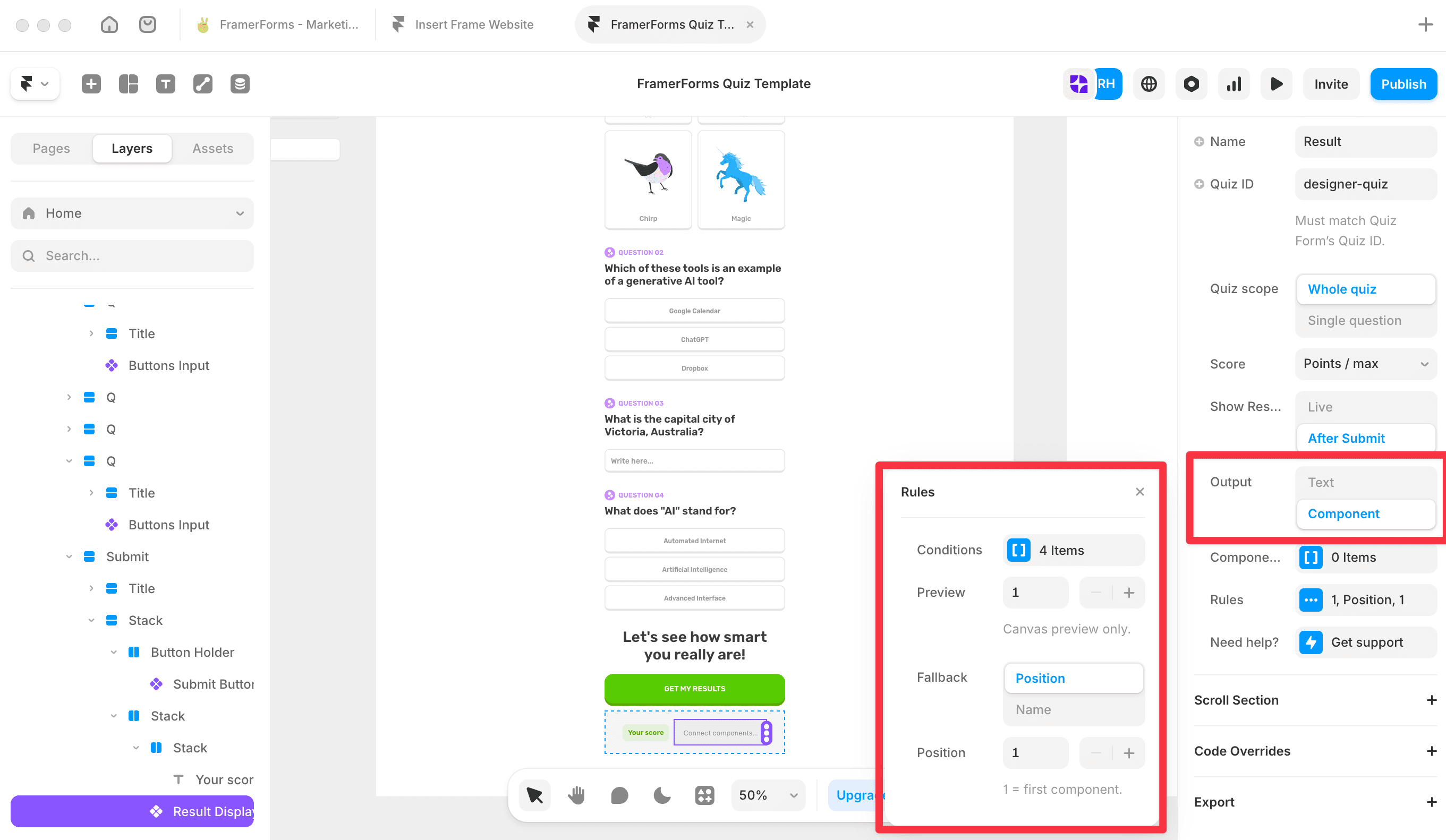
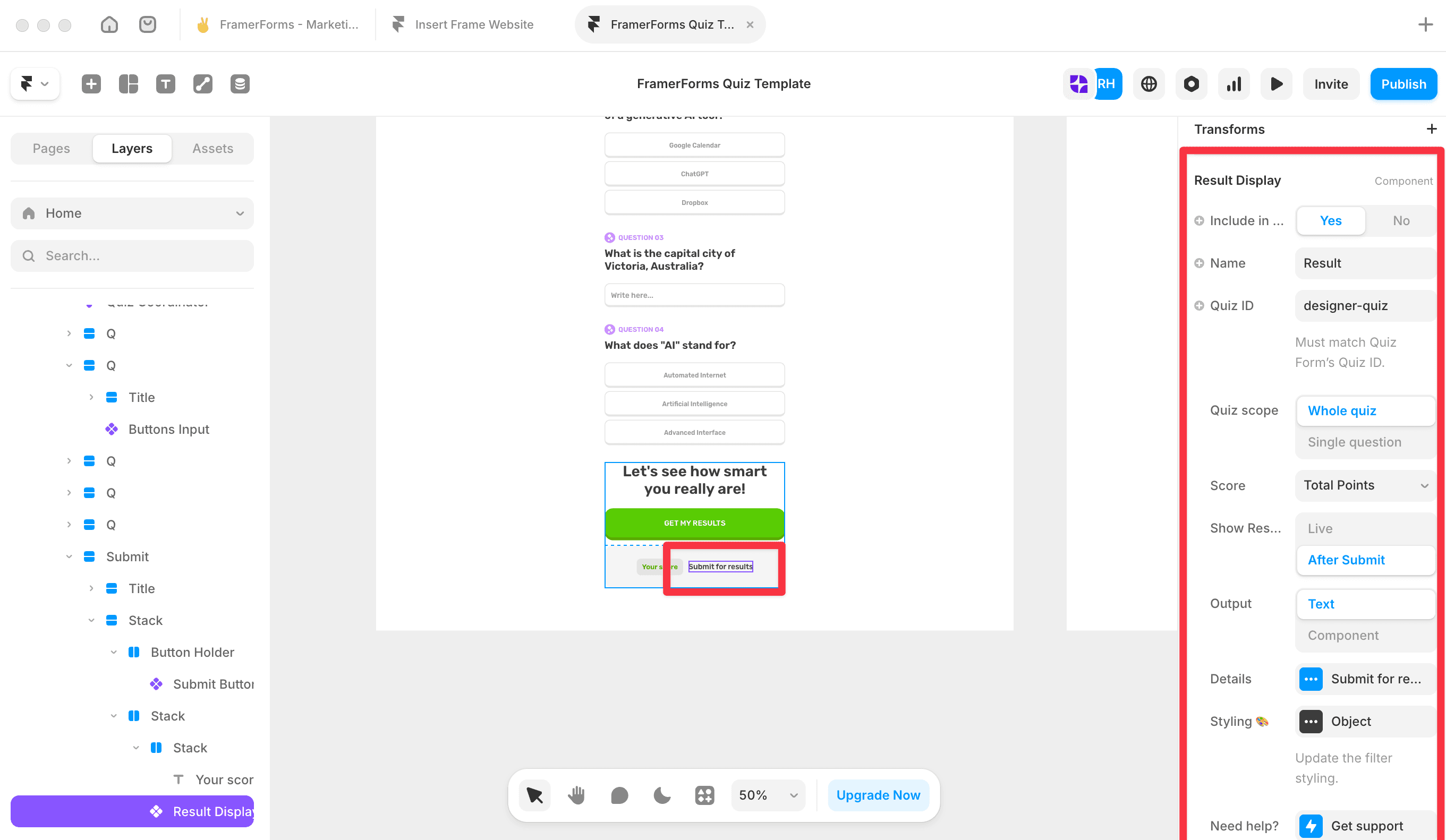
From the plugin, add a Result Display to your canvas and set:
Quiz ID - must match the Quiz Form exactly
Quiz scope - Whole quiz
Score - Total Points
Show result - After Submit
Output - Component
Open the Components panel and add each result card in order. Position 1 is your lowest score result.
Set your score conditions
Open Rules, then Conditions. Add one condition per result. Set Metric to Points, Score is to between, enter your lower and upper bounds, then set Pick to Position and enter the card number.
For example, with a 5-20 point range across four results:
5 to 8 points → Position 1
9 to 12 points → Position 2
13 to 16 points → Position 3
17 to 20 points → Position 4
Set the Fallback to Position 1 so something always shows.
Test your quiz
Preview your form and answer each question. The Calculated Value in the editor updates as you go. After submitting, the correct result card should appear.
If it doesn't, check that Quiz scope is set to Whole quiz, Score is Total Points, Quiz IDs match on both components, and Conditions has at least one item.
You're all set!
RELATED DOCUMENTATION


