setup
COMPONENTS
INTEGRATIONS
FAQ
Favorite List - Superfields for Framer
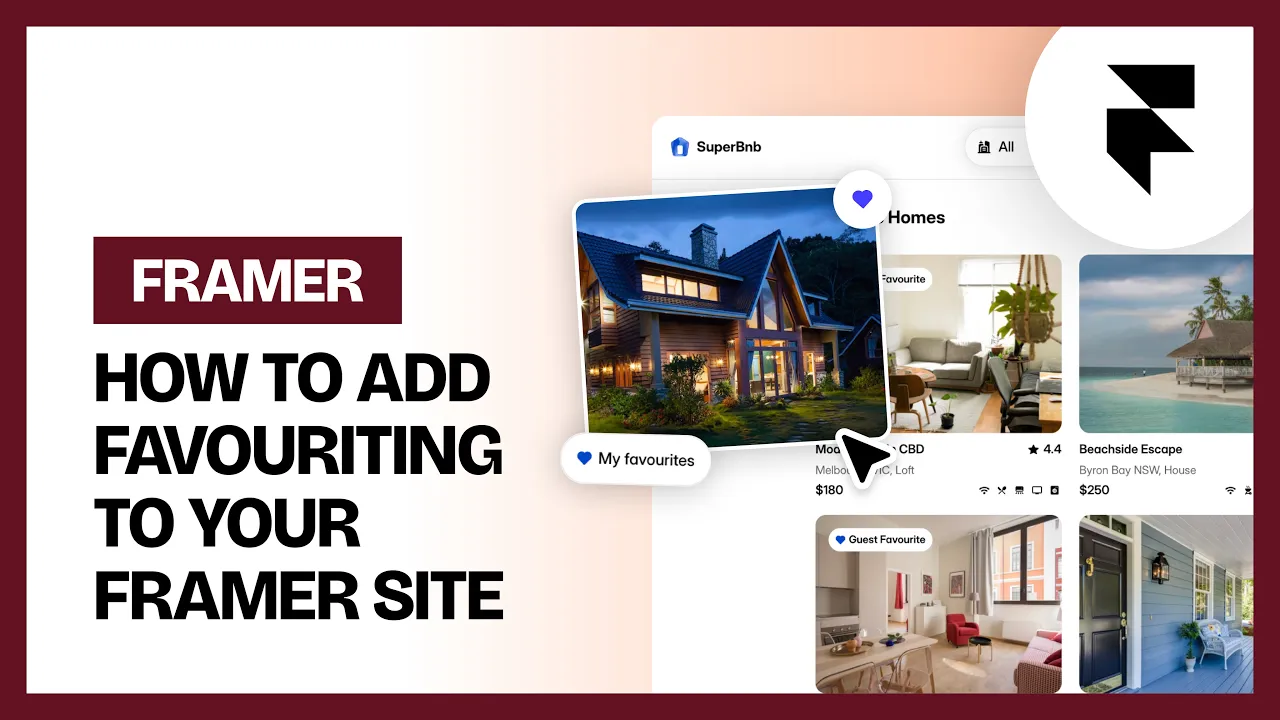
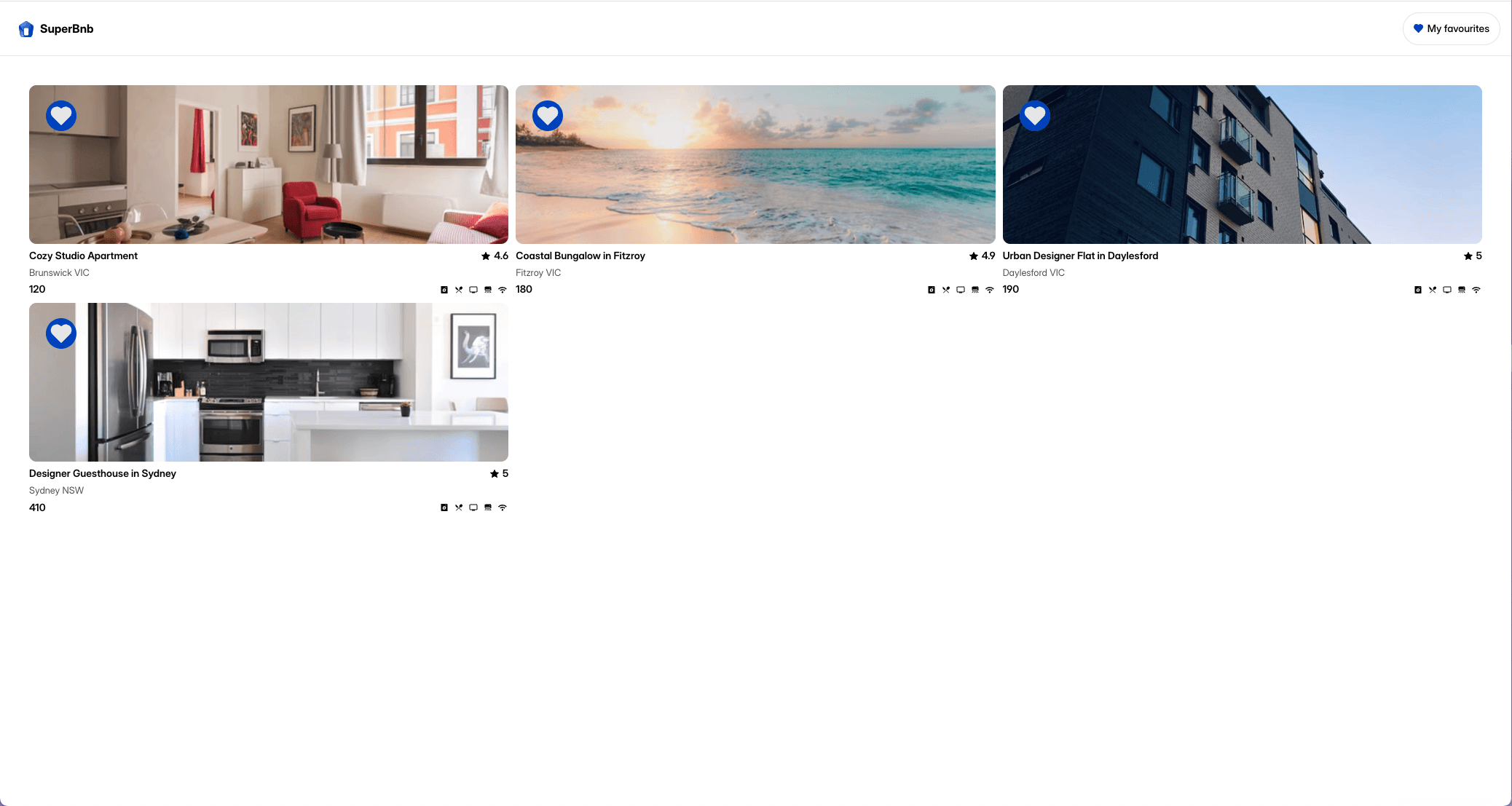
The Favorite List displays the items a visitor has saved with the Favourite Button. It's the same as a Superfields Collection - just set to Favorites mode by default - so it lays out and styles exactly the same way.
Before you start: the Favorite List is a Superfields Collection set to Favorites mode, so it connects to your CMS the same way. If you haven't set Superfields up yet, follow Getting Started with Superfields first, and add a Favourite Button to your cards so visitors have something to save.
Where to use it
Airbnb-style rentals: a "Saved" or "Wishlist" page showing everything a guest hearted.
Online store: a saved-items page shoppers return to.
Directory: a "My shortlist" page.
Usually lives on its own page, paired with the Favourite Button on your cards.
Add the Favorite List
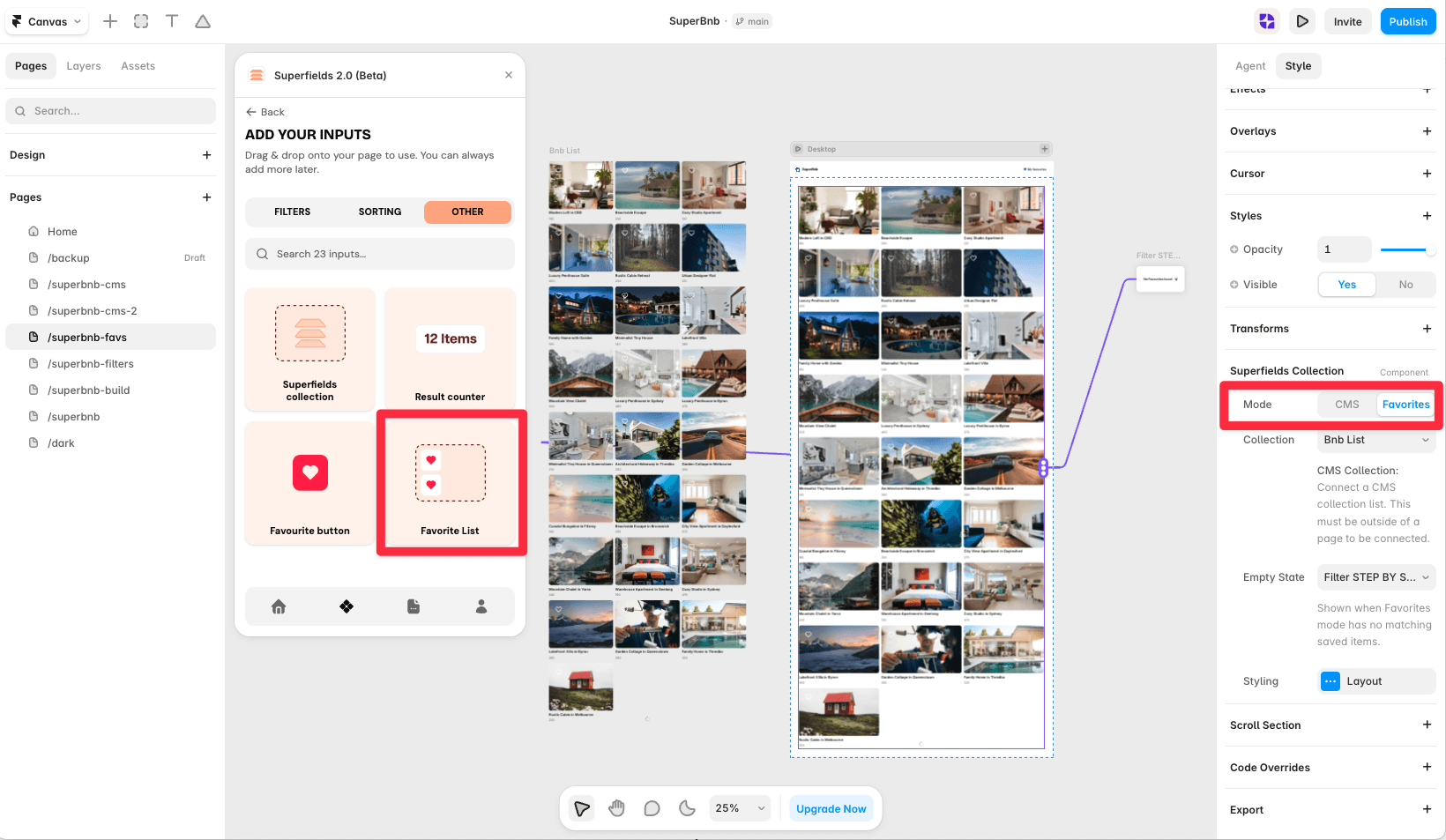
Open the Superfields plugin and go to Components, then the Other tab.
Drag the Favorite List onto your page (for example, a dedicated "Saved" page).
Connect your CMS collection, just like a Superfields Collection.
Setup
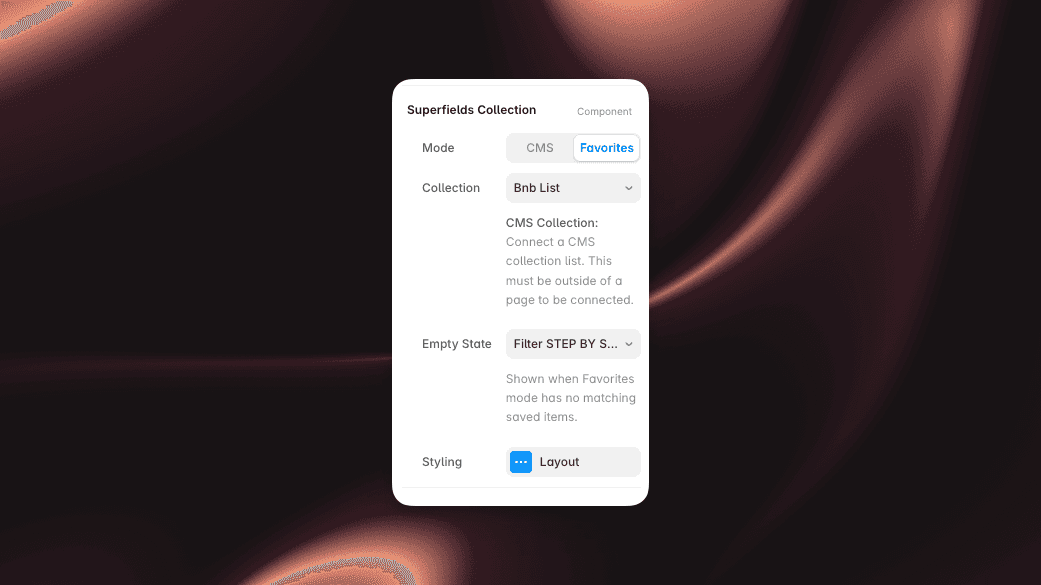
Mode is set to Favorites, so only saved items appear.
Empty State - choose what to show when a visitor hasn't saved anything yet.
ID Filter Group, Collection and Layout all work exactly as they do on the Superfields Collection.
Pair this with the Favourite Button inside your item cards so visitors can save items in the first place.
And that's it - a personal saved list, out of the box.
RELATED DOCUMENTATION


