setup
COMPONENTS
INTEGRATIONS
FAQ
Favourite Button - Superfields for Framer
The Favourite Button lets visitors save items to come back to later. Place it inside a card - it toggles that item's saved state. It's the input side of the favourites system; the Superfields Collection's Favorites mode is the display side.
Before you start: the Favourite Button sits inside the item card of a Superfields Collection - the main component that connects your CMS. Set that up first (see Getting Started with Superfields), then drop this button into your card.
Where to use it
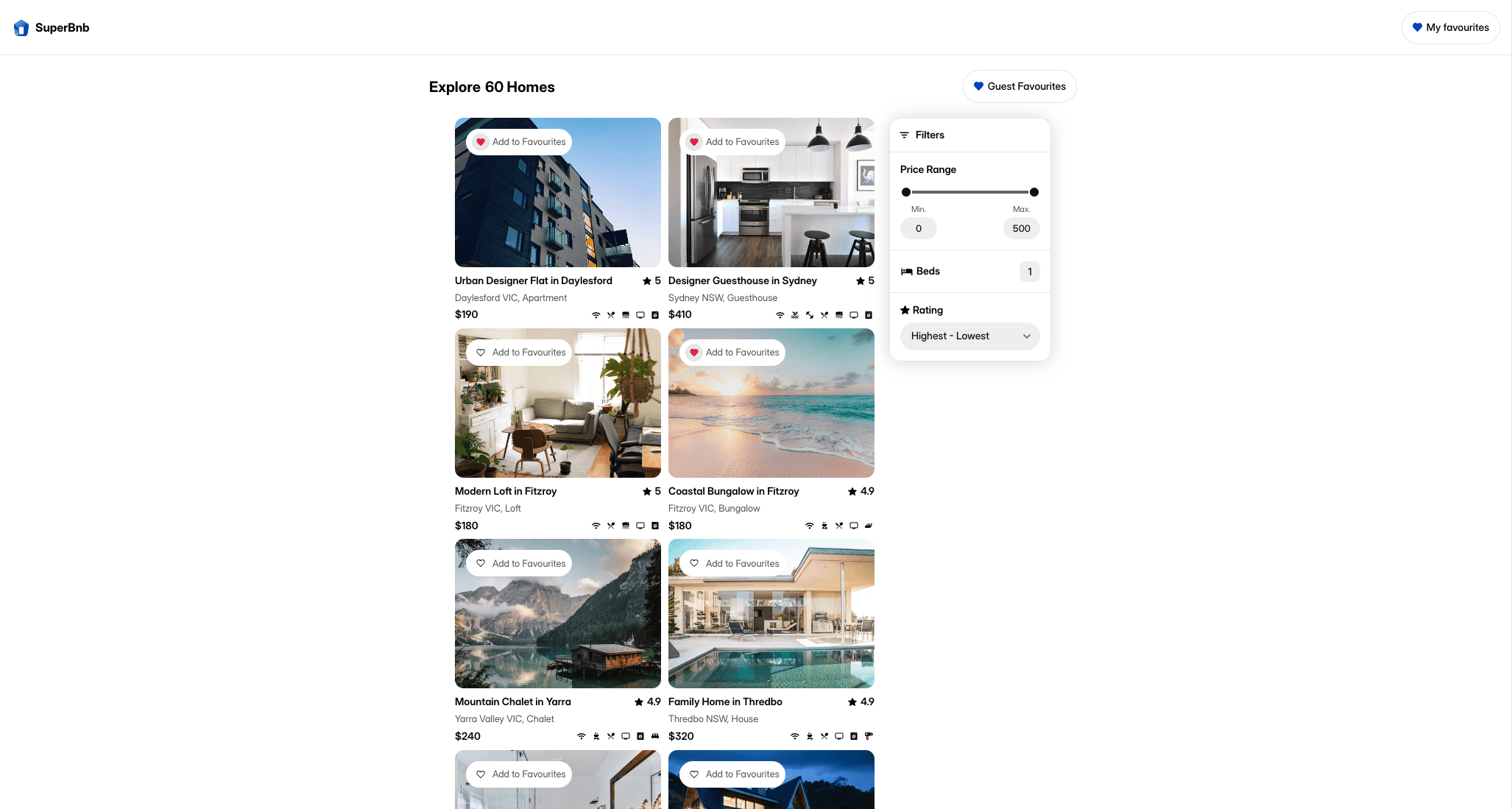
Airbnb-style rentals: the heart on each listing card, building a guest's wishlist.
Online store: let shoppers save products to come back to.
Directory: bookmark venues, people or resources.
Goes inside your item card, so every result gets its own save toggle.
Add the Favourite Button
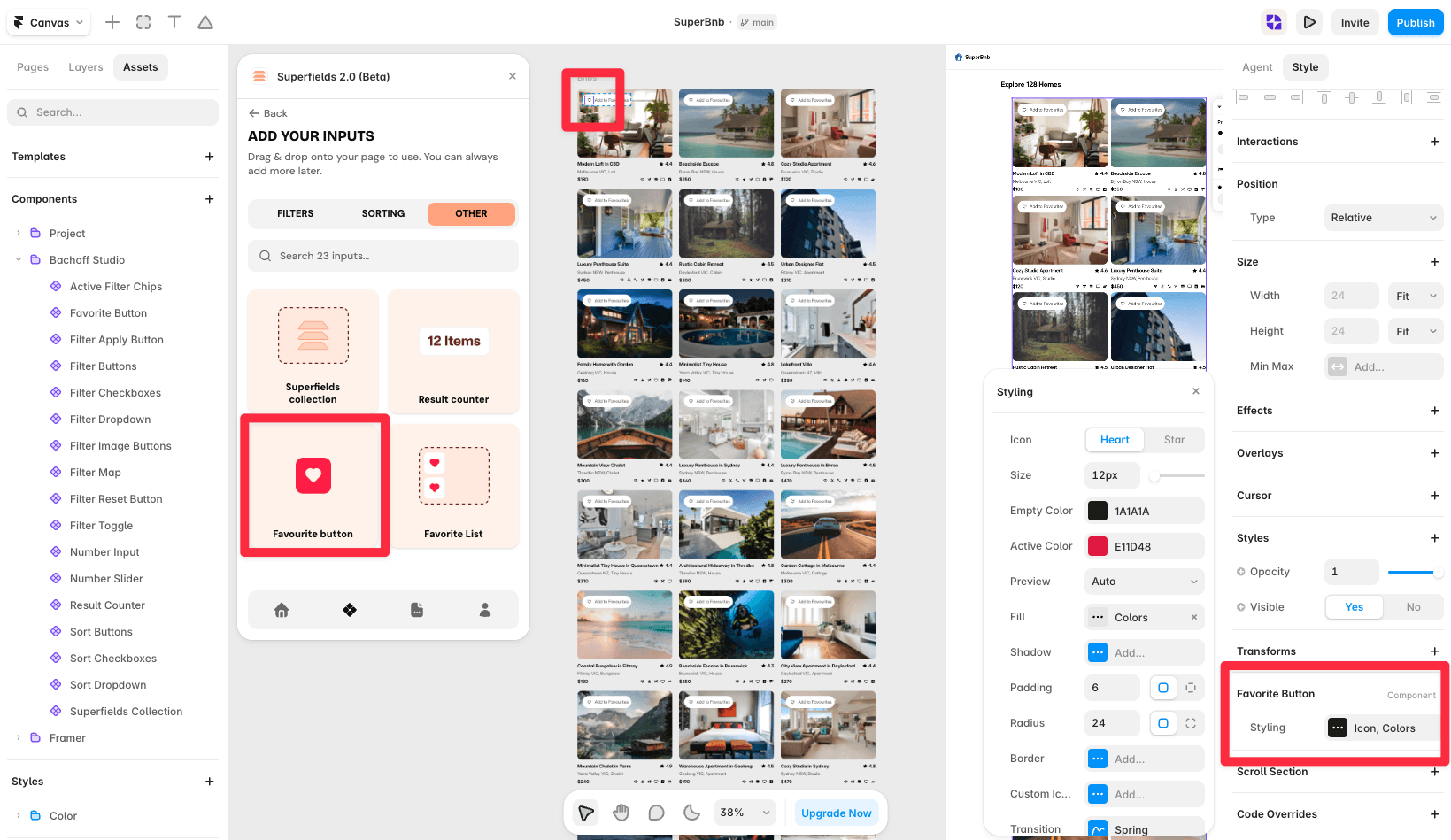
Open the Superfields plugin and go to Components, then the Other tab.
Drag the Favourite Button into your item card.
Styling
The Favourite Button is styling-only - no setup needed.
Icon - Heart, Star, or your own Custom Icons (upload separate On and Off artwork as SVG or image).
Size.
Empty Color (unsaved) and Active Color (saved).
Fill, Shadow (with active and inactive states), Padding and Radius.
To show saved items, set a Superfields Collection to Favorites mode. See the Favorite List page for a ready-made saved-items view.
And that's it - one-tap saving for any collection.
RELATED DOCUMENTATION


