setup
COMPONENTS
INTEGRATIONS
FAQ
Superfields Collection - Superfields for Framer
The Superfields Collection is the heart of Superfields. It connects to your CMS and renders the results, and every filter, sort and status control attaches to it through a shared filter group.
New to Superfields? Follow Getting Started with Superfields first - the Framer Agent can build this whole layout for you in a few clicks, then you only need to fine-tune it here.
Where to use it
Every Superfields build starts here.
Airbnb-style rentals: the grid of listings guests filter and sort.
Online store: the product grid.
Directory or events site: the list of venues, people or sessions.
You'll add exactly one per filter group - all your filters and sort controls attach to it.
Add the Superfields Collection
Open the Superfields plugin and go to Components, then the Other tab.
Drag the Superfields Collection onto your page.
Connect your CMS list from the property panel.
Connect your data
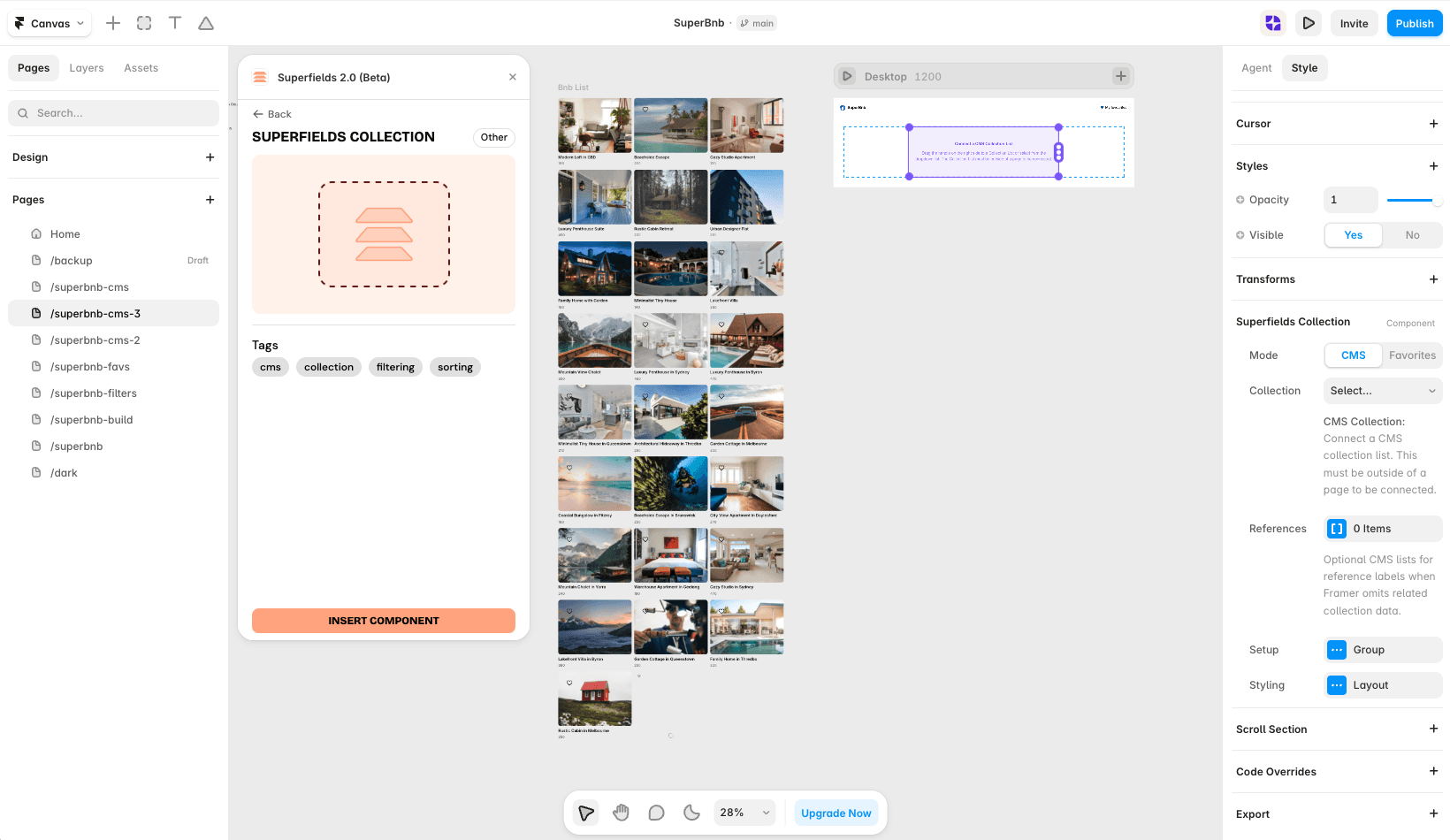
Collection - connect your CMS collection list. It must sit off the canvas (as an off-screen child of the page) to be connected.
References - optional extra CMS lists for reference labels, used when Framer omits related collection data.
Setup
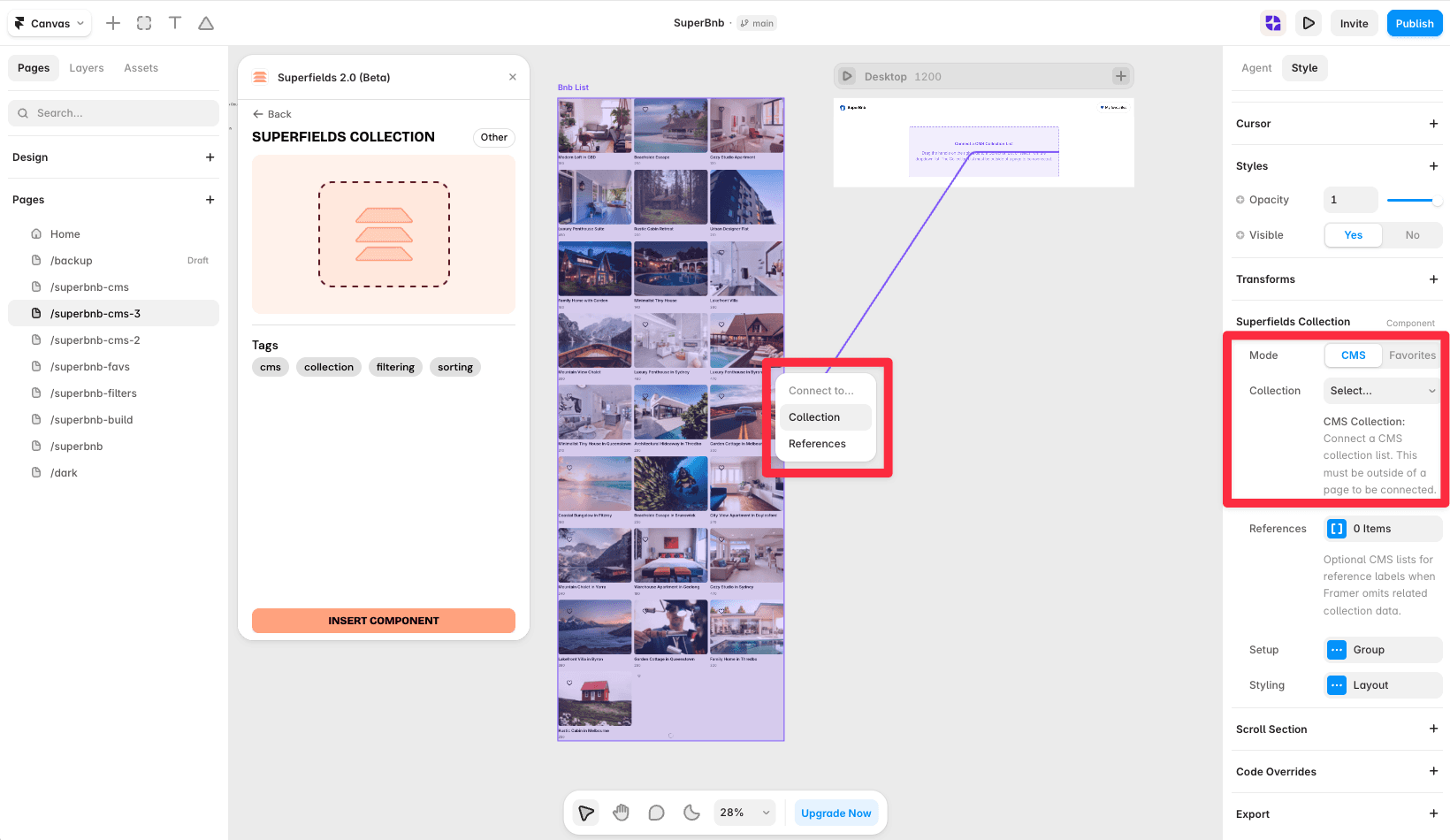
ID Filter Group - the shared ID. Every filter, sort and status control that should act on this collection must use the same number.
Mode
CMS - shows your connected collection (the default).
Favorites - shows only items visitors have saved. In this mode you can set an Empty State to show when nothing is saved. (This pairs with the Favourite Button.)
Layout (Styling)
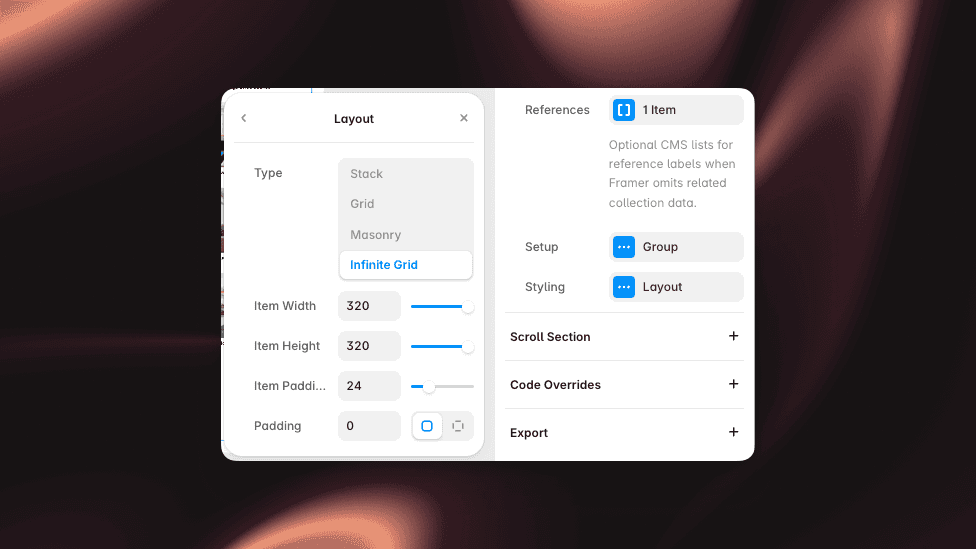
Choose a Type: Stack, Grid, Masonry or Infinite Grid. Each type reveals its own controls (columns, item size, gaps, padding and so on), so you can lay out results exactly how you want.
Superfields requires an activated license per Framer project to keep running on a published site. Open the plugin, go to Licenses, and activate Superfields on your project to remove the "license required" notice.
And that's it - the foundation your whole filtering experience is built on.
RELATED DOCUMENTATION
Filter Buttons
Filter Dropdown
Filter Checkboxes
Filter Toggle
Filter Number Input
Filter Number Slider
Filter Date Picker
Filter Image Buttons
Filter Preset Buttons
Filter Preset Dropdown
Filter Preset Checkboxes
Filter Map
Filter Reset Button
Filter Apply Button
Active Filter Chips
Filter Counter
Sort Dropdown
Sort Buttons
Sort Checkboxes
Result Counter
Favourite Button
Favorite List
Multi-Reference Filtering
Migration Guide
Adding Coordinates to Your Framer CMS


