setup
COMPONENTS
INTEGRATIONS
FAQ
Filter Number Input - Superfields for Framer
Filter Number Input filters a number CMS field by an exact value - the precise counterpart to the Number Slider.
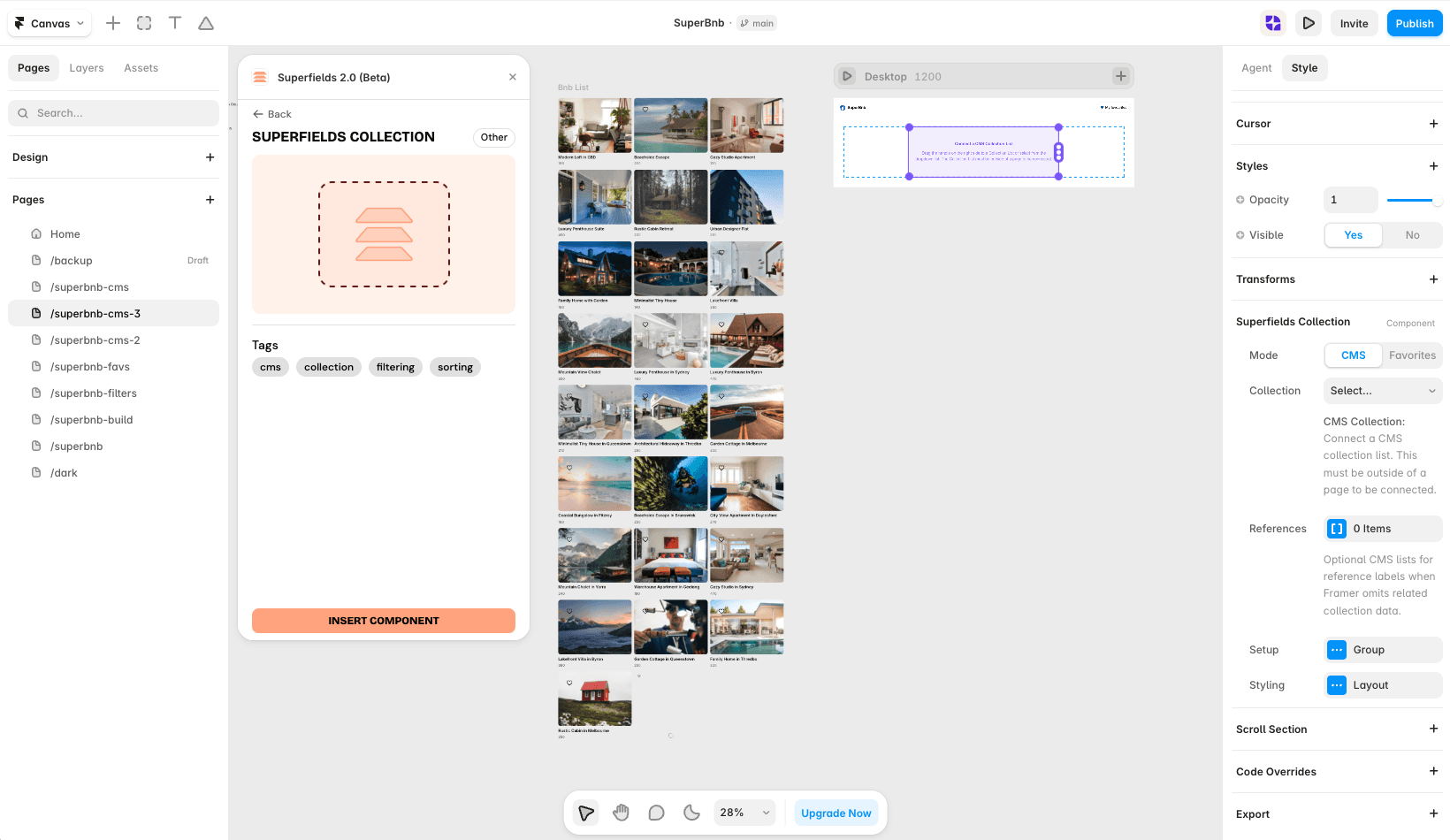
Before you start: every input works together with the Superfields Collection - the main component that connects your CMS and renders the results. Add and connect that first (see Getting Started with Superfields), then give this input the same ID Filter Group as your collection.
Where to use it
Airbnb-style rentals: minimum bedrooms or number of guests.
Real estate: minimum bathrooms or parking spaces.
Online store: exact pack size or quantity.
Best when visitors know the precise number they need, rather than a range.
Add Filter Number Input
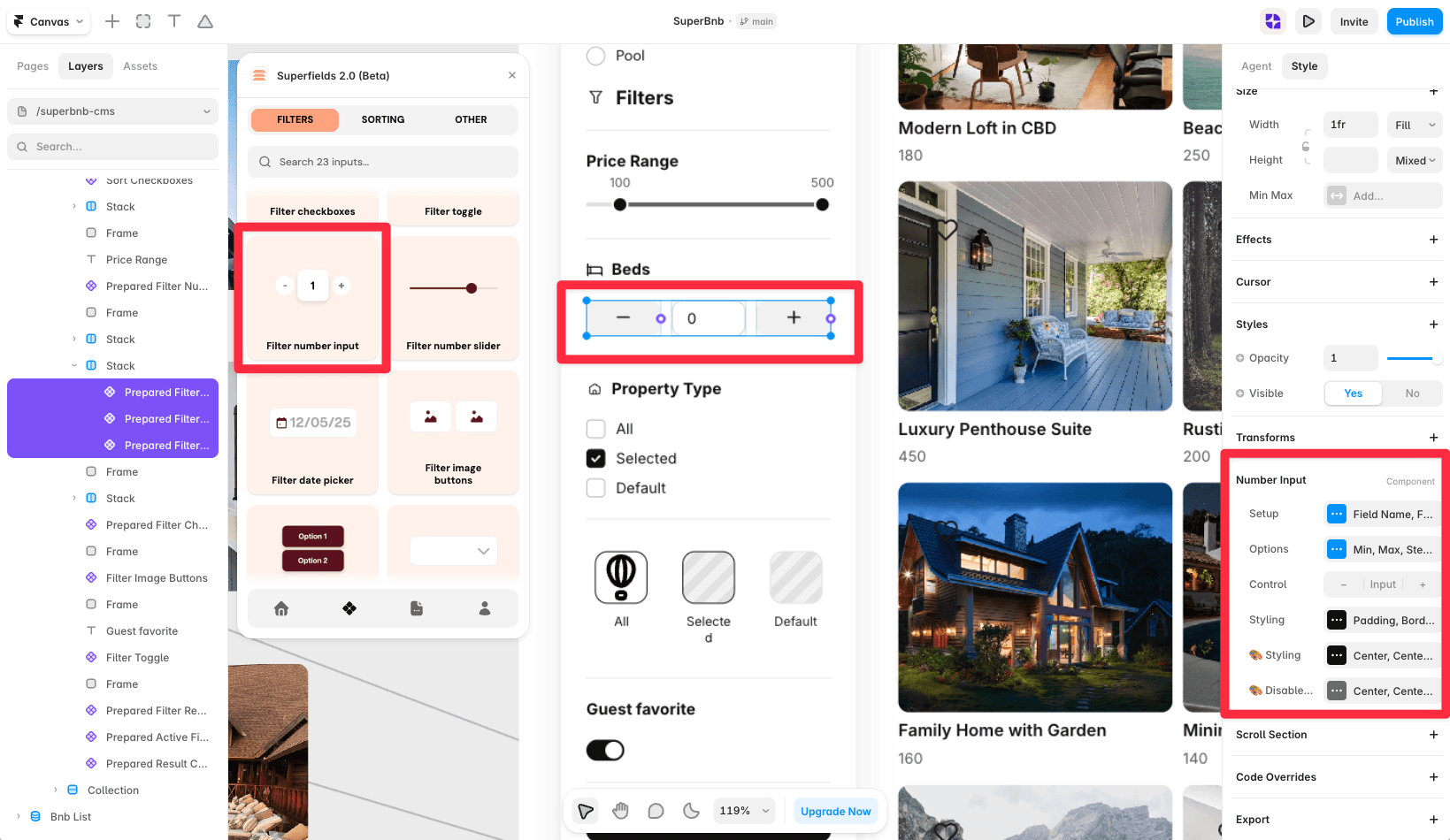
Open the Superfields plugin and go to Components, then the Filters tab.
Drag Filter Number Input onto your page, inside your filters layout.
Open the component's Setup from the
...menu.
Setup
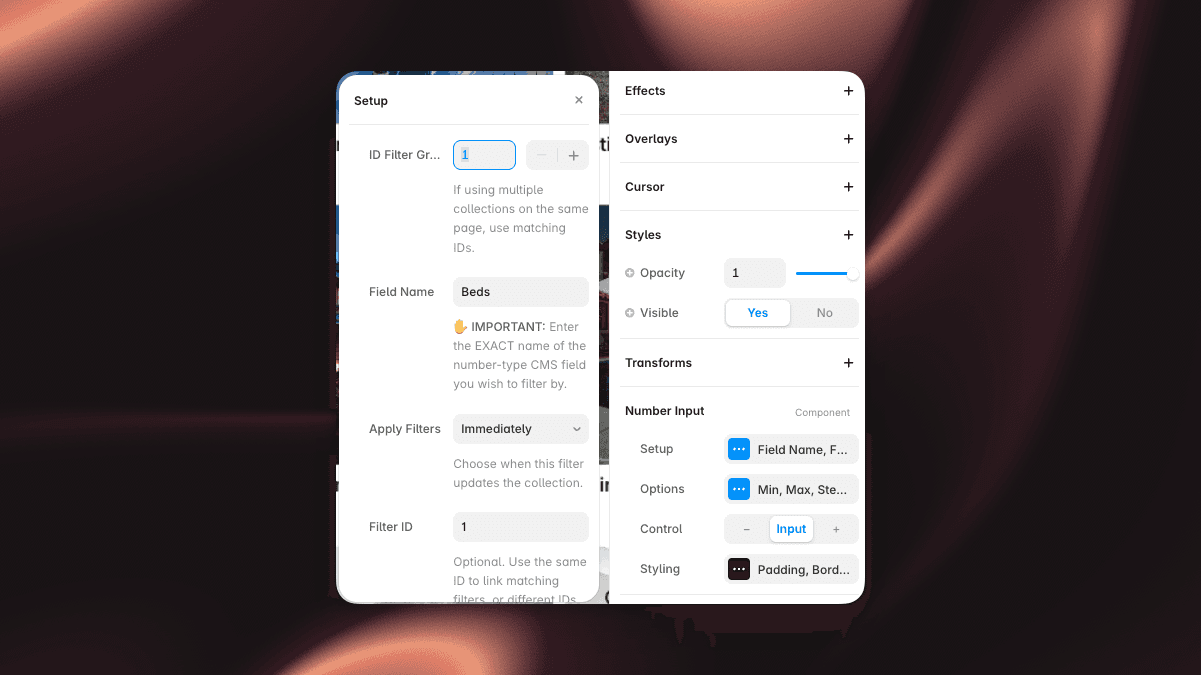
ID Filter Group - must match your Superfields Collection and other filter controls.
Field Name - the exact name of the number-type CMS field.
Apply Filters - update the collection Immediately, or wait for an Apply Button Click.
Options
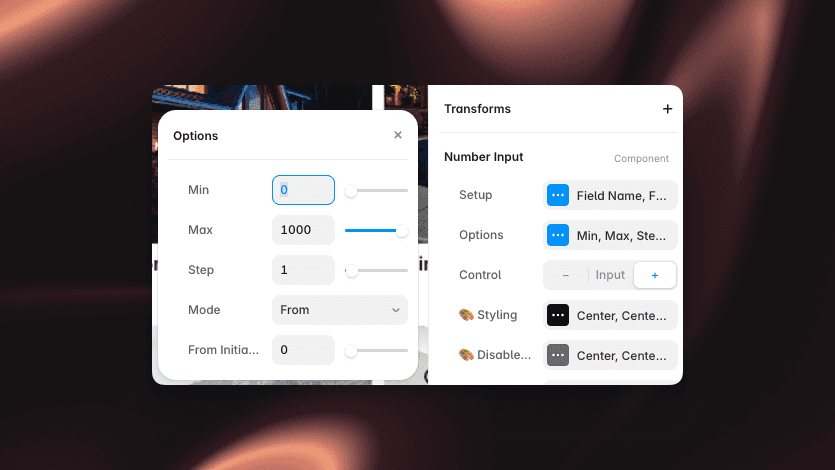
Min, Max, Step - the allowed range and increment.
Mode - From (on/above), To (on/below) or Exact.
Initial Value - a starting number.
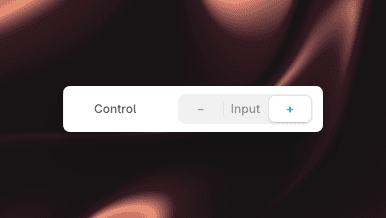
Control - show a typed Input field or - / + stepper buttons.
Styling
In Input mode, style the input (Padding, Border and so on). In stepper mode, style the buttons, including a disabled state and icon.
And that's it - precise numeric filtering, your way.
RELATED DOCUMENTATION


