setup
COMPONENTS
INTEGRATIONS
FAQ
Filter Preset Buttons - Superfields for Framer
A preset is a named button that applies a whole bundle of filter conditions in one tap - for example "Under $50" or "New this month". Filter Preset Buttons render those presets as a row of pills.
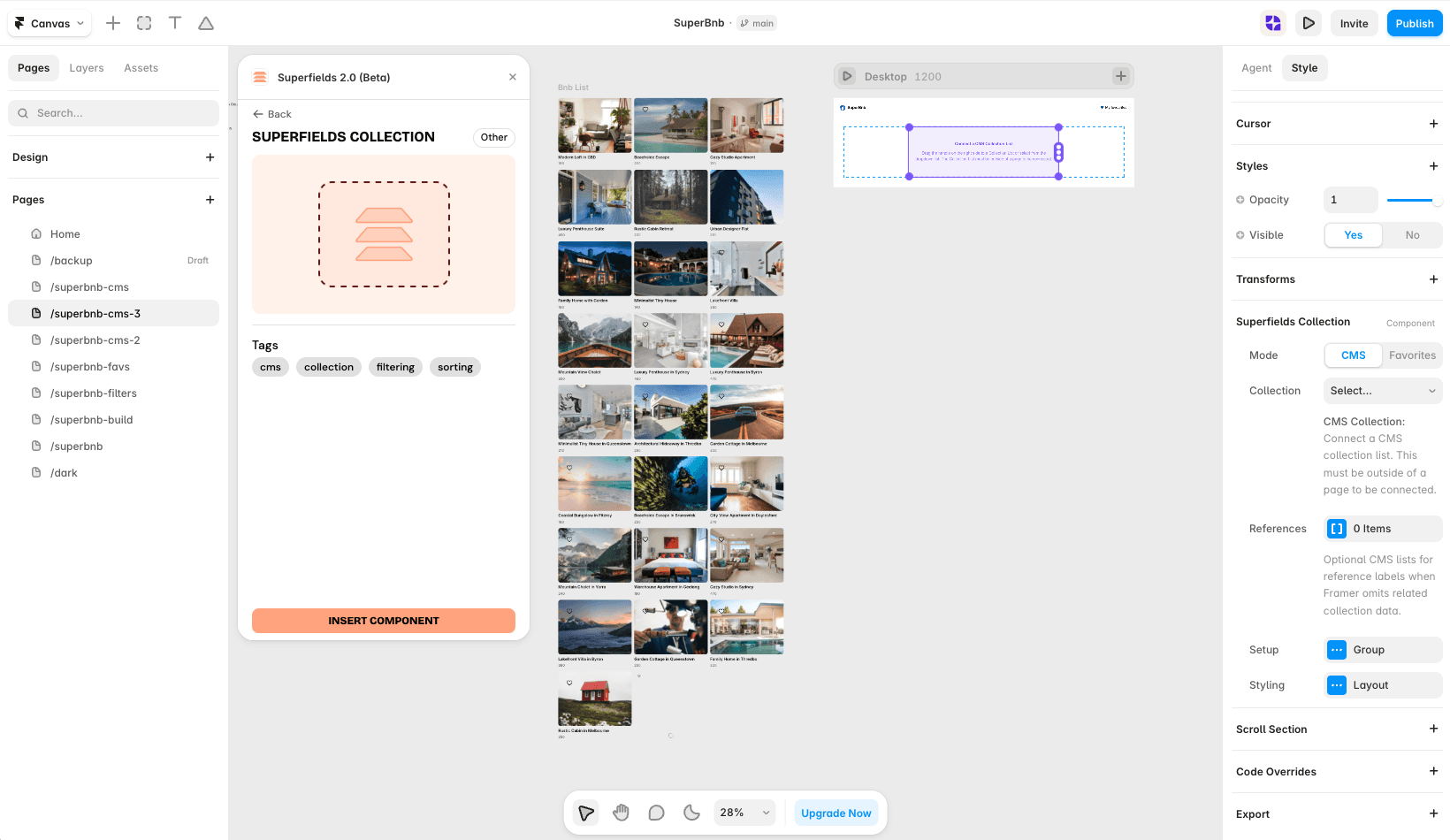
Before you start: every input works together with the Superfields Collection - the main component that connects your CMS and renders the results. Add and connect that first (see Getting Started with Superfields), then give this input the same ID Filter Group as your collection.
Where to use it
Airbnb-style rentals: "Under $100 a night", "Pet friendly", "Weekend getaways".
Online store: "On sale", "New in", "Under $50".
Events listing: "This month", "Free entry".
Best for curated shortcuts that would otherwise take a visitor several filters to build.
Add Filter Preset Buttons
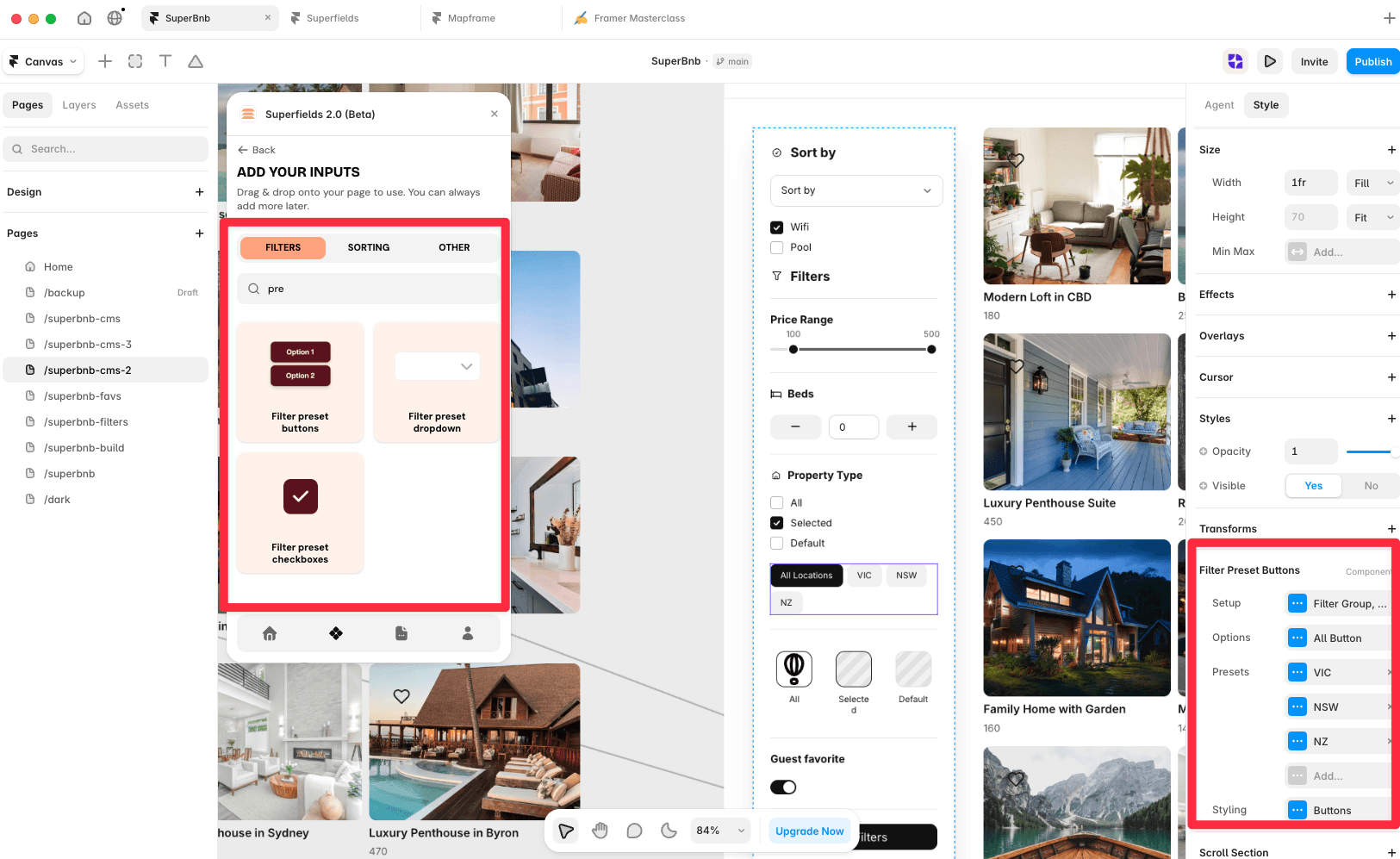
Open the Superfields plugin and go to Components, then the Filters tab.
Drag Filter Preset Buttons onto your page, inside your filters layout.
Open the component's Setup from the
...menu.
Setup
ID Filter Group - must match your Superfields Collection and other filter controls.
ID Preset Group - a separate ID for this preset group, so you can use several preset controls on one page.
Apply Filters - update Immediately, or wait for an Apply Button Click.
Filter ID (optional) - use the same ID to link matching filters, or different IDs to separate same-field filters.
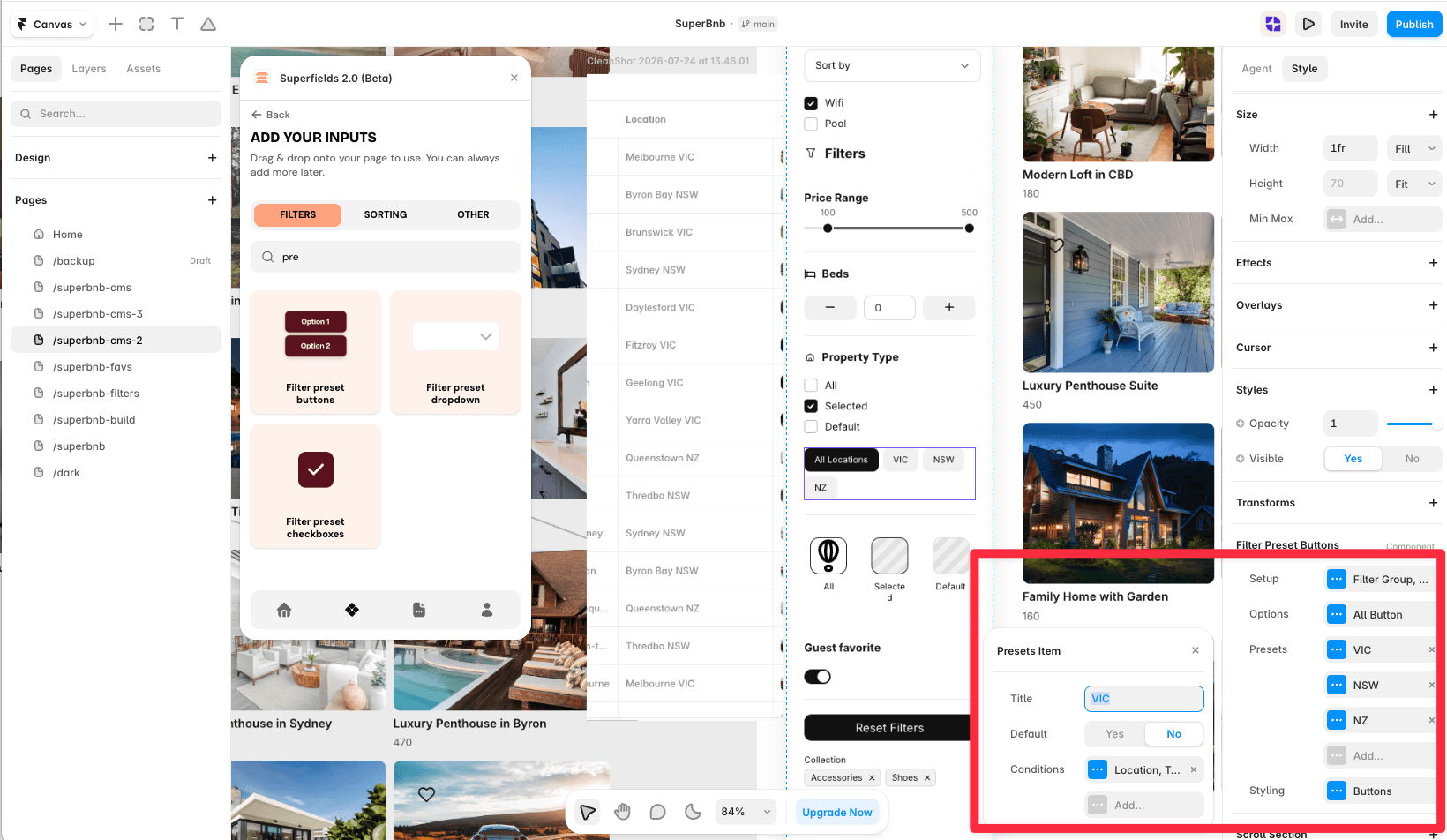
Options
All Option - add an "All" button that clears the preset, with its own All Text.
Presets
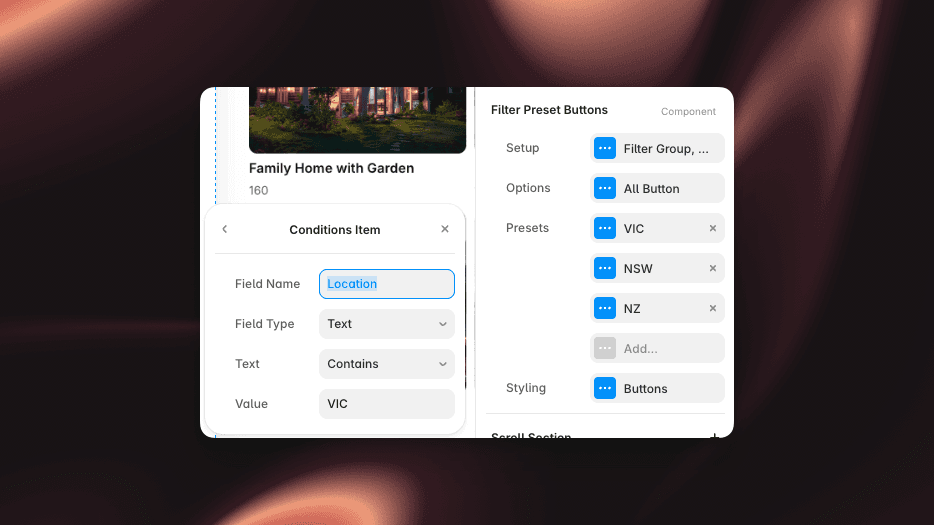
This is the heart of the component. Add a Preset for each button. Each preset has:
Title - the button label.
Default - whether it's applied when the page loads.
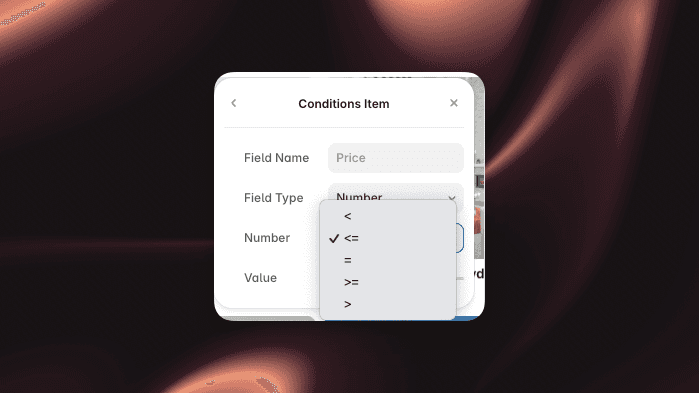
Conditions - one or more rules that make up the preset. Each condition is a Field Name plus a Field Type (Text, Option, Toggle, Number or Date) and its matching value: Equals/Contains for text and option, Yes/No for toggle, an operator (less than, equal, greater than) and value for number, and a date range (Today, Last N Days, This Month and more) for date. Conditions combine, so one button can filter on several fields at once.
Styling
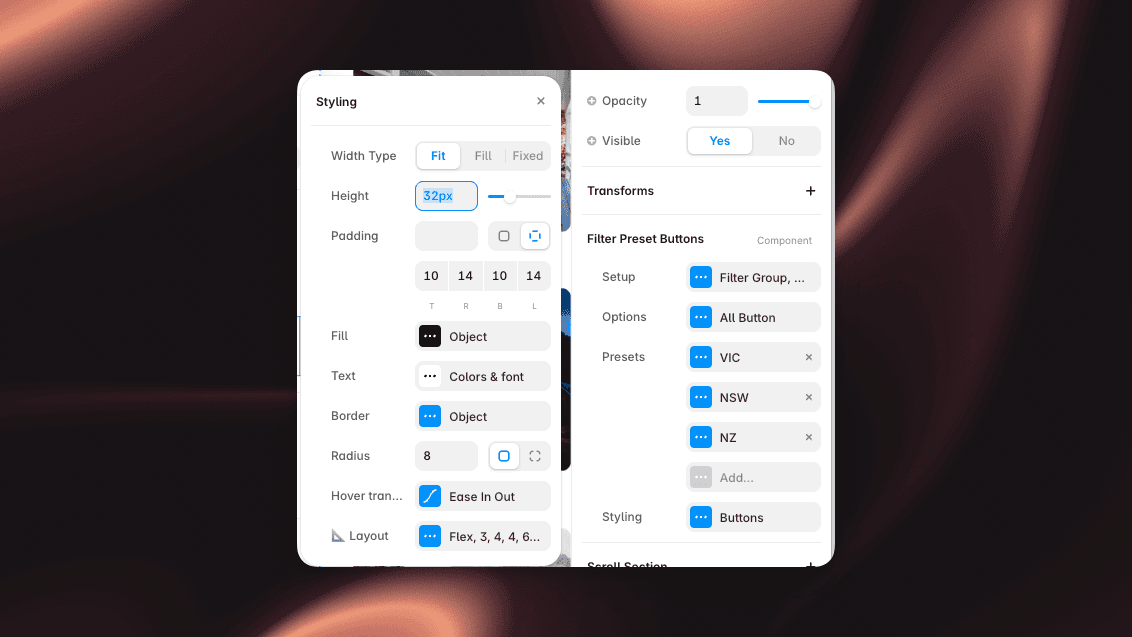
Style the Buttons just like Filter Buttons.
Prefer a dropdown or checkboxes instead? Filter Preset Dropdown and Filter Preset Checkboxes work exactly the same way - only the display differs.
And that's it - powerful one-tap filtering.


