setup
COMPONENTS
INTEGRATIONS
FAQ
Filter Image Buttons - Superfields for Framer
Filter Image Buttons turn each filter option into a visual card - a title plus an image. Ideal for categories, amenities or anything that reads better with a picture.
Before you start: every input works together with the Superfields Collection - the main component that connects your CMS and renders the results. Add and connect that first (see Getting Started with Superfields), then give this input the same ID Filter Group as your collection.
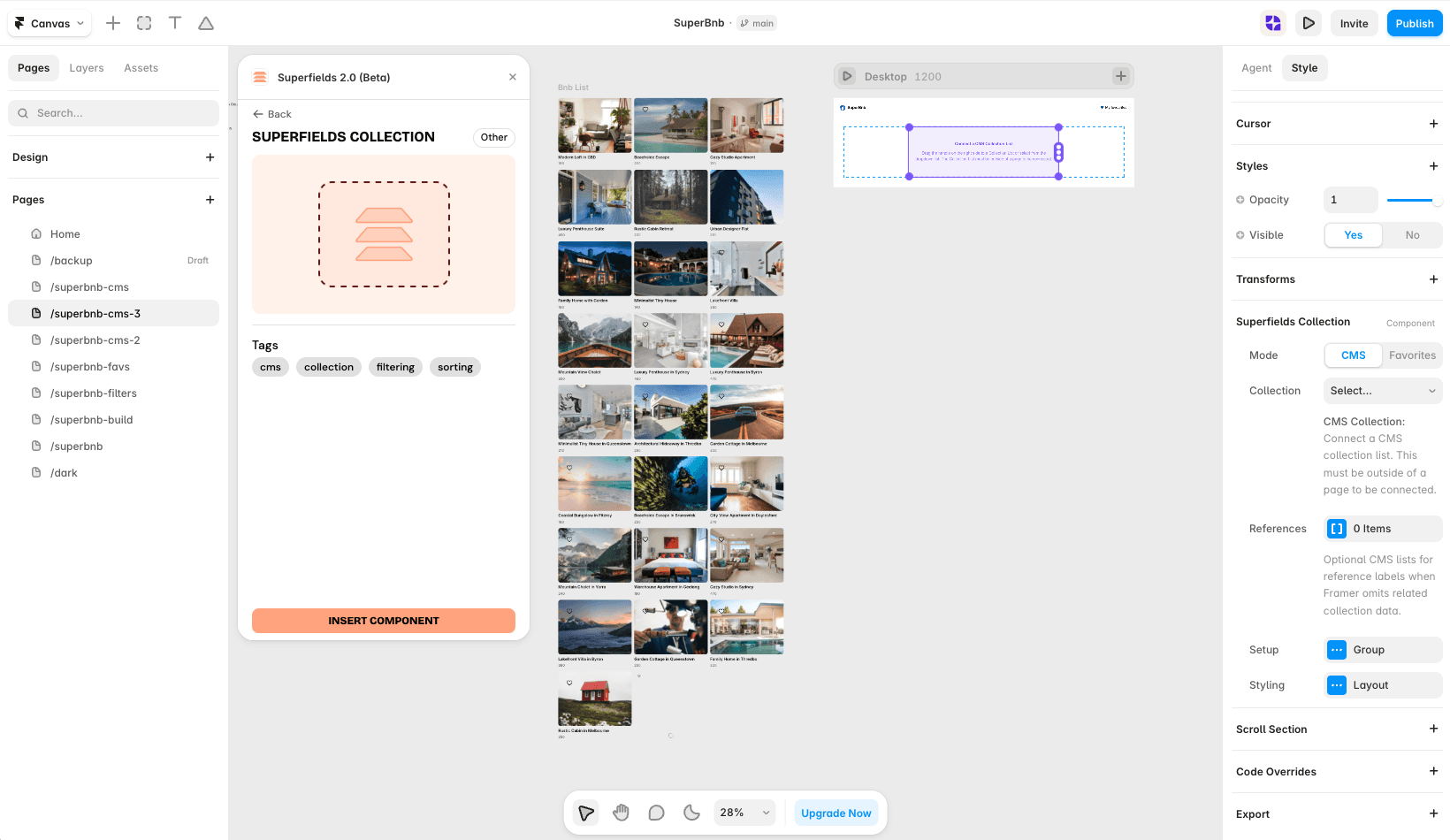
Where to use it
Airbnb-style rentals: property type with a photo for each - Cabin, Beach house, Loft.
Online store: colour swatches or collection cards.
Travel guide: destination cards with imagery.
Best when a picture communicates the option faster than a word.
Add Filter Image Buttons
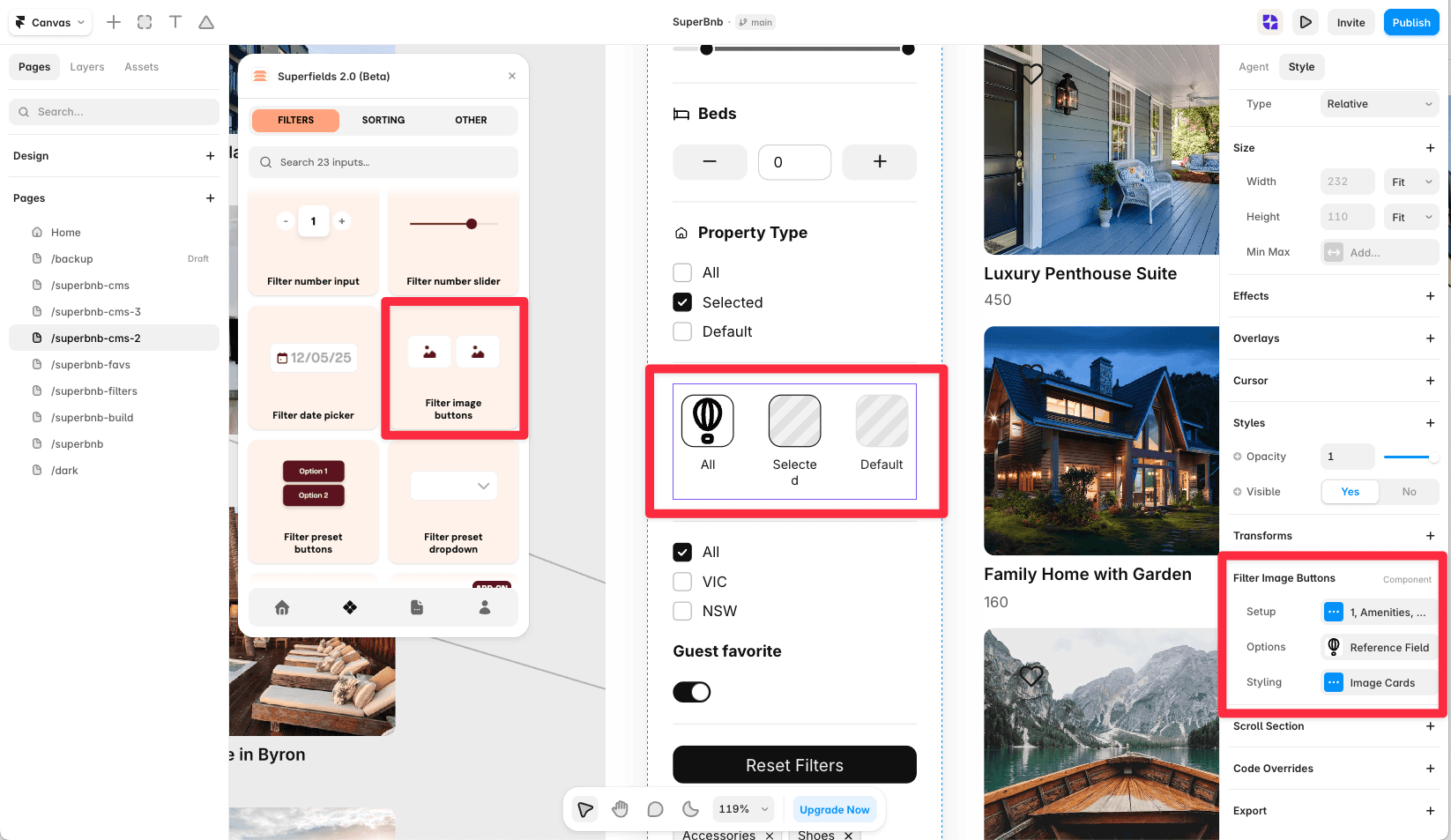
Open the Superfields plugin and go to Components, then the Filters tab.
Drag Filter Image Buttons onto your page, inside your filters layout.
Open the component's Setup from the
...menu.
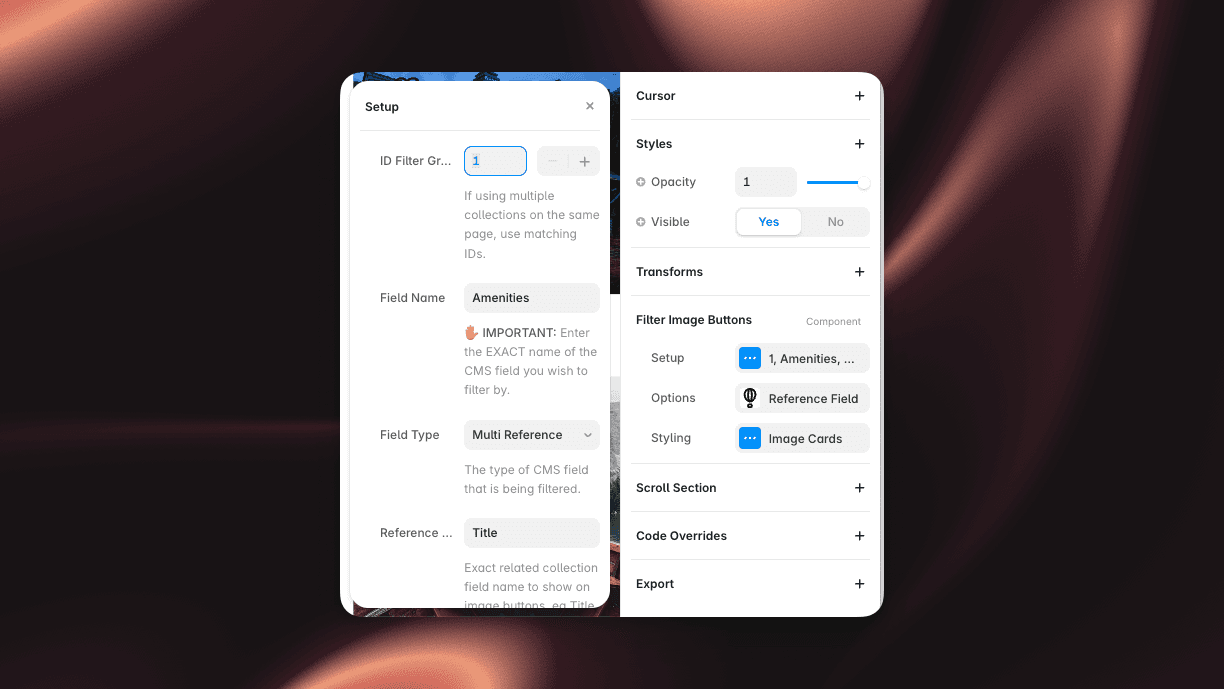
Setup
ID Filter Group - must match your Superfields Collection and other filter controls.
Field Name - the exact CMS field name to filter by.
Field Type - the type of that field.
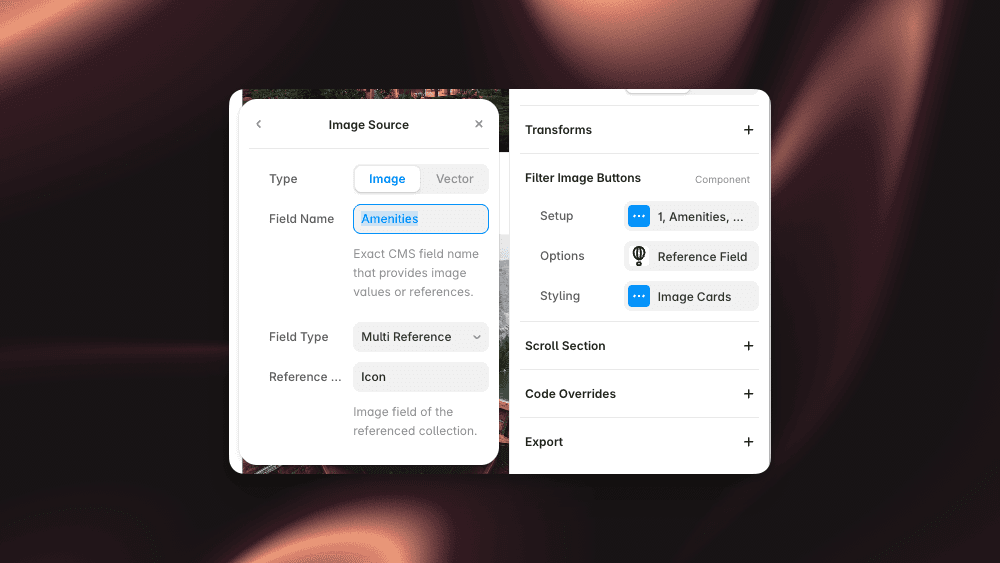
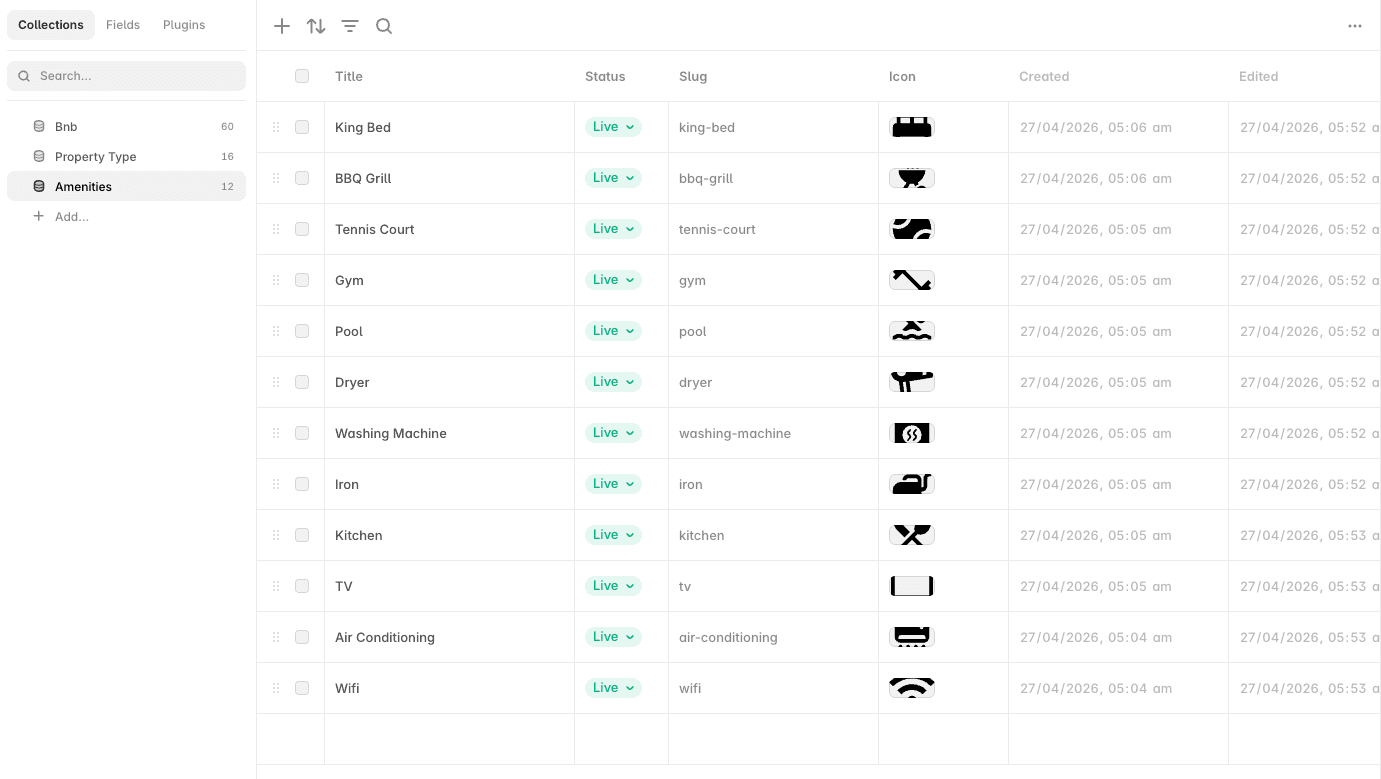
Image Source - where card images come from in Auto mode: a Field Name and its Field Type (Image, Reference or Multi Reference).
Options
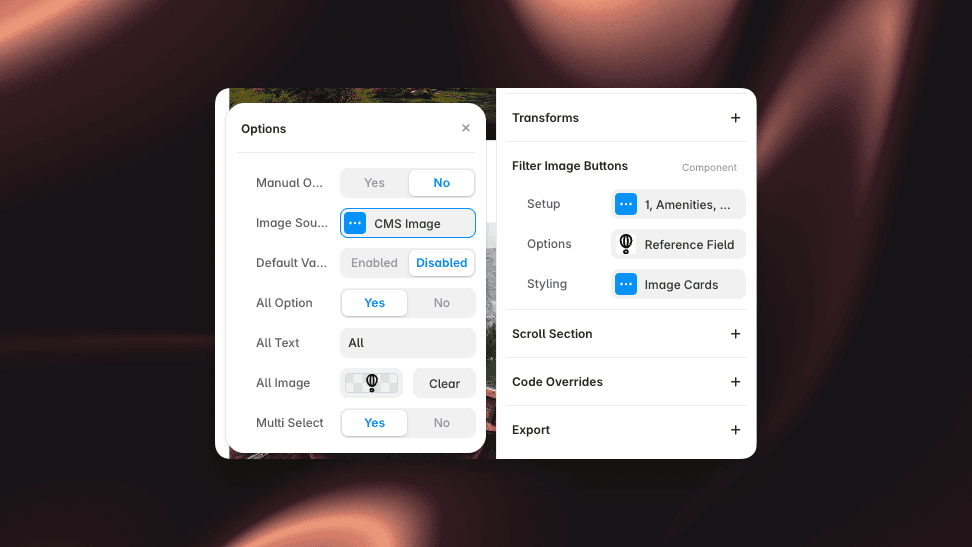
Manual Options - hand-author the cards (each a Title plus an uploaded Image), or pull them from the CMS.
Default Value, Condition (Equals / Contains), Multi Select.
All Option - add an "All" card, with its own All Text and All Image.
Styling
Style the Image Cards: card size, image fit and radius, text, hover transition, and the layout (flex or grid, gap, direction, wrap, alignment).
And that's it - visual, tappable filtering.


