setup
COMPONENTS
INTEGRATIONS
FAQ
Sort Dropdown - Superfields for Framer
Sort Dropdown lets visitors reorder your collection from a compact menu - for example "Price: low to high" or "Newest first".
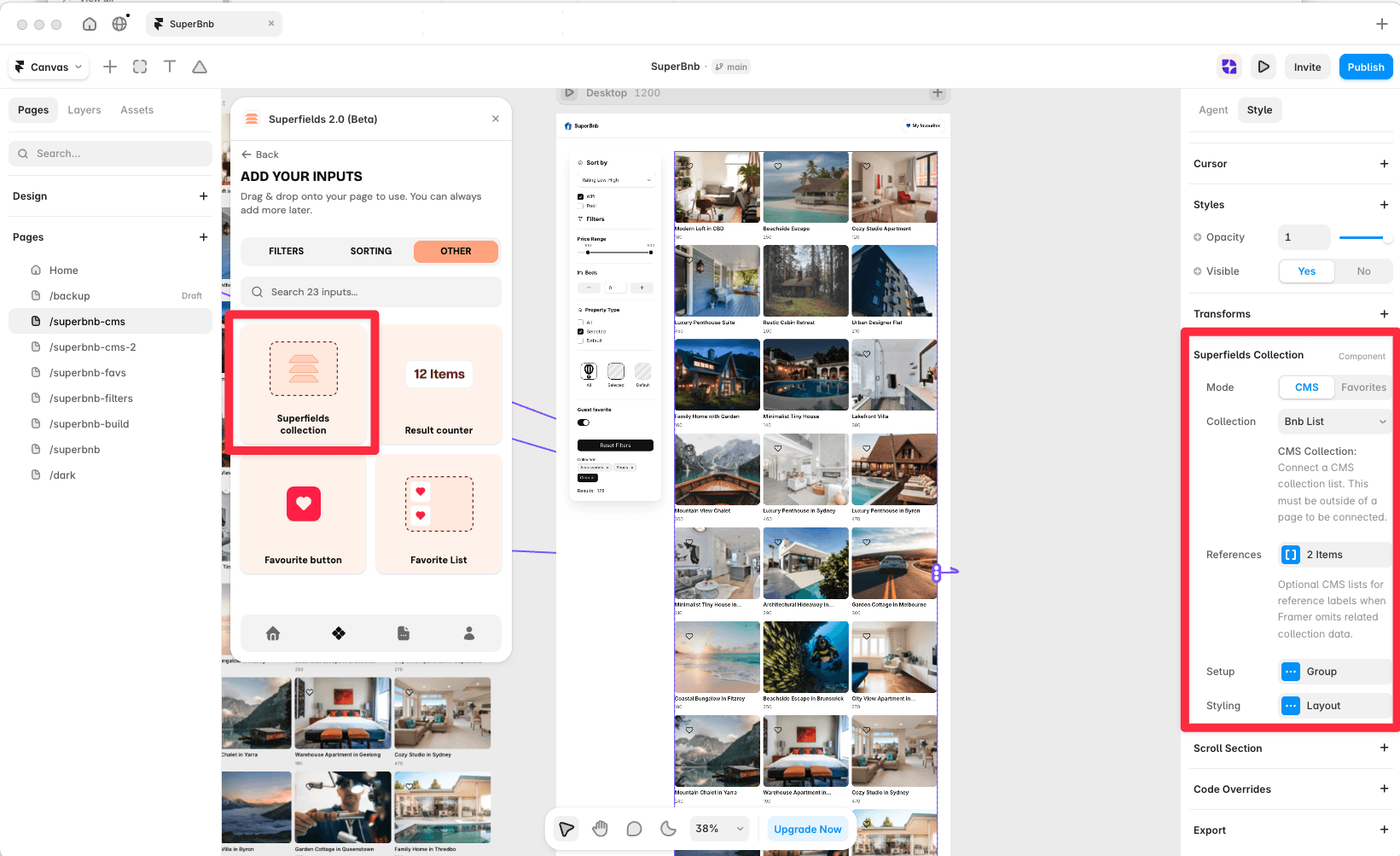
Before you start: every input works together with the Superfields Collection - the main component that connects your CMS and renders the results. Add and connect that first (see Getting Started with Superfields), then give this input the same ID Filter Group as your collection.
Where to use it
Online store: "Price: low to high", "Newest first", "Most popular".
Airbnb-style rentals: sort by price or rating.
Blog or resource library: newest or oldest first.
Best when you have several sort options and want them tucked into a menu.
Add Sort Dropdown
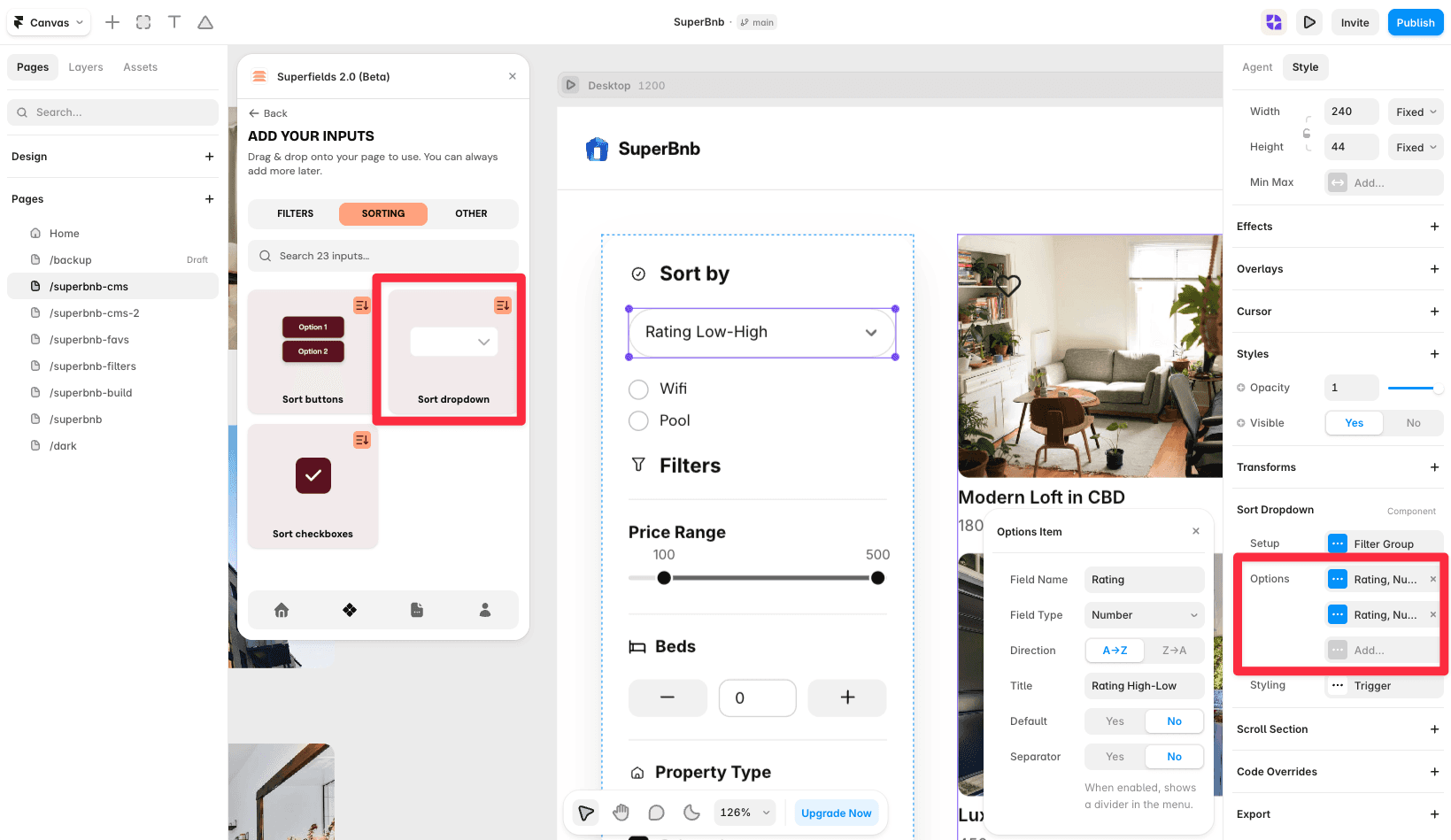
Open the Superfields plugin and go to Components, then the Sorting tab.
Drag Sort Dropdown onto your page, inside your filters layout.
Open the component's Setup from the
...menu.
Setup
ID Filter Group - must match your Superfields Collection and filter controls.
Options
Add a sort option for each way visitors can reorder. Each option has:
Field Name - the CMS field to sort on (e.g. Title, Price).
Field Type - Text, Number or Date.
Direction - ascending or descending (A to Z, low to high, and so on).
Title - the label visitors see (e.g. "Price: low to high").
Default - whether this option is selected on load.
Separator - optionally show a divider in the menu after this option.
Styling
Style the Trigger, including the Default Text shown before a visitor picks an option (e.g. "Sort by"), plus fill, border, radius, padding, text and chevron.
And that's it - flexible sorting in a tidy menu.
RELATED DOCUMENTATION


