setup
COMPONENTS
INTEGRATIONS
FAQ
Active Filter Chips - Superfields for Framer
Active Filter Chips show visitors exactly what they've filtered by - one chip per active value, each with a remove button - plus an optional clear-all control.
Before you start: every input works together with the Superfields Collection - the main component that connects your CMS and renders the results. Add and connect that first (see Getting Started with Superfields), then give this input the same ID Filter Group as your collection.
Where to use it
Airbnb-style rentals: show "Pet friendly x" and "Under $100 x" above the results.
Online store: display applied facets so shoppers can remove one without starting over.
Directory: make a narrow search easy to unwind.
Best on any listing with several filters running at once.
Add Active Filter Chips
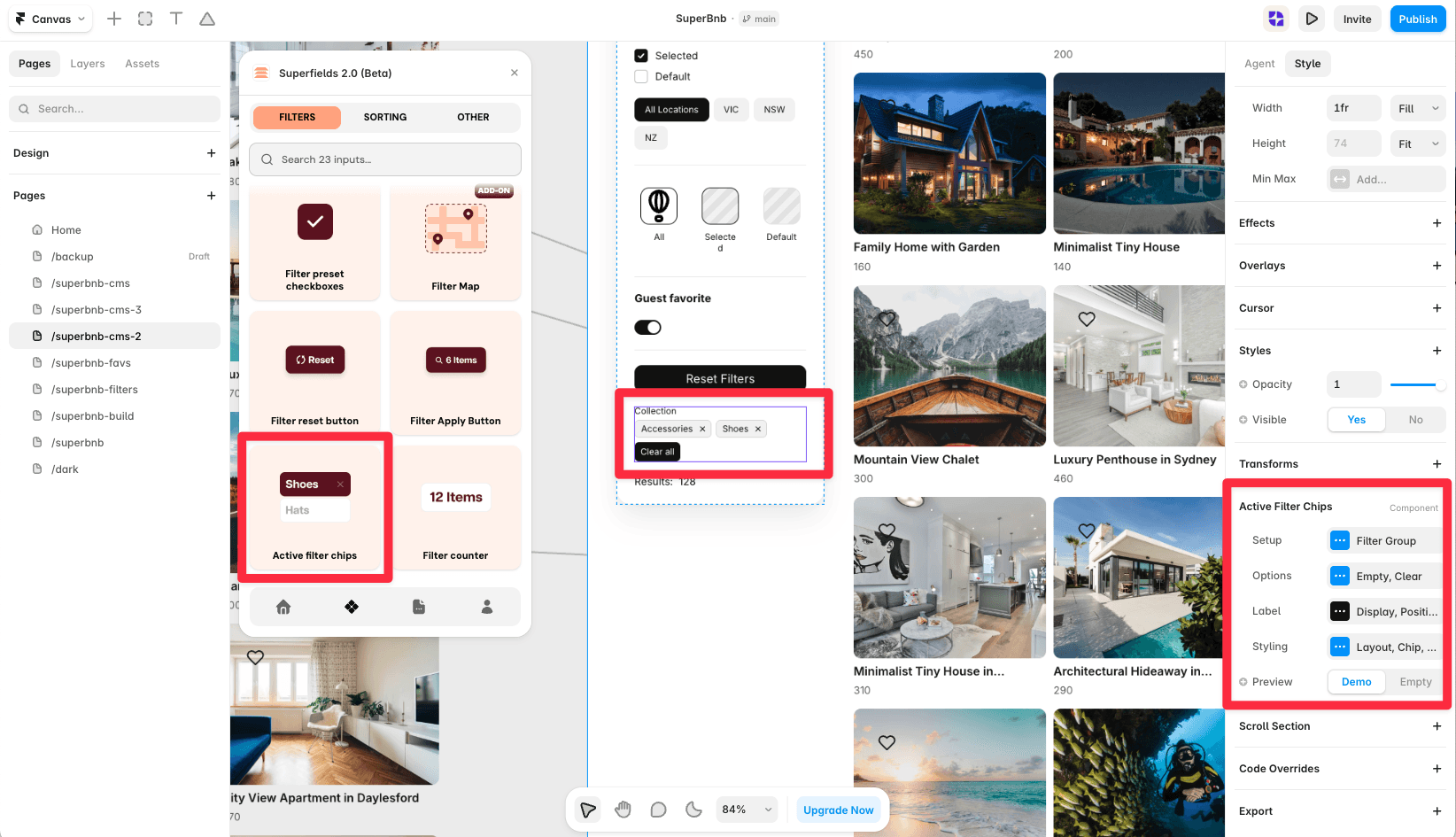
Open the Superfields plugin and go to Components, then the Filters tab.
Drag Active Filter Chips onto your page, inside your filters layout.
Open the component's Setup from the
...menu.
Setup
ID Filter Group - must match your Superfields Collection and other filter controls.
Options
Empty - hide the component, or show text (default "No active filters") when nothing is active.
Clear All - show a clear-all control, with your own Clear Text.
Range Sep. - the separator shown for range chips (e.g. "0 - 250").
Label - show or hide the field-name label on each chip, and position it inside or above the chip.

Styling
Style the Layout, Chip (with default and hover states), the Remove icon, the Clear All control and the Empty text.
And that's it - clear, tappable feedback on active filters.


