setup
COMPONENTS
INTEGRATIONS
FAQ
Filter Reset Button - Superfields for Framer
Filter Reset Button gives visitors a quick way to clear what they've selected and start over. It automatically disables itself when there's nothing to reset.
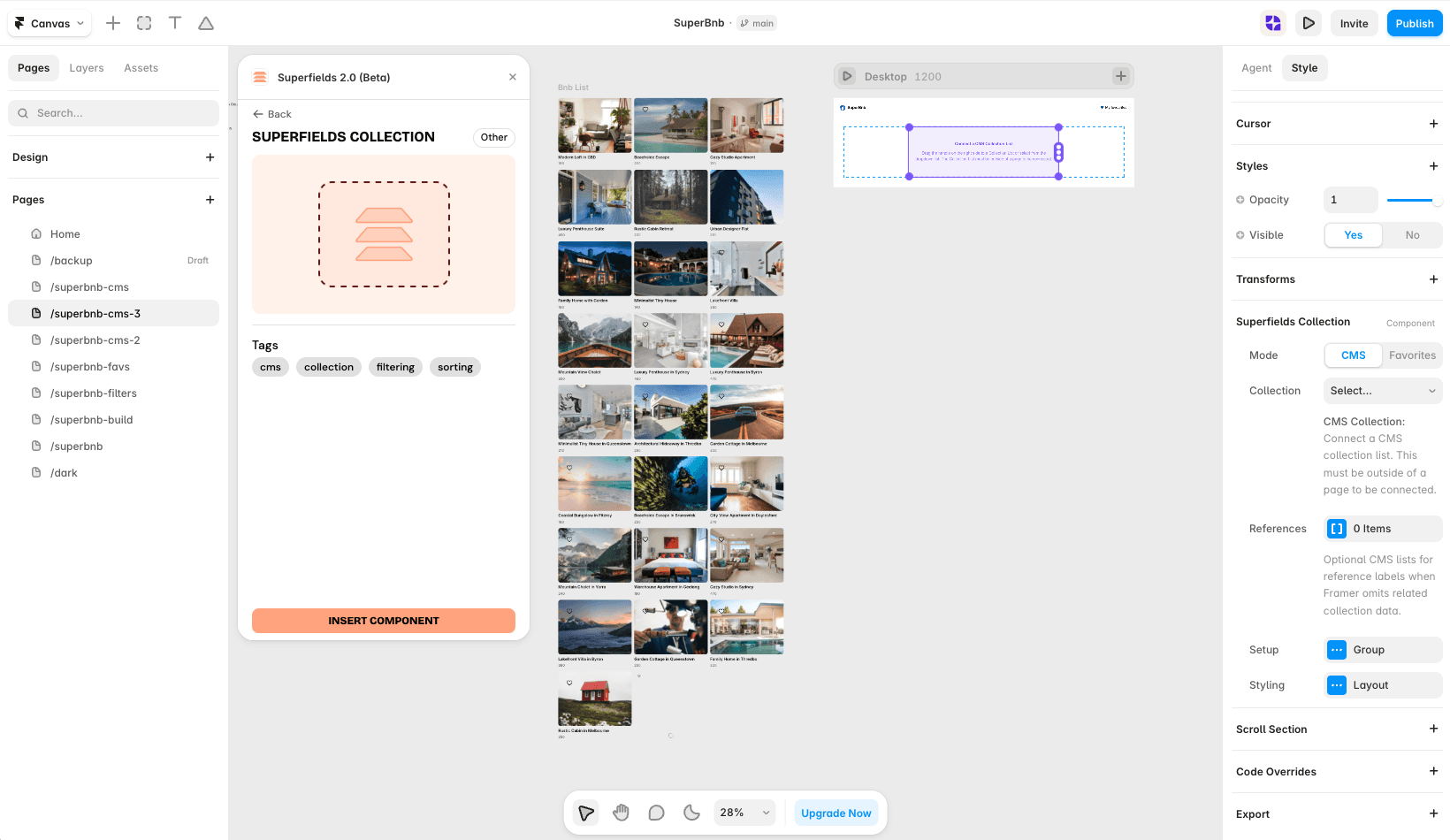
Before you start: every input works together with the Superfields Collection - the main component that connects your CMS and renders the results. Add and connect that first (see Getting Started with Superfields), then give this input the same ID Filter Group as your collection.
Where to use it
Airbnb-style rentals: let guests clear a narrow search that returned nothing.
Online store: clear all applied facets in one tap.
Directory: pair it with Active Filter Chips so people can unwind a search quickly.
Worth adding to almost any filtered listing - it disables itself when there's nothing to clear.
Add Filter Reset Button
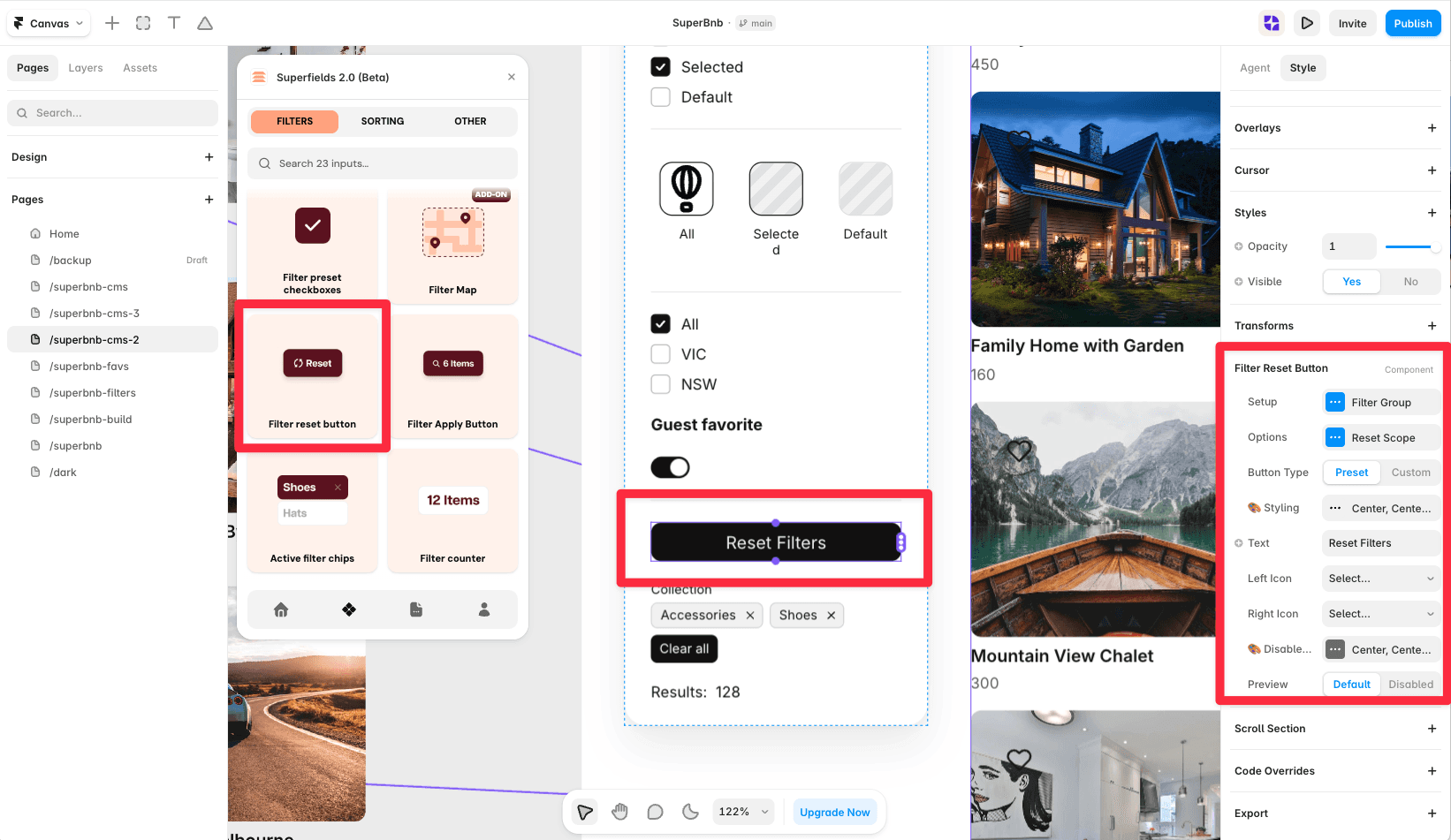
Open the Superfields plugin and go to Components, then the Filters tab.
Drag Filter Reset Button onto your page, inside your filters layout.
Open the component's Setup from the
...menu.
Setup
ID Filter Group - must match your Superfields Collection and other filter controls.
Options
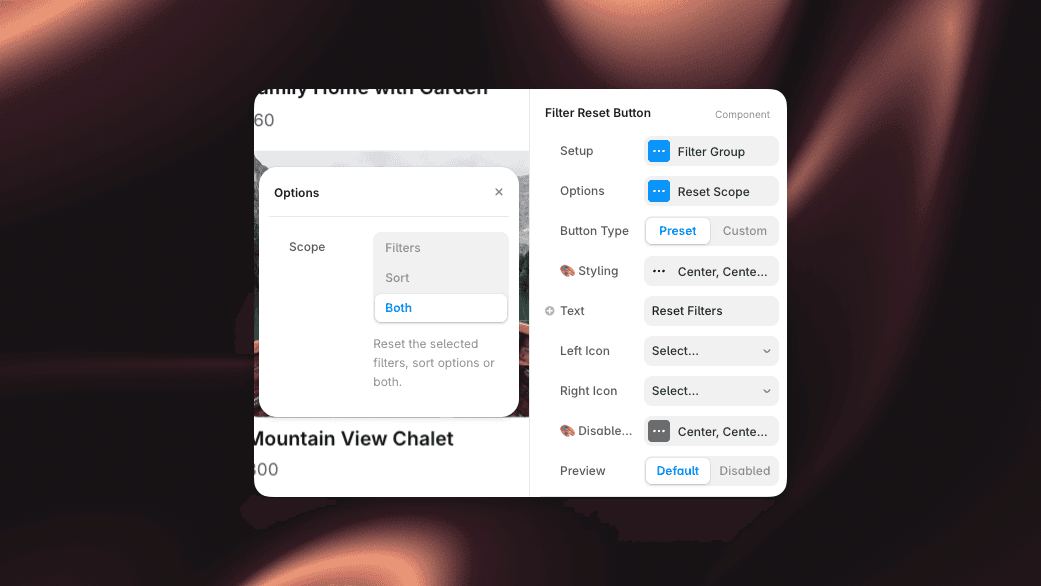
Reset Scope - clear Filters, Sort, or Both.
Appearance
Button Type - use the built-in Preset button or bring your own Custom styling.
Text - the button label (default "Reset Filters"), plus optional left/right icons.
Styling - full control over the enabled and disabled states (align, padding, border, radius, colours, shadow, hover and tap scale).
And that's it - an easy way to start fresh.


