setup
COMPONENTS
INTEGRATIONS
FAQ
Filter Apply Button - Superfields for Framer
Filter Apply Button lets visitors set several filters and then apply them together, rather than updating the collection with every change. It's the companion to the Apply Button Click option found in each filter's Setup.
Before you start: every input works together with the Superfields Collection - the main component that connects your CMS and renders the results. Add and connect that first (see Getting Started with Superfields), then give this input the same ID Filter Group as your collection.
Where to use it
Airbnb-style rentals: a mobile filter sheet where guests set several filters, then tap "Show 120 stays".
Large online store: heavy catalogues where you don't want a new query on every click.
Map searches: apply once instead of re-querying on every pan and zoom.
Best when you want visitors to build up a search before it runs.
How it works
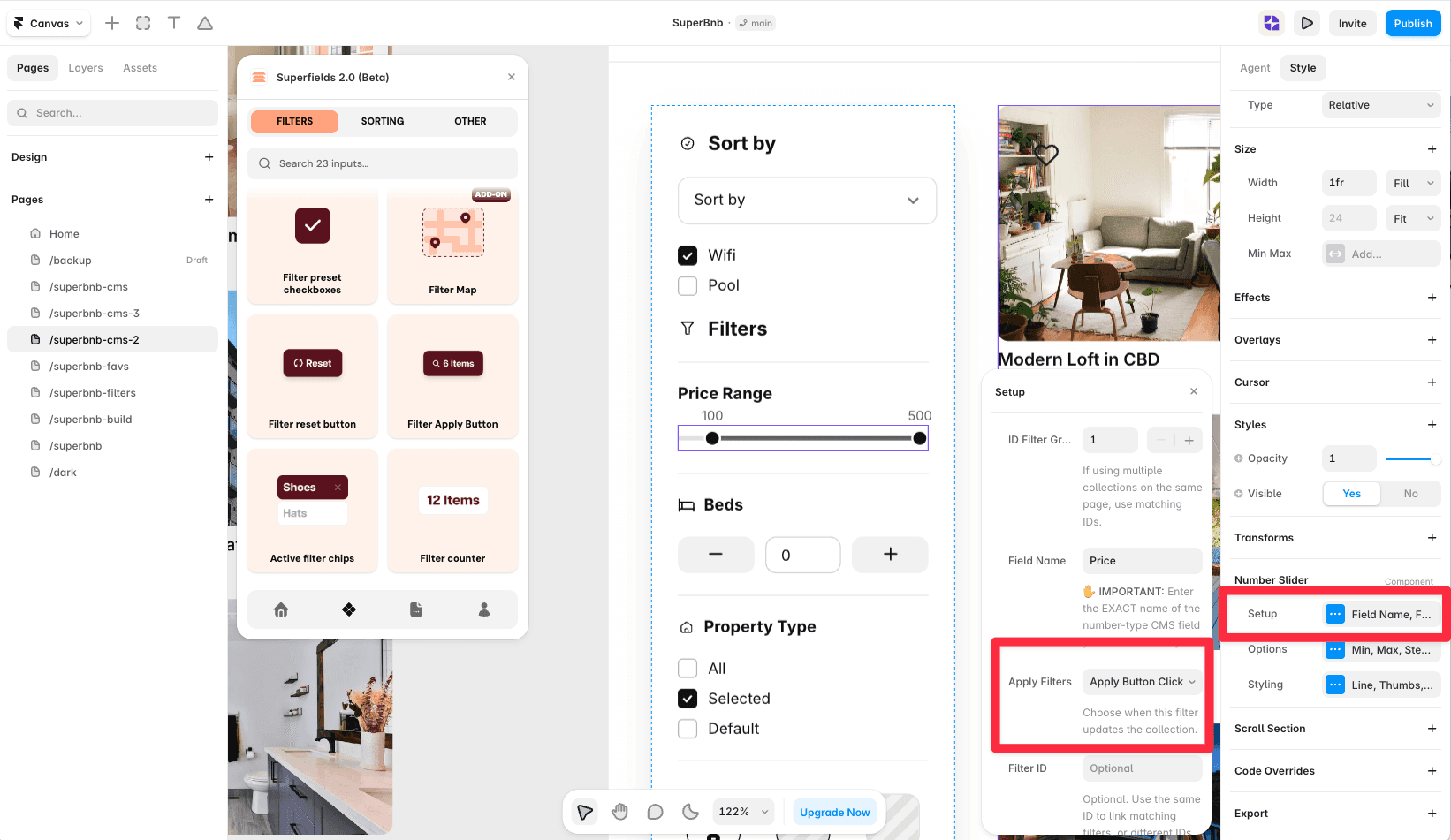
On each filter you want to batch, open Setup and set Apply Filters to Apply Button Click.
Add the Filter Apply Button to your filters layout and give it the same ID Filter Group as your collection.
Now the collection only updates when a visitor presses the button - handy for heavier queries or map-based filtering.
Add Filter Apply Button
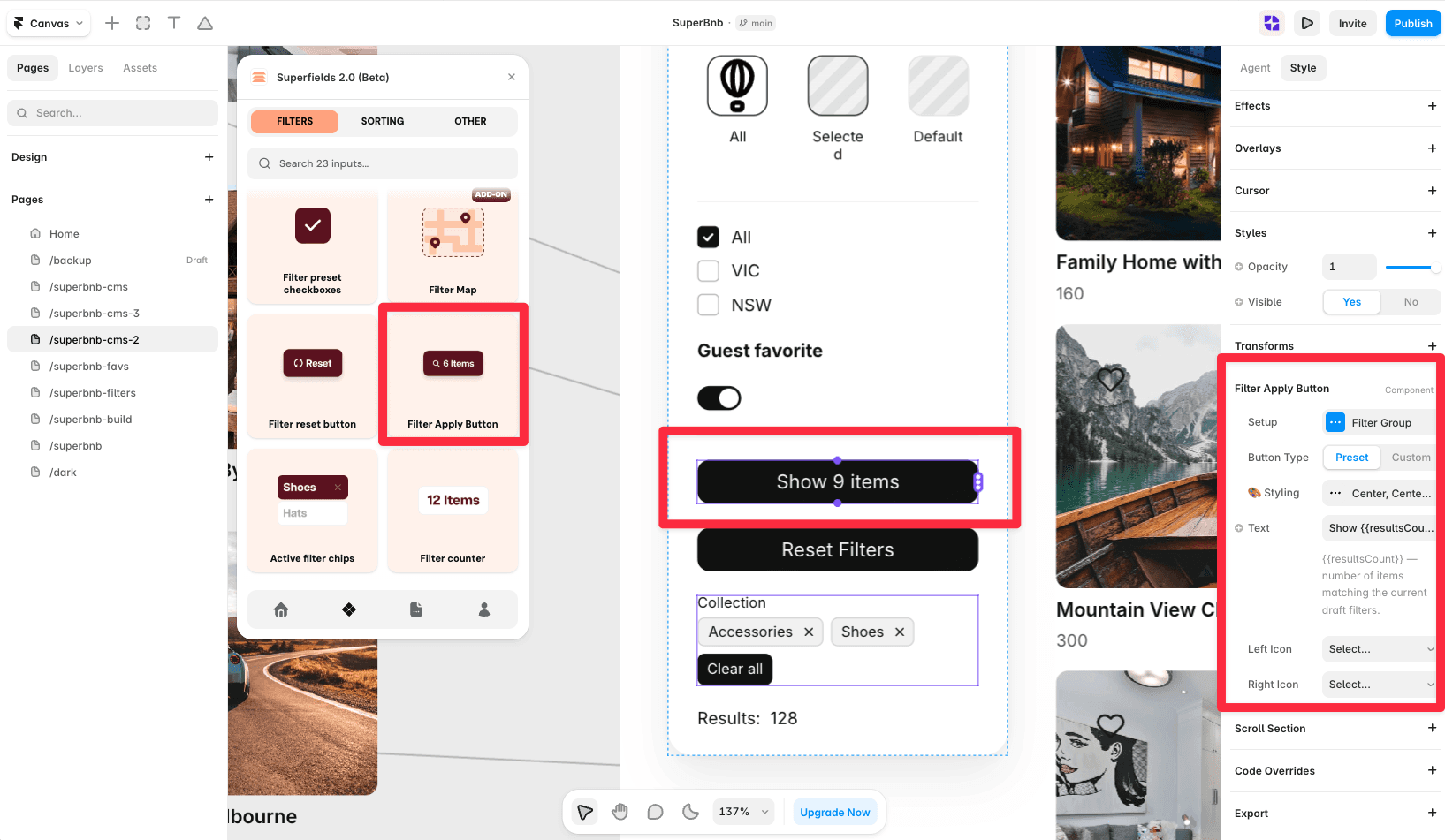
Open the Superfields plugin and go to Components, then the Filters tab.
Drag Filter Apply Button onto your page, inside your filters layout.
Set its ID Filter Group to match your collection.
And that's it - controlled, apply-on-click filtering.


