setup
COMPONENTS
INTEGRATIONS
FAQ
How to Filter Multi-Reference Fields in Framer with Superfields
References let visitors filter your collection by a linked collection - like filtering articles by their category, or rentals by their linked amenities. In Superfields 2.0 this is built right into the filter setup. No special component, no workaround.
Before you start: reference filtering runs on the option-style filters - Filter Checkboxes, Filter Dropdown, Filter Buttons and Filter Image Buttons - and they attach to your Superfields Collection like any other filter. If you haven't set that up yet, follow Getting Started with Superfields first.
Reference vs multi-reference
A reference field links each item to one item in another collection.
A multi-reference field links each item to several.
Superfields filters both, the same way.
Set it up
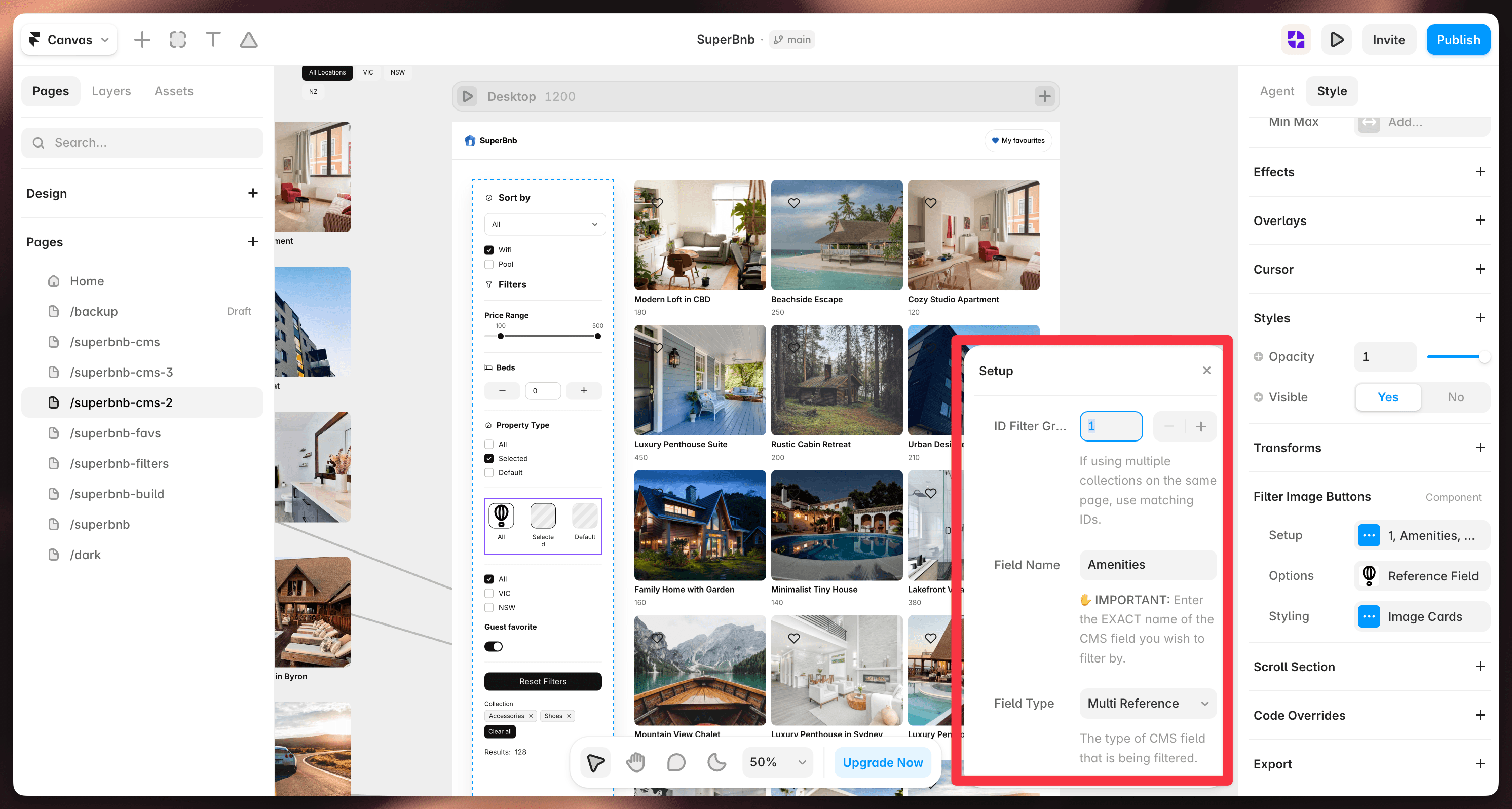
Add your filter (Checkboxes, Dropdown, Buttons or Image Buttons) and open Setup from the
...menu.ID Filter Group - match your Superfields Collection, so they act on the same results.
Field Name - the exact name of your reference or multi-reference field, for example
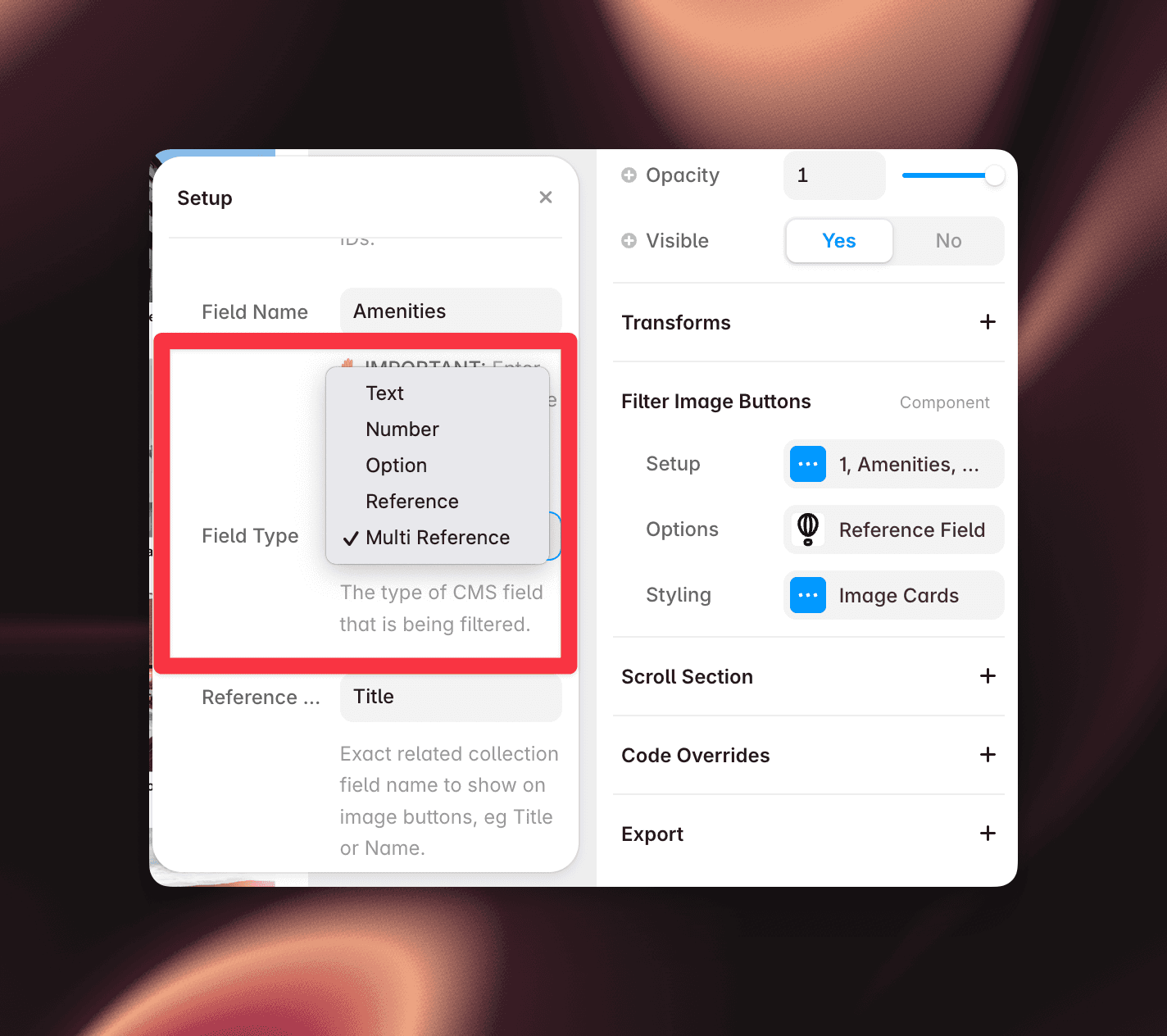
TagsorAmenities.Field Type - choose Reference or Multi Reference. That's the whole trick.
Reference Field - the field from the linked collection to show and match on, usually
Title.
Make the linked collection available
Superfields needs the linked collection on hand to read its values.
On your Superfields Collection, add the linked collection under References, or
Nest the referenced CMS list inside your off-canvas collection list (keep it visible, or set its height to 1 to tuck it away).
If a reference filter comes up empty, this is almost always why - the linked collection isn't connected.
Preview
Preview your site, and the filter now shows the linked values and filters your collection by them.
And that's it - reference and multi-reference filtering, without the old workarounds.


